
Edit Mode
Edit Mode lets you edit text that's already on the screen with your voice. Select text in a compatible text field, hold your Aqua Voice key, and say the change you want. Aqua rewrites the selection in place.
How it works
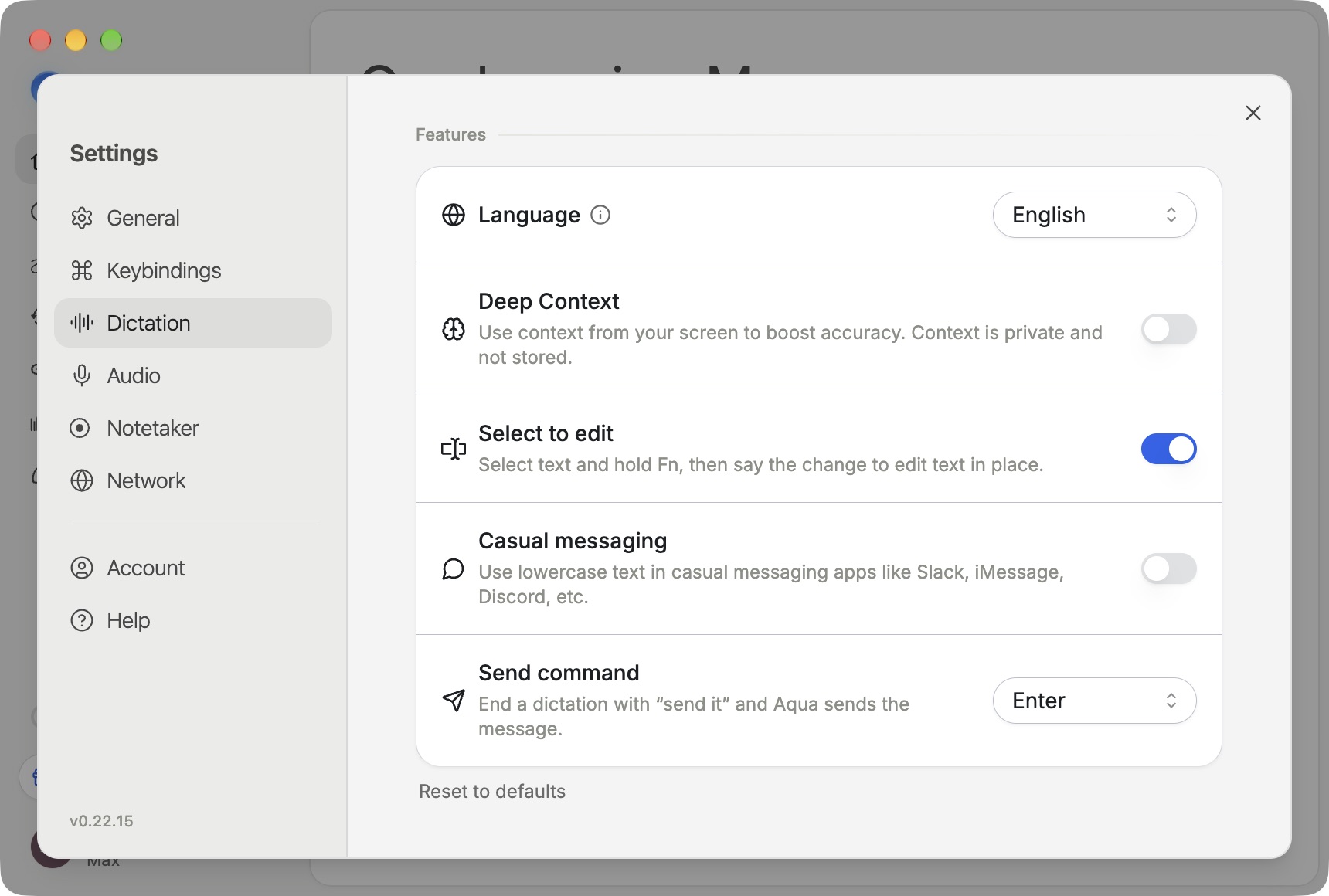
Select to edit is on by default. Check it in Settings → Dictation and use your usual activation key.
- Select text in an editable field.
- Hold your usual Aqua key.
- Say the change, then release.
If you hold the key with nothing selected, you get normal dictation, exactly as before. If you hold it with a selection, Aqua switches into Edit Mode automatically and a small chip appears above the pill telling you what it's holding (e.g. "12 words selected"). Speak, release, and the selection is replaced.
What you can say
Try instructions like these. The results below are examples.
| You selected | You say | You get |
|---|---|---|
| Great to meet you, Tony! | "It's T - O - N - I" | Great to meet you, Toni! |
| See you tomorrow! | "Translate to Japanese" | また明日! |
| Revenue hit 10 million dollars | "abbreviate" | Revenue hit $10M. |
| i can send that over tomorrow if that works for you | "Fix the grammar" | I can send that over tomorrow if that works for you. |
| Thank you very much for taking the time to review this in such detail. | "Make it shorter" | Thanks for reviewing this so carefully. |
| The meeting is at 5pm on Thursday. | "Change 5pm to 6pm" | The meeting is at 6pm on Thursday. |
| very very | "Delete that" | (deleted) |
You don't need command words. If what you say is clearly a corrected version of what you selected, Aqua treats it as the replacement. Select "Hey John, let's meet on Tuesday.", say "Hey John, let's meet on Monday.", and you get the Monday version, no "change it to," no "replace with."
Keep refining the current text. Select the revised text and say the next change. Each desktop edit works from your current selection; Aqua does not keep a chain of earlier versions for spoken undo commands such as "undo that" or "go back to the original." To reverse an edit, use the app's own Undo control where supported, or restore the earlier text yourself.
Where it works
Edit Mode needs the destination app to expose the selected text to Aqua Voice. It can work in native text fields, browser editors, chat, email, and note apps. Try a short selection in your destination app first.
Two deliberate exclusions:
- Search fields and browser address bars. Selecting a URL in your address bar and dictating should type a query, not rewrite the URL, so Aqua stays in normal dictation there.
- Selections over 6,000 characters. Select a whole document and Aqua will dictate rather than try to rewrite it.
Try it in the app
Open Settings → Dictation and check Select to edit. In a new note, select a sentence, hold your activation key, and ask for a change. Review the result before using it.
Edit Mode and your History
Completed edits can include the original selection, result, and recognized speech in History. Available details depend on the saved session. Privacy Mode limits server retention. Recent local history can still be present on the recording device.
Aqua dictated instead of editing. What should I do?
- Check that Select to edit is on in Settings → Dictation.
- Make sure the text was still selected when you pressed your Aqua key. Clicking elsewhere first clears the selection.
- Search fields and browser address bars always use normal dictation (see above).
- Selections longer than 6,000 characters fall back to dictation.
For more on the feature, see the announcement post.