

SCIM Provisioning
SCIM lets your identity provider provision and deprovision workspace members. Aqua Voice supports providers with generic SCIM, including Okta and Microsoft Entra. Open Business → SCIM with a workspace owner or admin account.
Connect provisioning
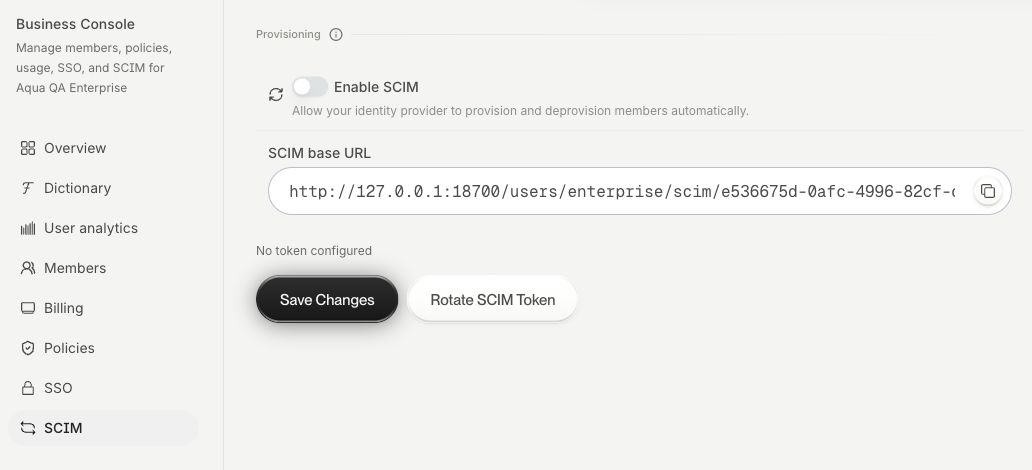
- Turn on Enable SCIM and choose Save Changes.
- Copy the SCIM base URL shown for your workspace.
- Choose Rotate SCIM Token to create a bearer token. Copy it while it is displayed and enter it in your provider's SCIM configuration with the base URL.
- Assign a test member through the provider and run its provisioning test or sync.
- Open Business → Members and confirm that the expected member appears. Verify deprovisioning with the test member before applying the assignment to the rest of the team.
Maintain the connection
Token configured confirms that the workspace has a token. A new token is shown only when created. Rotating it replaces the token your provider uses, so update the provider when you rotate it.
Use Business → Members to check membership and roles. Single Sign-On explains the separate SAML sign-in setup.
Troubleshoot provisioning
Check that SCIM is enabled and saved, the base URL matches the workspace, and the provider uses the latest bearer token. Check the provider's user assignments and provisioning logs for the failed operation.
For support, include the workspace name, provider, operation, time, and error code. Keep bearer tokens out of the support message. Contact support