

Aqua Pen
Aqua Pen lets you draw on your screen and capture the marked area. Use it with dictation, add visual context to a meeting, or copy a screenshot to another app. Pen is available in the desktop app on Mac and Windows. For an overview, see the Aqua Pen page.
Set up Pen
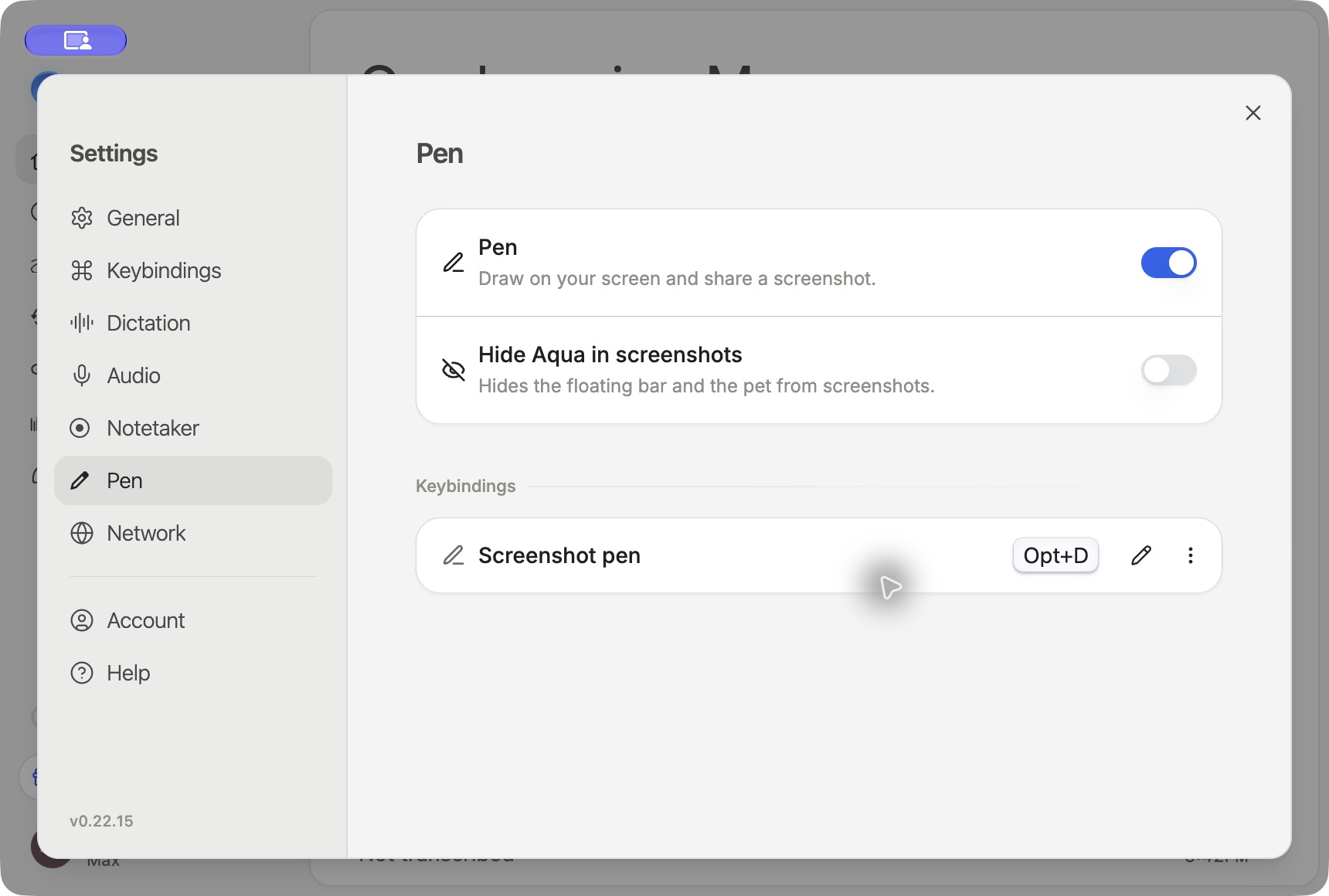
- Open Settings → Pen and turn on Pen.
- Under Keybindings, set Screenshot pen to the shortcut you want to use. The setup flow can suggest an available shortcut.
- On Mac, allow Aqua Voice to use Screen Recording when prompted. Follow the relaunch prompt if macOS requires it.
You can also choose Set up pen when Aqua offers the walkthrough. In Pen settings, Hide Aqua in screenshots hides the floating bar and pet from your captures.
Draw and capture
Press your Screenshot pen shortcut, or hover over the floating bar or your pet and click the pen. Draw around the content you want to show. Aqua takes the screenshot when you stop drawing, including your marks and the surrounding window context.
Press Esc or your Pen shortcut again to put the pen away. Pick it up again for another screenshot.
Add an image to your dictation
Start dictating into an app that accepts images, then pick up Pen and mark what you are describing. When you finish dictating, Aqua pastes the screenshot after your words where the destination supports image pasting.
The screenshot tray lets you open a capture, drag its file into another app, or remove it from the current dictation. Removing a capture from the tray keeps a local copy. If the destination cannot accept the image, you can use the saved capture from History.
Add screenshots to a meeting
While Notetaker is recording, pick up Pen and mark a slide, chart, or other detail. Aqua saves the capture with the meeting at the time you took it. You can return to it alongside the meeting's transcript and notes.
If you dictate while a meeting is recording, Pen attaches the capture to the active dictation. Finish dictating before taking a screenshot intended for the meeting.
Take a standalone screenshot
Use Pen while neither dictation nor a meeting is recording. Aqua copies the latest capture to your clipboard and saves a local copy. Paste it into an app that accepts images or find it in History.
Understand what is saved
Dictation screenshots have local copies and can be stored with account history when Privacy Mode is off. With Privacy Mode on, Aqua skips uploading those dictation screenshots. Meeting screenshots are stored with the meeting, including when Privacy Mode is on, and are included in access you grant to the meeting.
See Privacy Mode and Zero Data Retention for the data controls that apply to your account or workspace.