Aqua Voice supports multiple activation keys for dictation, so that you can adapt it to your setup. Follow this step-by-step guide.
This is especially helpful if you have multiple keyboard setups or often switch between using your laptop in clamshell mode with monitors versus just the built-in keyboard.
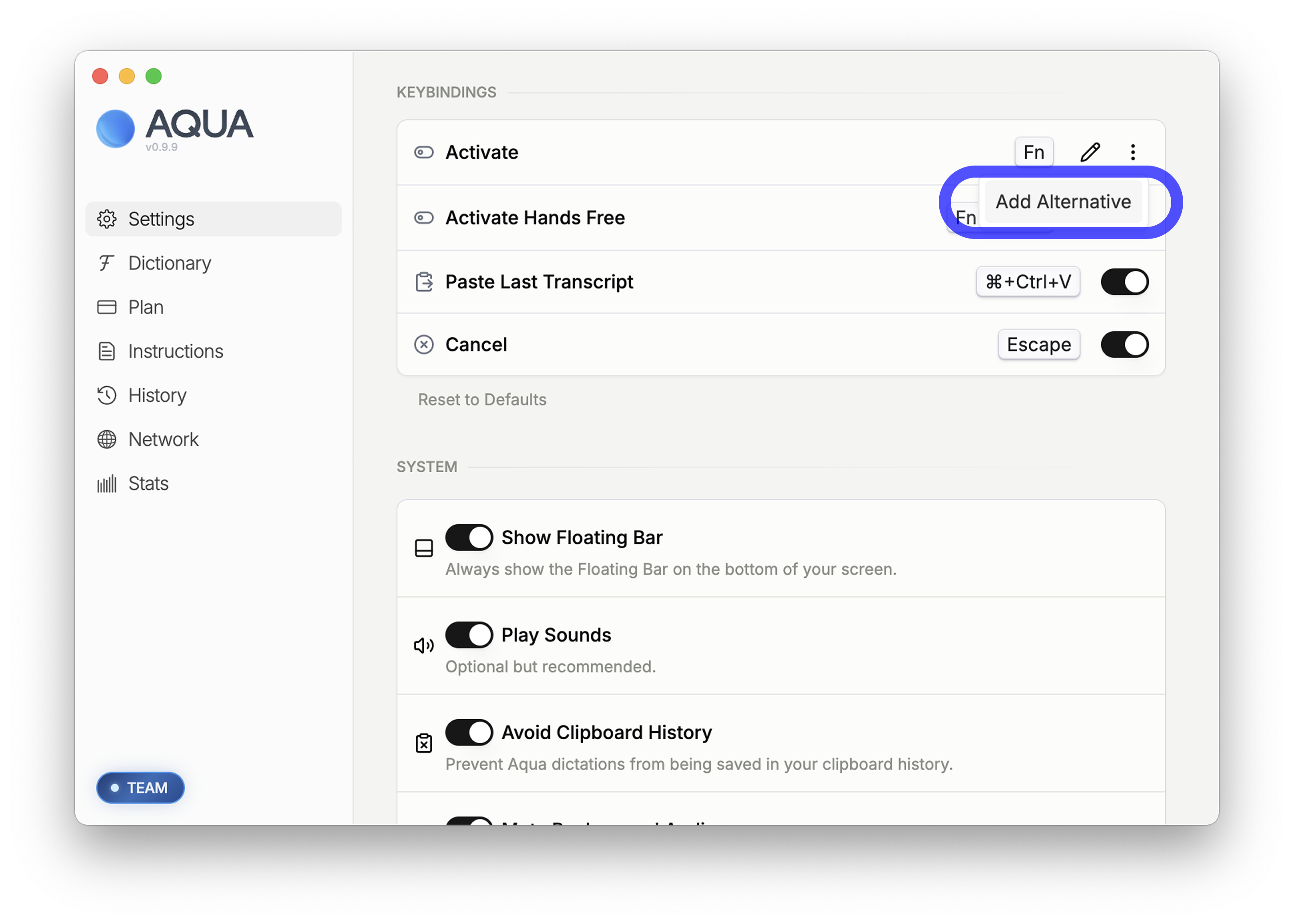
In Aqua Voice Settings, scroll to the Keybindings section and choose Add Alternative.
Press your desired key combination. Combinations of up to five keys are supported.
Common alt bindings include the function keys (F1-F12) and Numpad keys (+).
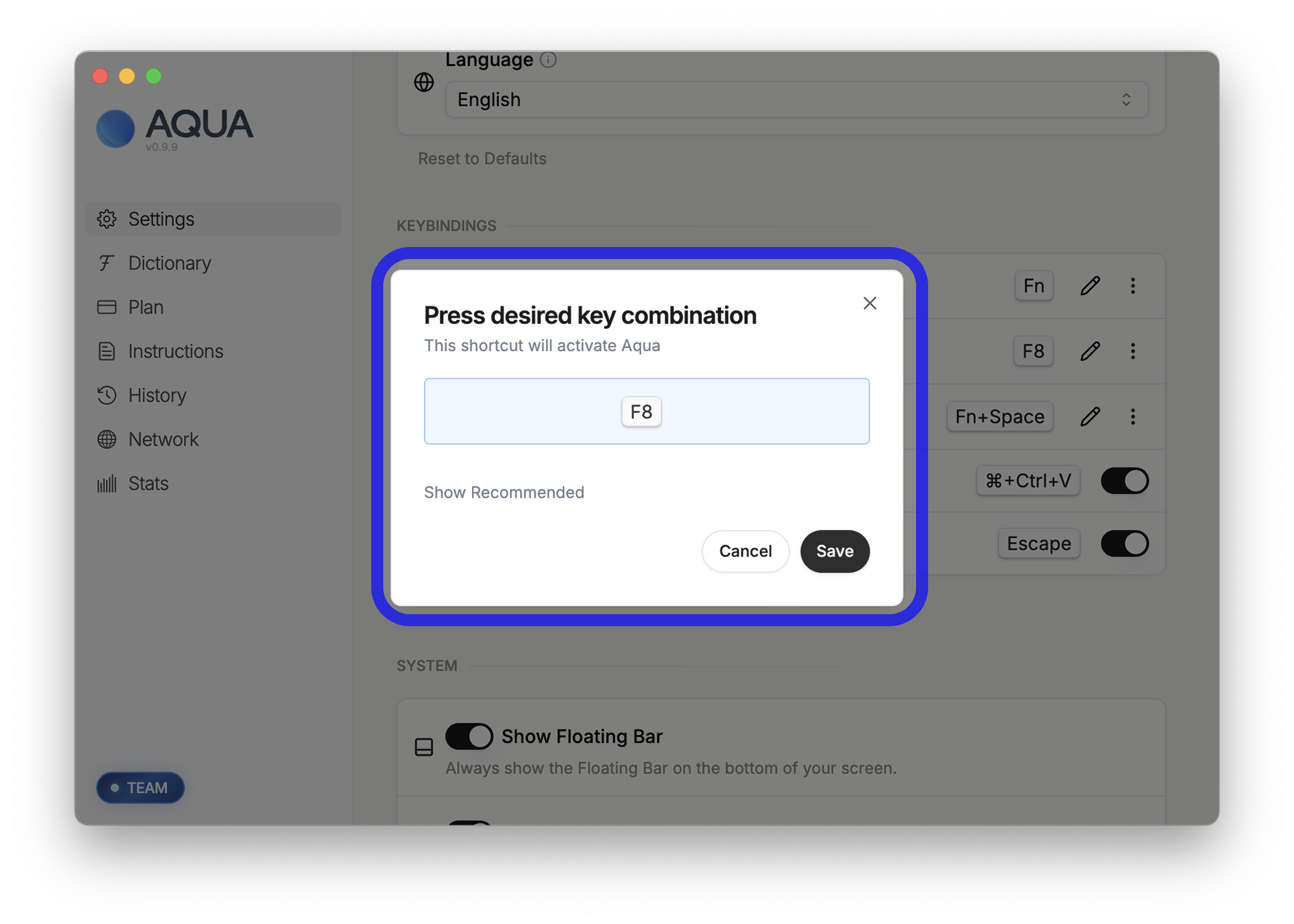
Click Save and you're all set. The new key combination is live.
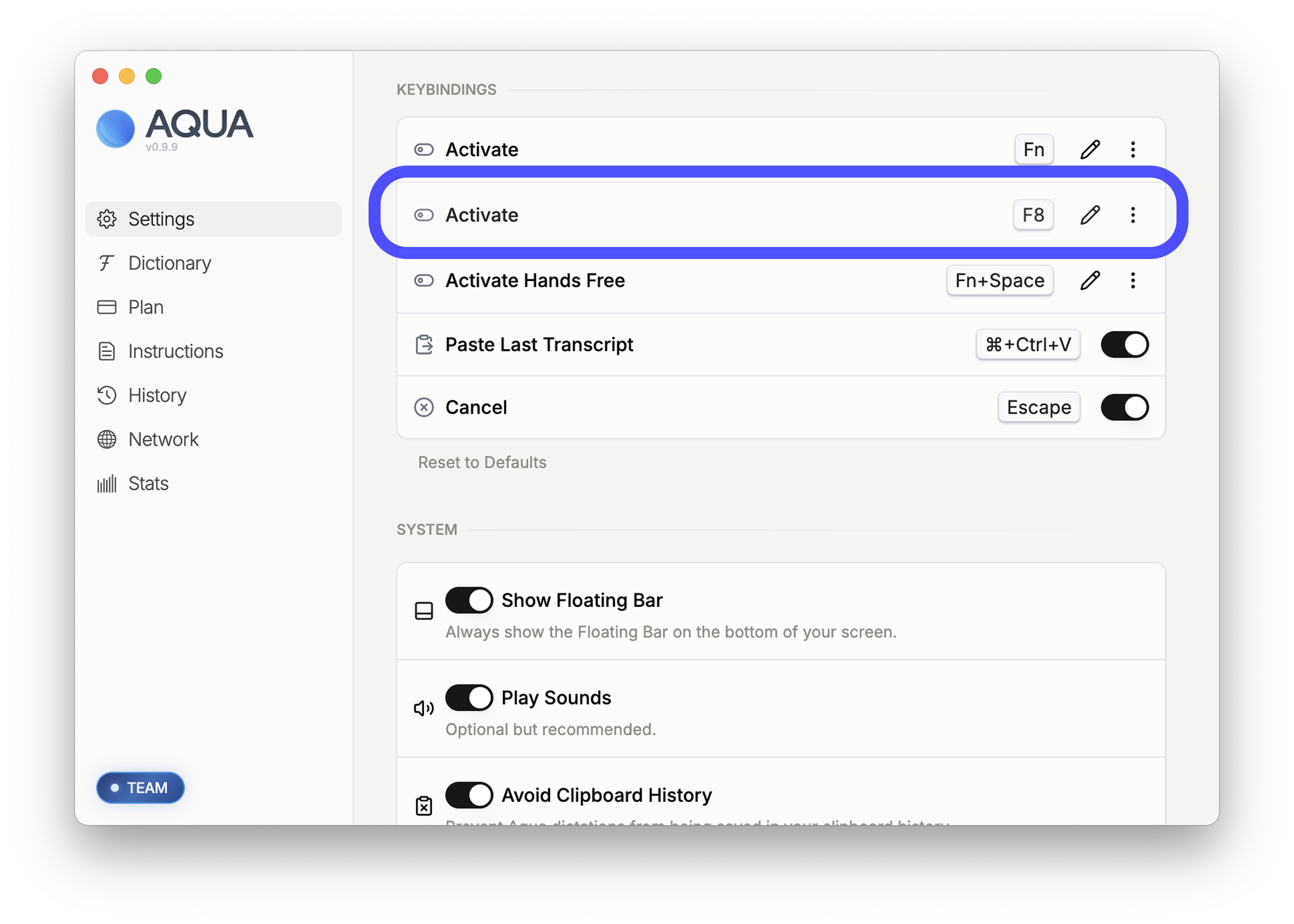
To change the hotkey click the pencil icon.
To remove the alternate, click the dots icon and choose Delete.
Aqua Voice supports up to 5 activation keys per action.
No, key bindings are device specific and are not synced.
Yes, to use the Fn key in a chord with other keys, click the pencil, click Show Recommended, and click the Fn option from the list of suggestions. Then press the rest of your combination and click Save.
If you need to reset your key bindings, click Reset to Defaults in Settings.
First, check if the key combination is being used by another application or system shortcut. You can test this by trying the key combination in different apps.
If it still doesn't work, try removing and re-adding the activation key in Aqua Voice Settings.
On macOS and Windows, Aqua Voice shortcuts will take priority over System shortcuts.
Click the pencil to open the shortcut dialog, and press the keys individually, then press Save. This avoids activating spotlight when binding. Once bound the shortcut will have priority over the spotlight shortcut.

