

MCP documentation
Connect an AI app to your Aqua Voice meetings, stored dictations, and customizations through the Model Context Protocol, or MCP.
Connect an AI app
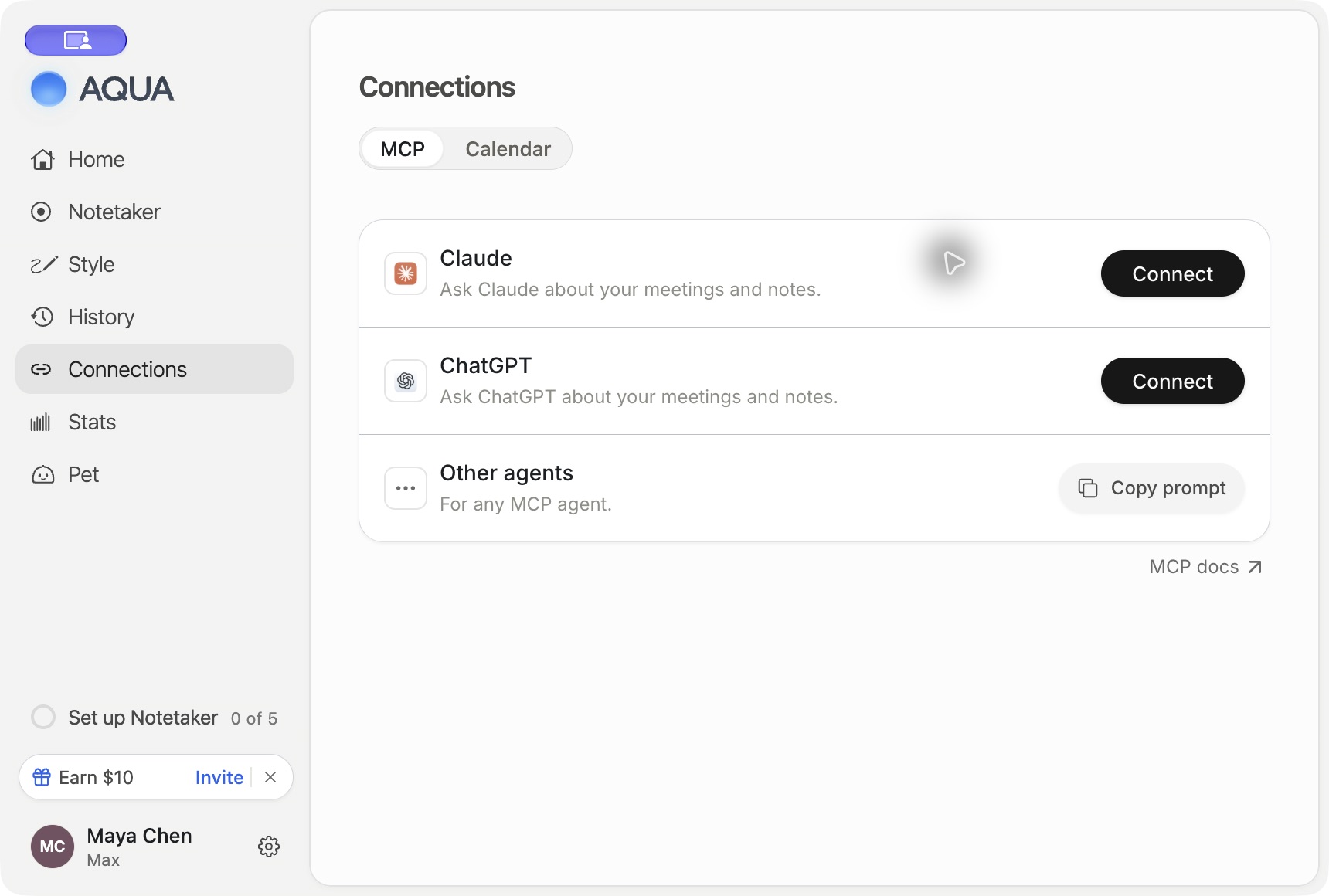
On desktop, open Connections → MCP in Aqua Voice and choose the app you want to connect. Aqua Voice opens its listing for Claude or ChatGPT. Sign in with the Aqua Voice account that holds your meetings and dictations, approve the requested access, and enable Aqua Voice in your conversation.
For another client that supports remote MCP, add this server URL in the client's MCP configuration and complete the sign-in flow.
https://api.aquavoice.com/mcp
Your AI app may have its own plan or workspace requirements for connectors. Follow the setup flow shown by that app.
Try a request
- “Find my meetings with Alex from last week and summarize the decisions.”
- “Read meeting 42 and list the next steps with their owners.”
- “Show me the screenshot from the part of that meeting about the launch.”
- “Find my recent dictation about the launch email.”
- “Add Kubernetes to my dictionary.”
Meeting lookup accepts a meeting number, Aqua Voice meeting link, share link, or meeting ID. The connected account must have access to the meeting. Dictation search can return only content that Aqua Voice stored.
Understand permissions
MCP starts by requesting read access. Actions that change data also require write. Some clients request both together. Review the scope shown during sign-in.
Read access lets the client retrieve available meetings, screenshots, dictations, and settings. Write access can change customizations and settings, send feedback, manage meeting sharing and folders, and delete or restore meetings. Invitations and sharing changes can give other people access to meeting content.
Remove the connection from your AI app's connector settings when you no longer want to use it. The app's permissions and the access your Aqua Voice account has to each meeting both apply.
Available tools
The catalog below uses the same tool list as the Aqua MCP overview.
Read tools
aqua_get_me- Get Aqua identity
aqua_list_meetings- List or search Aqua meetings
aqua_read_meeting- Read an Aqua meeting
aqua_get_meeting_screenshot- Get an Aqua meeting screenshot
aqua_list_shared_meetings- List Aqua meetings shared with the user
aqua_get_meeting_share- Get the share link of an Aqua meeting
aqua_list_meeting_folders- List Aqua meeting folders
aqua_list_people- List Aqua meeting people
aqua_list_dictations- List or search Aqua dictations
aqua_get_dictation- Get an Aqua dictation
aqua_get_dictation_screenshot- Get an Aqua dictation screenshot
aqua_get_customizations- Get transcript customizations
aqua_get_settings- Get Aqua settings
Write tools
aqua_update_customizations- Update transcript customizations
aqua_update_settings- Update Aqua settings
aqua_send_dictation_feedback- Send dictation feedback
aqua_clear_dictation_feedback- Clear dictation feedback
aqua_invite_to_meeting- Invite people to an Aqua meeting
aqua_remove_meeting_invite- Remove an invite to an Aqua meeting
aqua_update_meeting_share- Change who can open an Aqua meeting link
aqua_create_meeting_folder- Create an Aqua meeting folder
aqua_rename_meeting_folder- Rename an Aqua meeting folder
aqua_delete_meeting_folder- Delete an Aqua meeting folder
aqua_add_meeting_to_folder- Add an Aqua meeting to a folder
aqua_remove_meeting_from_folder- Remove an Aqua meeting from a folder
aqua_delete_meeting- Delete an Aqua meeting
aqua_restore_meeting- Restore an Aqua meeting
Troubleshoot a connection
- Sign-in fails. Check that the client supports remote MCP and that the server URL matches the URL above. Complete the browser sign-in with the intended Aqua Voice account.
- A meeting is missing. Check that it is saved in that account or shared with it. Give the client its meeting link or number.
- Dictation search is empty. Privacy Mode can prevent dictation audio and transcripts from being stored. Try a meeting or a dictation that is available in your account's history.
- A change asks for more permission. The action needs
writeaccess. Review and complete the client's authorization flow for that action. - The app cannot connect. Check the service status and send support the client name and exact error. Contact support.
Read Privacy Mode for retention behavior and Notetaker for meeting sharing. For a custom integration, start with the Developer quickstart.
For calendar setup and the app's connection controls, see Connections and Calendars.