@jamesfong
3 products that have broken into my forever home. And that's not an easy feat for me: @circlebackai, @aquavoice, and @superset_sh
Draw on your screen while you dictate. Your agent gets your words and a screenshot of what you circled.
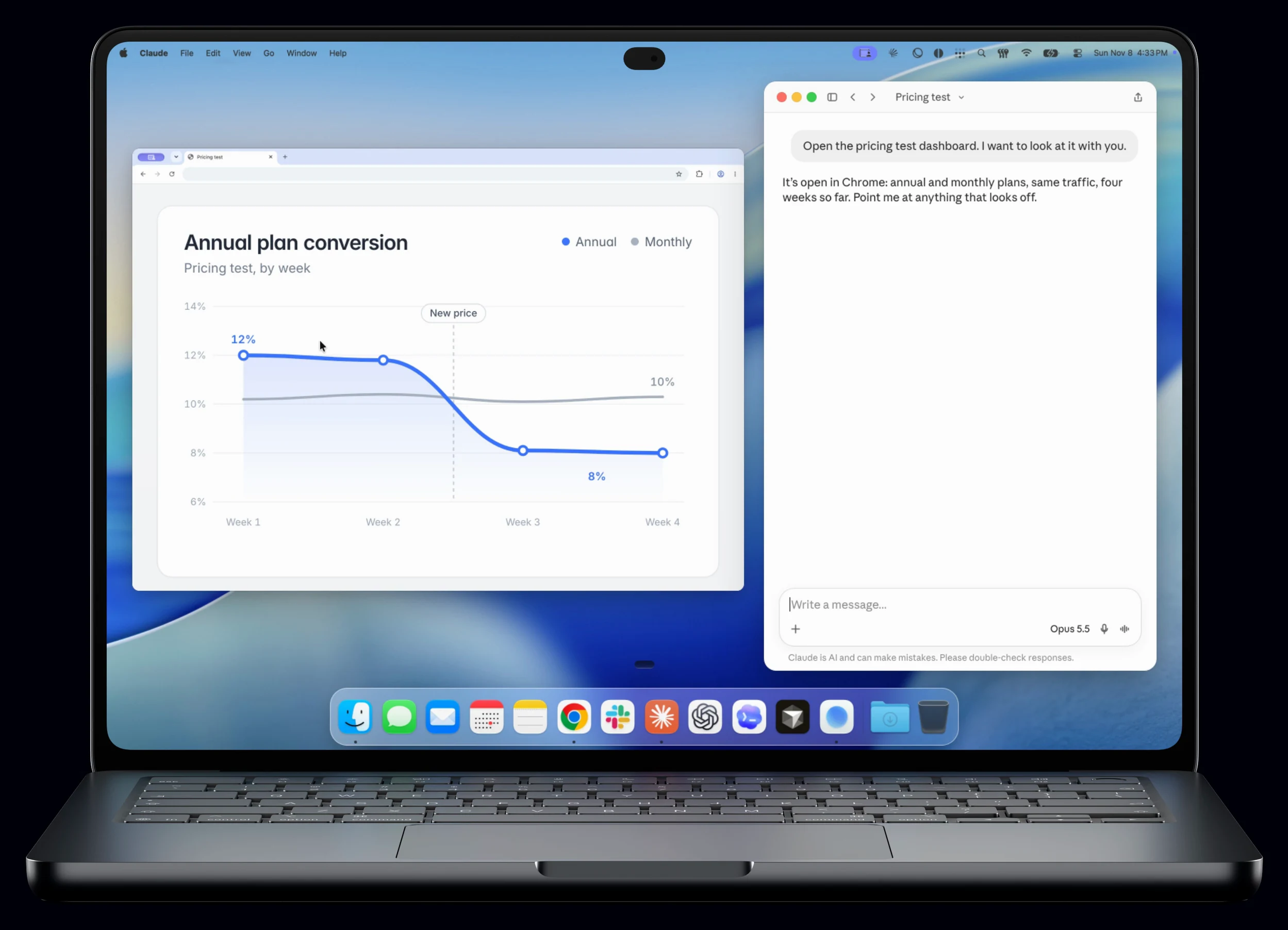
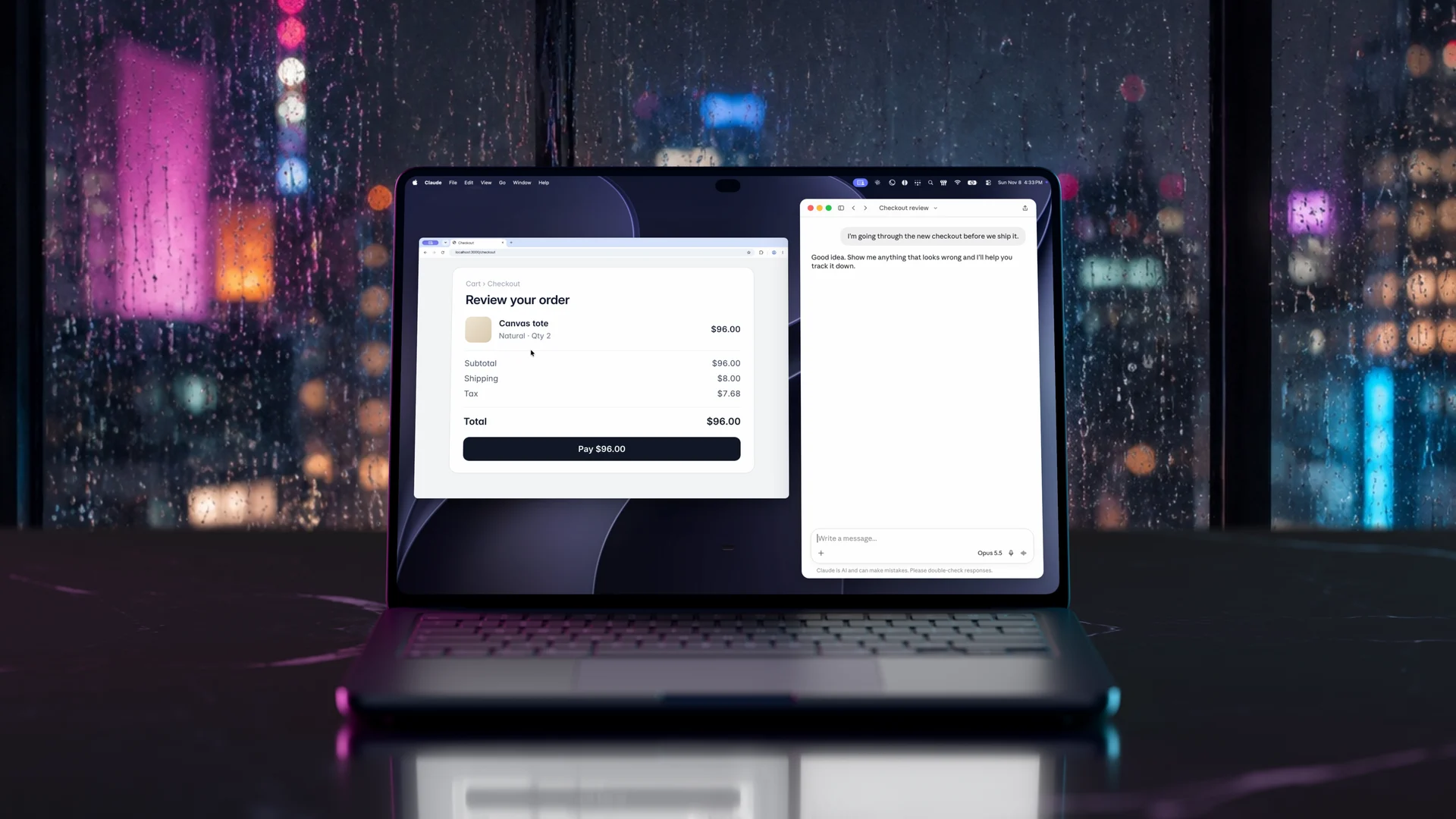
When you talk about your screen, you point. This chart. That button. Right here.
Your agent gets the words and misses the point. It can’t see what “this” means.
Aqua Pen sends both. Circle it while you talk, and the screenshot pastes in after your words.
Words say what. Ink shows where.
 Claude
 ChatGPT
 Cursor
 Codex
 Slack
 Notion
And any other app you dictate into.
Used by people at


Privacy Mode.Recognize speakers within each meeting, without saving voice profiles between meetings.
SOC 2 Type II / ISO 27001.Independent audits of our security practices. Read the reports in our Trust Center.
GDPR / HIPAA.Built for sensitive work. Sign the BAA in the app before using protected health information.
Business controls.Set team-wide privacy policies, Zero Data Retention, and single sign-on in one place.
Aqua Pen is a pen in the Aqua Voice desktop app for Mac and Windows. While you dictate, you draw on your screen to circle what you mean, and Aqua pastes a screenshot of it, with your marks, right after your words. Your AI agent gets what you said and what you were pointing at.
Start dictating into an app that accepts images, such as Claude, ChatGPT, Cursor, or Codex. Press your Screenshot pen shortcut, or click the pen on the Floating Bar or on your Aqua Pet, and draw around what you mean. Aqua takes the screenshot when you stop drawing. When you finish dictating, your words paste in and the screenshot follows them.
Aqua Pen works over any app on your screen, and Aqua pastes the screenshot after your words in any app that accepts pasted images: AI apps such as Claude, ChatGPT, Cursor, and Codex, and apps such as Slack and Notion. If an app does not accept a pasted image, the screenshot stays in the screenshot tray and in History, so you can drag it in. Remote desktop apps that cannot paste an image from your computer, such as Jump Desktop, do not get the screenshot.
Yes, with one step that depends on the terminal. Your dictated words always paste. Aqua also pastes the screenshot after them, but whether a terminal attaches a pasted image depends on the terminal and the tool. If it does not attach, drag the screenshot from the screenshot tray into the terminal; Claude Code accepts images that you drag in.
Aqua Pen is free. It is part of the Aqua Voice desktop app on every plan, including Free, with no add-on to buy.
Aqua Pen works in the Aqua Voice desktop app on Mac and Windows, for everyone. It is not in the iPhone or Android apps, or on Linux.
Open Settings → Pen in Aqua Voice and turn on Pen. Under Keybindings, set your Screenshot pen shortcut; the setup flow can suggest one that is free. On a Mac, allow Aqua Voice to use Screen Recording when macOS asks, and relaunch if it tells you to.
Press Esc, or press your Screenshot pen shortcut again. Pick the pen up again for another screenshot.
Yes. Put the pen away, keep talking, and pick it up again for the next screenshot. Each screenshot goes into the screenshot tray, and they all paste after your words when you finish dictating.
Yes. While you dictate, the screenshot tray shows what you captured. Open a screenshot, drag it into another app, or remove it from the dictation. A screenshot that you remove from the tray keeps its copy on your computer.
Aqua Pen captures the window or windows that your marks touch, with a small margin, and your marks on top. A window counts when it holds at least a tenth of your ink, or most of one stroke. If there is no window under your marks, it captures a box around them, at least 720 by 450 points. It never captures more than the display you drew on.
No. Aqua Pen does nothing until you pick up the pen, and then it takes one screenshot when you stop drawing, of the windows you drew on. It does not record video. macOS asks for Screen Recording permission because that permission covers every app that takes a screenshot.
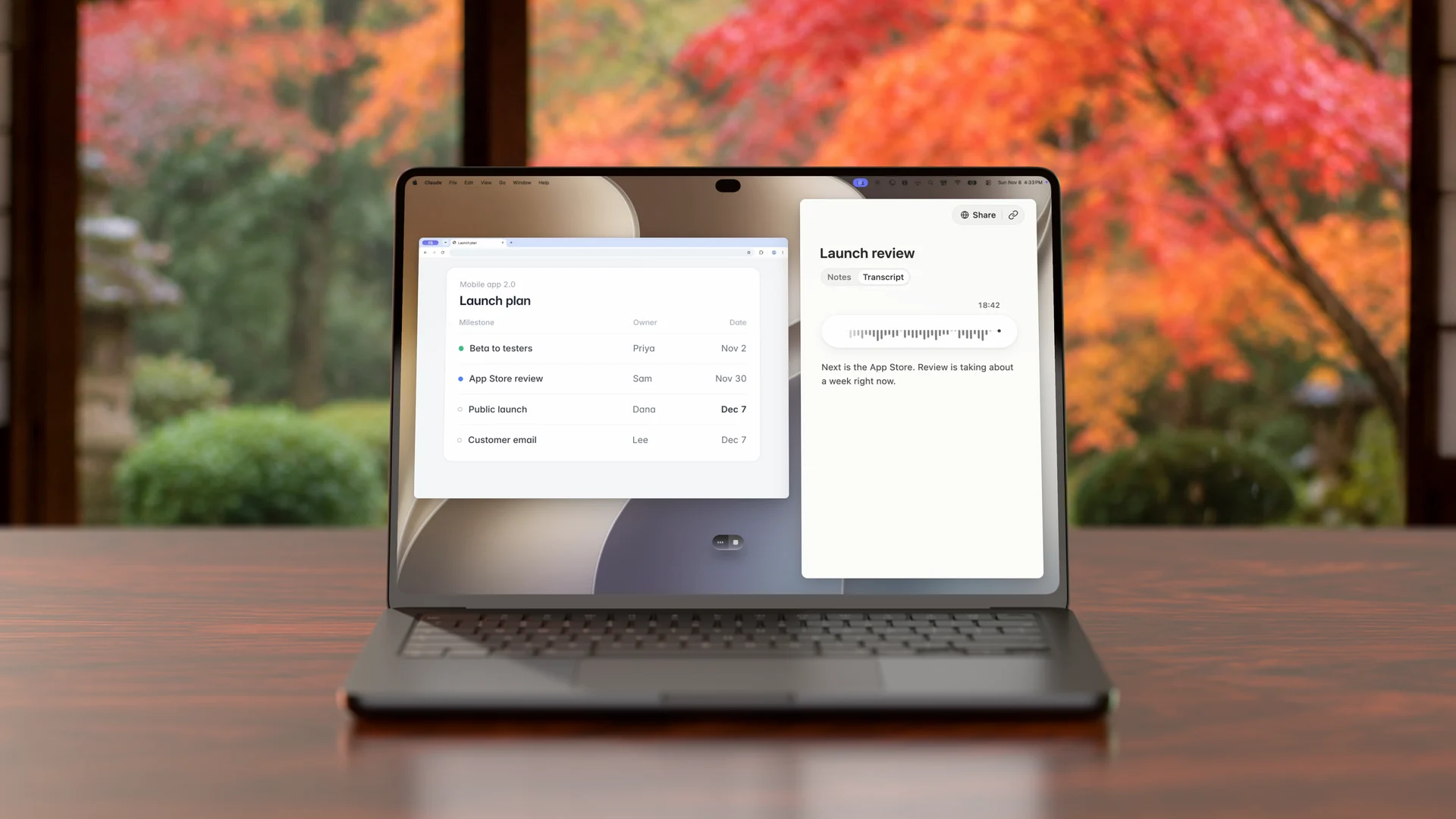
Yes, with Notetaker. While Notetaker records on your computer, pick up the pen and circle a slide, a chart, or a detail on a shared screen. Aqua saves the screenshot with the meeting at the moment you took it: it shows in the transcript right after what was being said, and people you share the meeting with see it there too. If you are dictating at the same time, the screenshot goes with the dictation instead, so finish dictating first when you want it in the meeting.
Yes. Pick up the pen when you are not dictating or recording a meeting, and draw. Aqua copies the screenshot to your clipboard, so you can paste it anywhere, and keeps a copy in History.
Screenshots from your dictations, and screenshots you take on their own, are saved on your computer in Aqua Voice's own app data, and listed in History. The original stays there at full size, up to 2,880 pixels on its long side. With Privacy Mode off, Aqua also stores a smaller copy of each dictation screenshot, up to 1,512 pixels on its long side, with your account history. Meeting screenshots are stored with the meeting.
With Privacy Mode on, Aqua does not upload your dictation screenshots: they stay on your computer. A screenshot taken while Privacy Mode is on is never uploaded, even after you turn Privacy Mode off. Meeting screenshots are stored with the meeting in Privacy Mode too, and the people you give access to the meeting can see them.
Yes, with Aqua MCP. An agent that you connect, such as Claude or ChatGPT, can open the screenshots of a dictation or a meeting along with its text or transcript, with the read permission you grant. A meeting's screenshots come at their times in the transcript. Dictation screenshots taken with Privacy Mode on stay on your computer, so an agent cannot read them.
Deep Context is an optional setting that reads your screen when you start dictating, so Aqua spells names, terms, and code the way they appear; Aqua does not keep that screenshot. Aqua Pen is a screenshot you choose: you circle what you mean, and the screenshot goes to the app with your words and is kept. You can use both together.
With a regular screenshot, you stop talking, take it, find the file, and drag it in. With Aqua Pen you keep talking: you circle what you mean, and the screenshot, with your marks, pastes after your words by itself. Your marks show your agent exactly where to look.
Yes. In Settings → Pen, turn on Hide Aqua in screenshots, and the Floating Bar and your Aqua Pet stay out of your screenshots.
Mac · Windows