

Deep Context
Deep Context uses information from your screen to help Aqua Voice recognize names, technical terms, and the context of what you are writing on desktop.
Turn it on
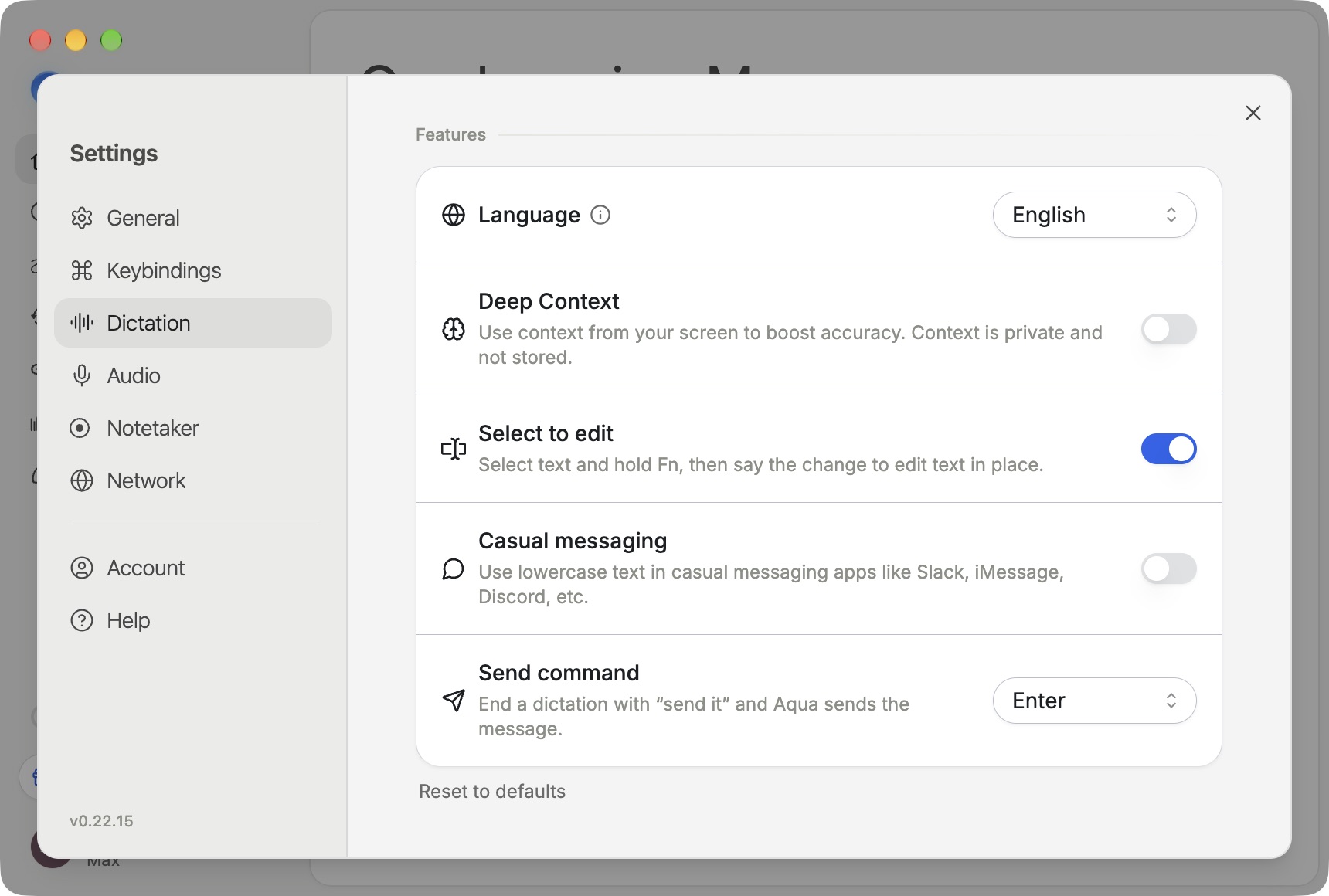
- Open Settings → Dictation.
- Turn on Deep Context.
- Allow screen capture when prompted. On Mac, use Open settings to grant the requested Screen Recording permission. Relaunch Aqua Voice if the system asks you to.
- Return to your work and dictate with the relevant content visible.
Deep Context is off by default. You can turn it off in the same settings. A Business administrator can manage it for the workspace. When it is managed, the setting explains the policy. Device-level screen capture permission is still required.
What it uses
When enabled, Aqua Voice captures screen context for dictation. This can include visible names or terms that help it understand what you say. The app describes this context as private and not stored.
Use the Dictionary for terms you want available across your work. Use Custom Instructions for recurring formatting preferences.
Screenshots in Notetaker
Privacy controls
Deep Context and Privacy Mode control different parts of the workflow. Deep Context controls screen context. Privacy Mode controls retention and model-improvement use, with specific behavior for meetings. Read Privacy Mode and the Privacy Policy.