

Managing Meetings
Open Notetaker in the desktop app to find, organize, and remove your meetings. For recording, transcription, and note generation, see Notetaker.
Find a meeting
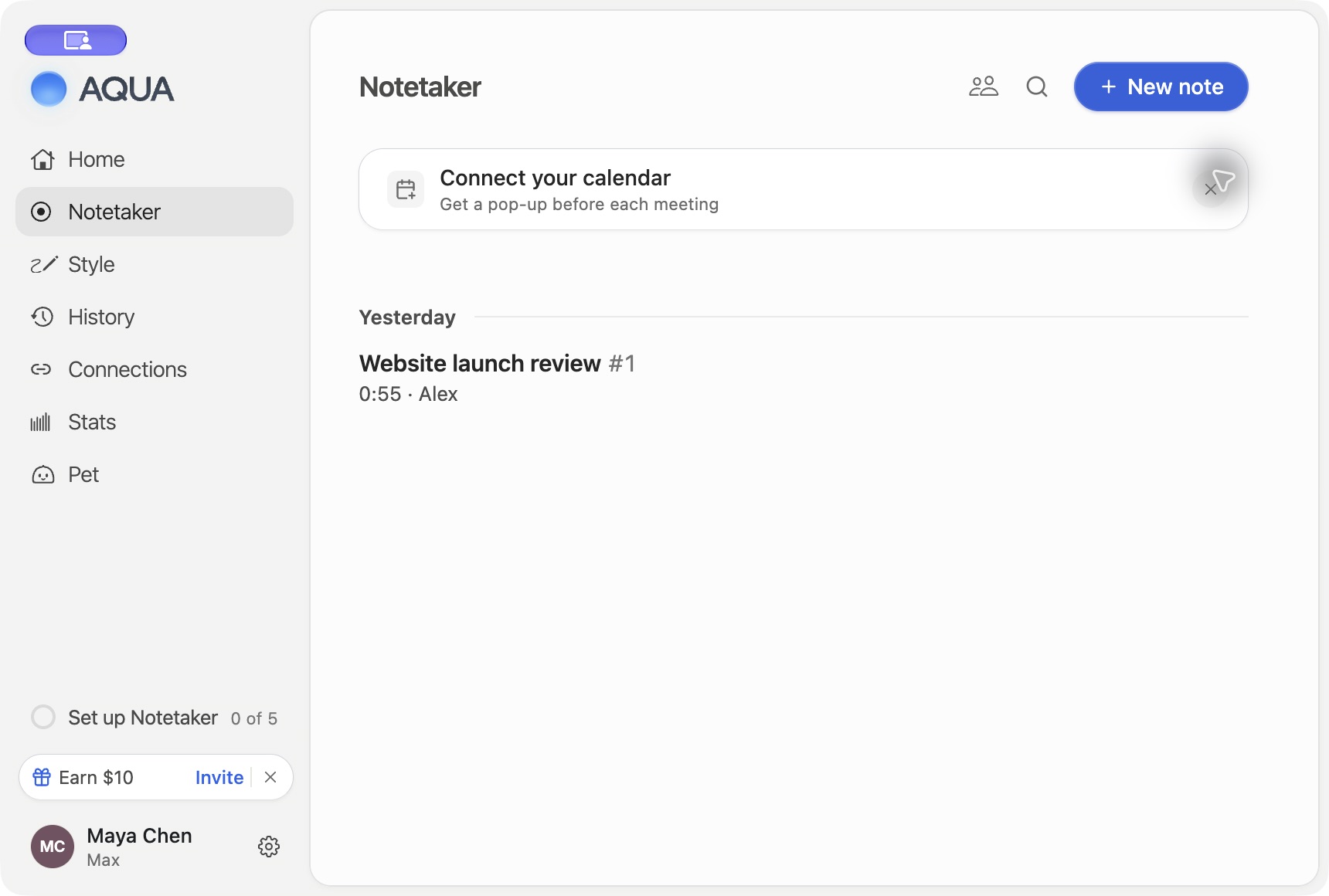
Browse your notes or use the search control to find matching meeting content. Open a result to read the transcript and notes. Check the signed-in account if an expected meeting is missing.
Organize folders
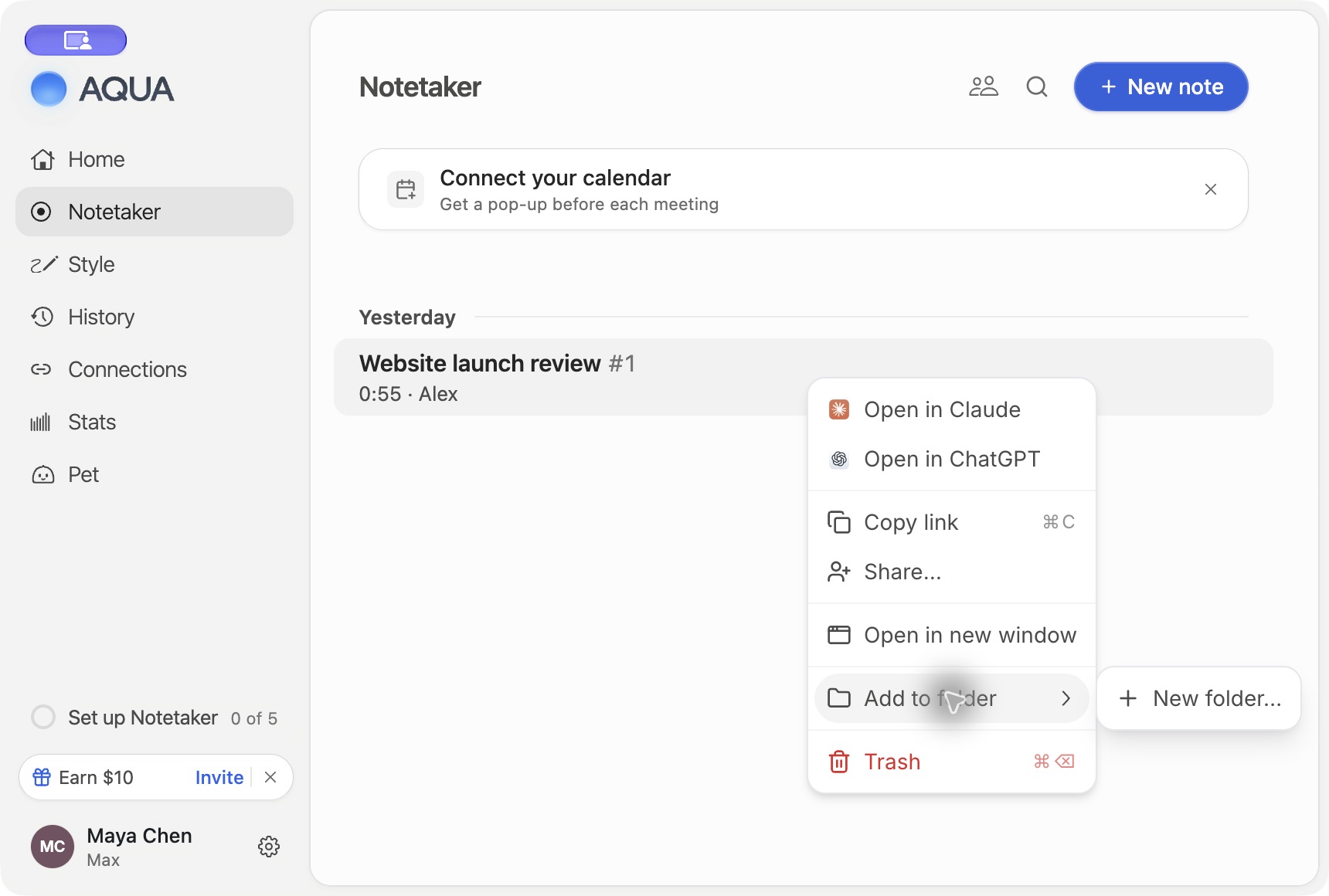
- Open a meeting's context menu and choose Add to folder.
- Select an existing folder or choose New folder…, enter a name, and choose Create.
- Open the folder to see its notes. Use Remove from [folder] to remove a note from that folder.
The folder's menu includes Rename… and Delete…. Deleting a folder keeps its notes in My notes. Folder names must be unique within your folders.
Work with shared meetings
Open meetings shared with you from the shared-meeting view or their links. Access depends on the meeting's sharing settings and your account. If a link stops working, ask its owner to check the audience and your access.
Use the meeting's Share controls to review access before inviting someone or enabling link access. See the Notetaker sharing instructions for available audiences and exports.
Move a meeting to Trash
Use Move to Trash from the meeting's actions. The confirmation message offers Undo immediately afterward. Open Trash to see removed notes and choose Restore to return one.
Notes in Trash are deleted after 30 days. Delete Now removes an individual note permanently. Empty Trash removes all notes in Trash. Both permanent actions ask for confirmation.
Export before removing content
Use the meeting's copy or export controls to keep the content you need before permanent deletion. Review saved local exports and copies shared with other apps separately. See GDPR and Data Requests for account-level requests.