

Send It
Send It lets you finish dictating and send a message with your voice on Mac and Windows.
Before you start
Send It works during Realtime Mode. Open Settings → Dictation and check that Realtime is available for your account and selected language. If you use Realtime when hands-free, start hands-free dictation by double-pressing your activation key or holding it and pressing Space.
Send a message by voice
In an English Realtime dictation, end your message with “send it”. Aqua Voice finishes the text and uses your configured send key. For other supported languages, the Send command description shows the phrase for the selected language.
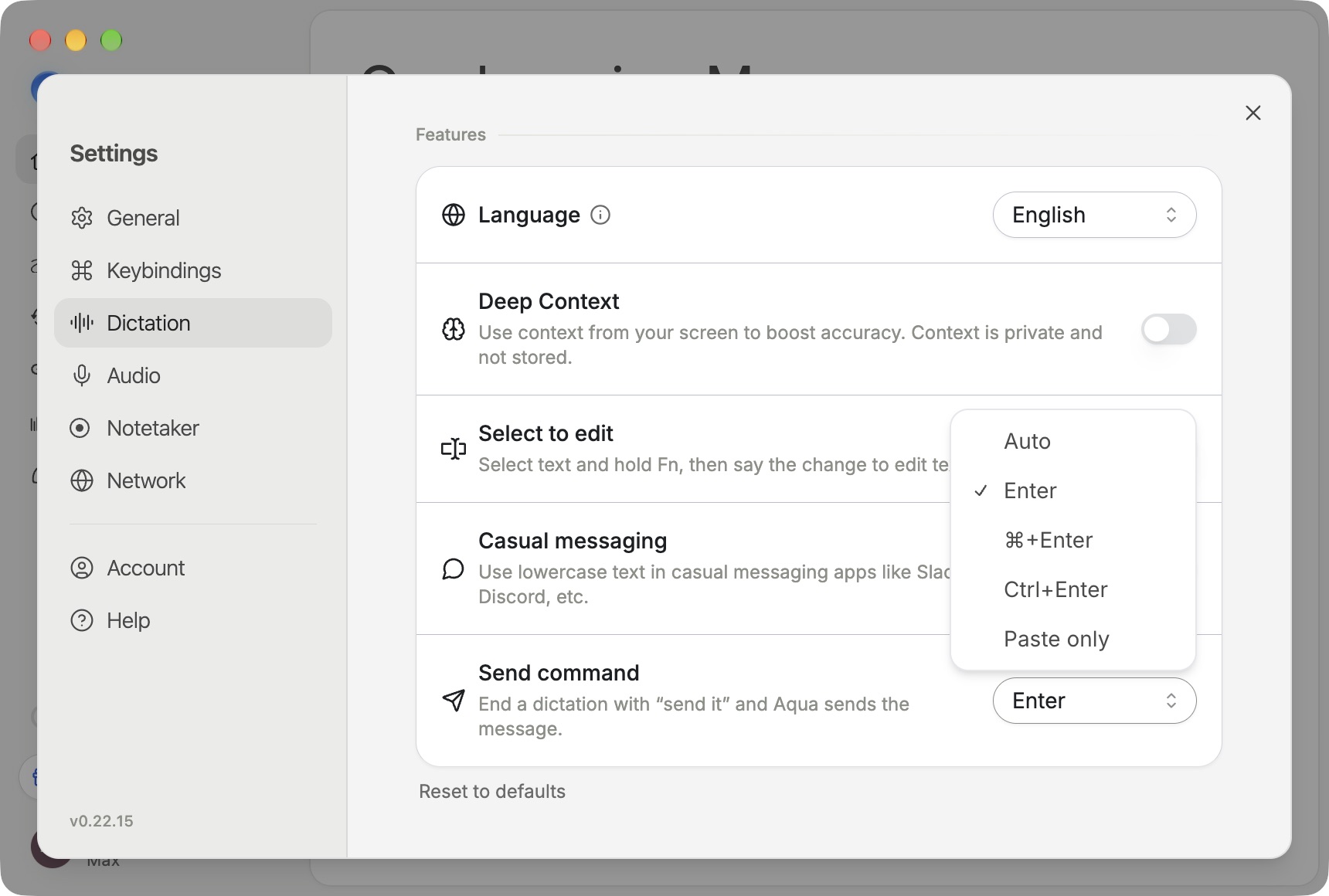
Open Settings → Dictation → Send command to choose the behavior.
Setting | Behavior |
|---|---|
Auto | Chooses the send behavior for the destination app. |
Enter | Uses Enter to send. |
⌘+Enter | Uses Command+Enter on Mac. |
Ctrl+Enter | Uses Control+Enter. |
Paste only | Finishes and inserts the text, leaving it for you to send. |
Choose the shortcut your messaging app uses. Use Paste only when you want to review the message first.
If it does not work as expected
Confirm you are using Realtime, check the selected language, and check the send key. Try a short message in the target field. If the app uses a custom send shortcut, select the matching option. See Troubleshooting for microphone and text insertion issues.