

Get started on Mac
Install Aqua Voice, grant access to your microphone, and dictate into the app you already use.
Install and sign in
- Download the Mac installer from Downloads.
- Open the disk image and drag Aqua Voice into Applications. Open Aqua Voice from Applications.
- Sign in with your Aqua Voice account. Use the same account on your other devices to use your subscription there.
- Follow the setup steps to allow microphone access and Accessibility access. Accessibility lets Aqua Voice insert your words into other apps. On newer macOS versions, this permission can be called Device Control and Data Access.
Dictate your first sentence
- Click inside a text field, such as a new note or an email draft.
- Hold your activation key and speak. The default on Mac is Fn.
- Release the key. Aqua Voice inserts the finished text at your cursor.
Try a short sentence first, then a paragraph. Speak punctuation when you want to control it explicitly.
Choose your controls
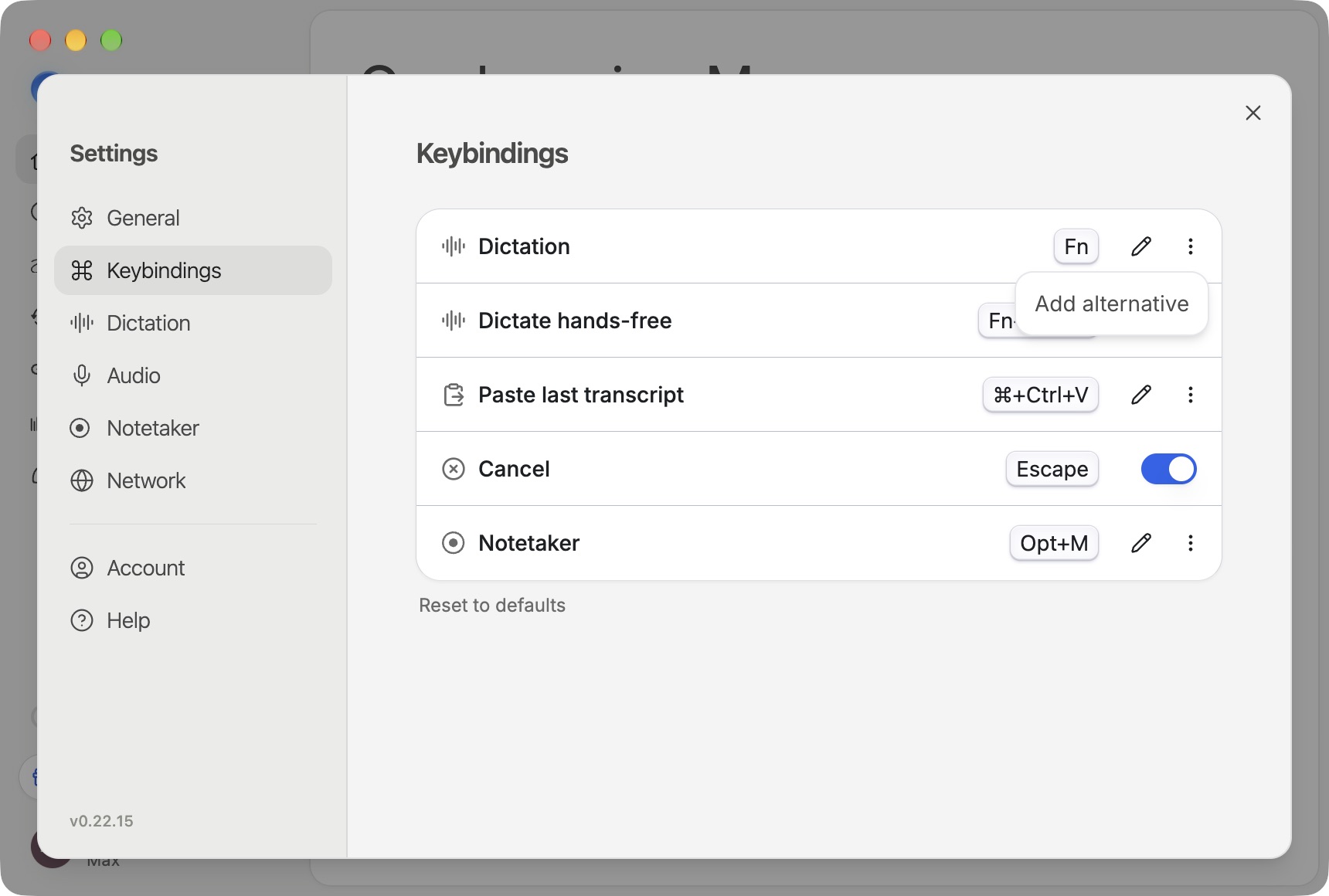
Open Settings → Keybindings to see or change your shortcuts. Double-press the activation key for hands-free dictation, then press it again to finish. You can also hold the activation key and press Space to go hands-free.
In Settings → Dictation, choose how text appears. Instant always inserts text when you finish. Realtime when hands-free shows words as you speak during hands-free dictation, when your account and language support it. Read the Realtime Mode guide.
Adjust your setup
- Choose the microphone in Settings → Audio.
- Add names and specialist terms to your Dictionary.
- Review Privacy Mode before you start working with sensitive content.
- Use Notetaker for meeting transcripts and notes.
If the microphone works but text does not appear, check Aqua Voice's permission in System Settings → Privacy & Security and try a plain text field. More steps are in Troubleshooting.
Appearance and the floating bar
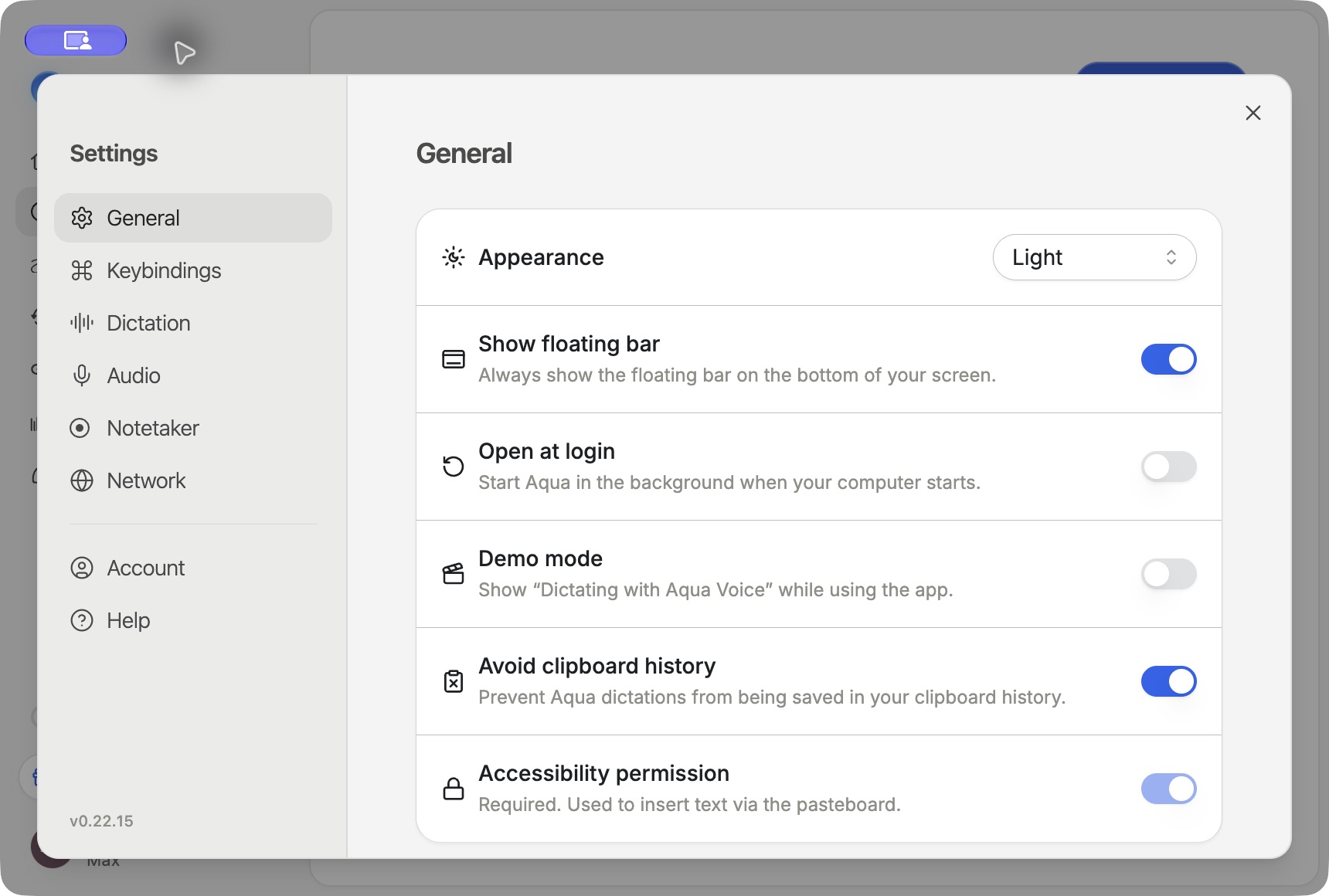
Open Settings → General to choose Match system, Light, or Dark under Appearance. Use Show floating bar to control whether the bar stays visible at the bottom of the screen.
Turn on Open at login to start Aqua Voice in the background when you sign in to your computer. If the bar is snoozed, turning on Show floating bar ends that snooze. For the pet's temporary hiding controls, see Aqua Pet.
Use Stats and Sharing to review your activity, and Connections and Calendars to connect meeting tools.