HIPAA and BAA
Aqua Voice includes a Business Associate Agreement (BAA) on Max and Business. Sign the agreement before using Aqua Voice with protected health information. The app shows whether the agreement covers your account or your team. HIPAA announcement
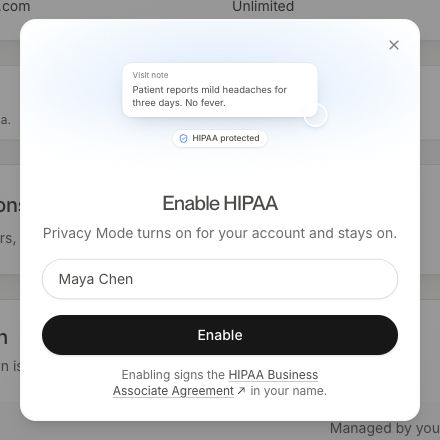
Enable HIPAA
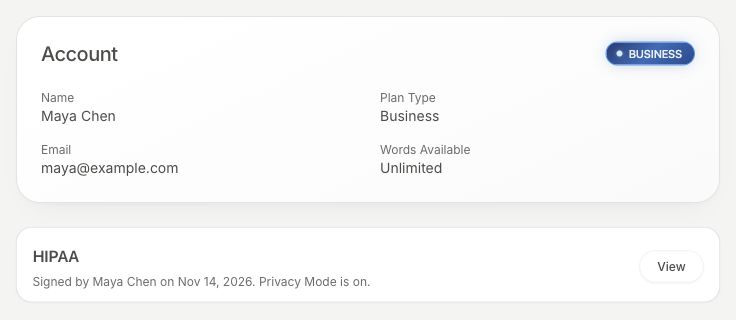
- On desktop, open Settings → Account and find HIPAA. You can also find HIPAA on your web account's Manage page.
- Choose Enable. If the account needs an eligible plan, the control shows Upgrade.
- Check whether the agreement covers your account or your team. Read the linked agreement and enter your full name.
- Choose Enable to sign. Check that the HIPAA row now shows the signed agreement.
The signing flow uses the team scope when your account has permission to sign for that team. A team owner or admin can sign for the team. Check the scope shown before signing.
What changes after signing
Privacy Mode turns on for the covered account or team and stays on. Aqua Voice also restricts processing to providers allowed by its zero-data-retention policy. Members see that Privacy Mode is managed.
Notetaker still stores meeting titles, transcripts, notes, speaker names, and screenshots so you can use your meetings. Meetings created in Privacy Mode are excluded from model improvement. Their audio is deleted from Aqua Voice servers after transcription. Read Privacy Mode for local audio handling and feedback exceptions.
View the signed agreement
Return to the HIPAA row and choose View. The row identifies the signer or covered team. An existing signed agreement remains available after a plan change.
If the agreement changes while you are signing, open and read the current version, then try again. For coverage questions or a security review, contact security@aquavoice.com. See Zero Data Retention for Business policy controls.