Troubleshooting
Start with a short dictation in a plain text field. This helps you check whether the problem affects all apps or one destination.
The microphone does not record
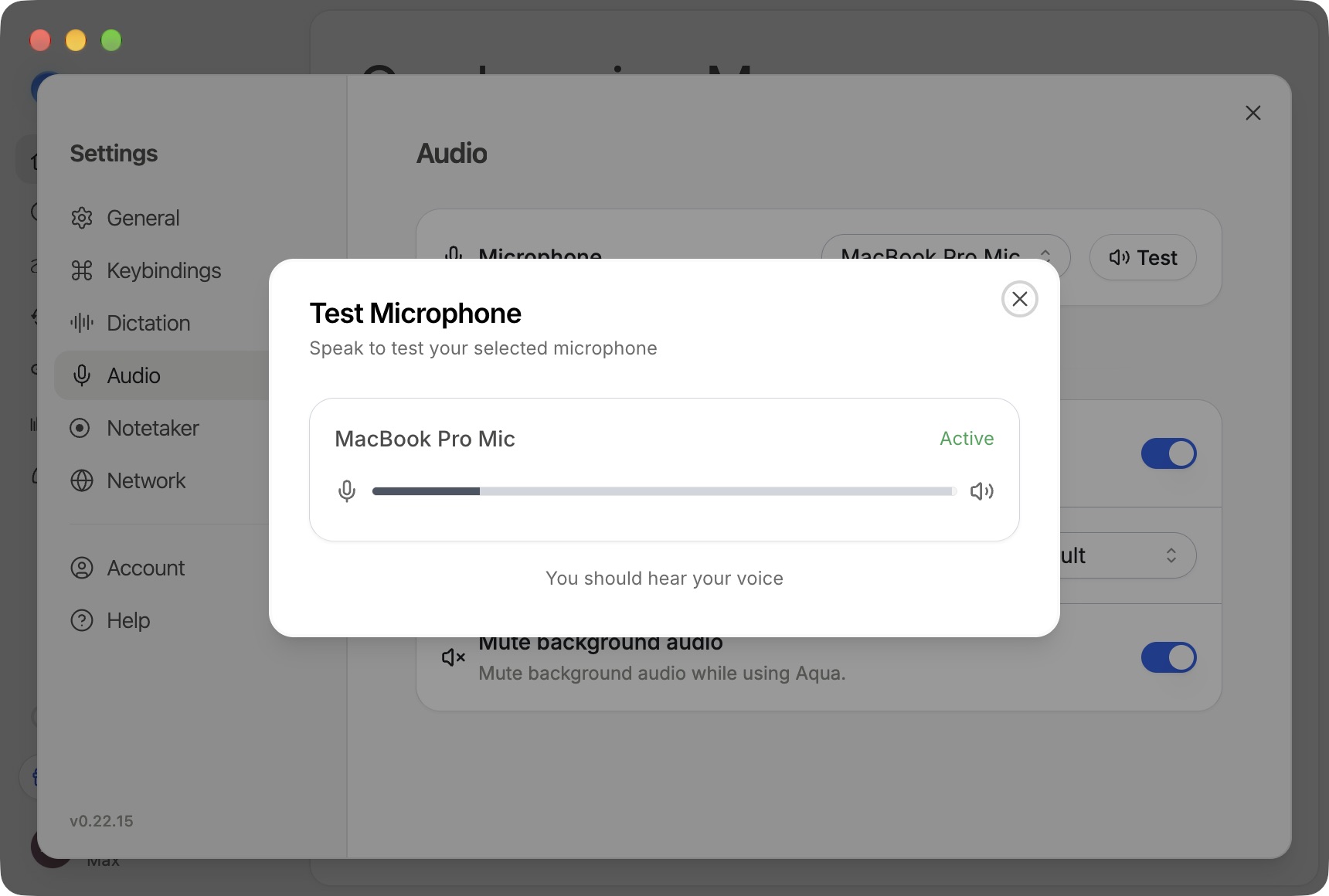
- On desktop, open Settings → Audio and check the selected microphone. Test the microphone in your operating system's sound settings.
- On Mac, check Aqua Voice under System Settings → Privacy & Security → Microphone.
- On Windows, allow microphone access for desktop apps in Windows Settings.
- On iPhone, allow Microphone in Aqua Voice's iOS settings, then reopen the app.
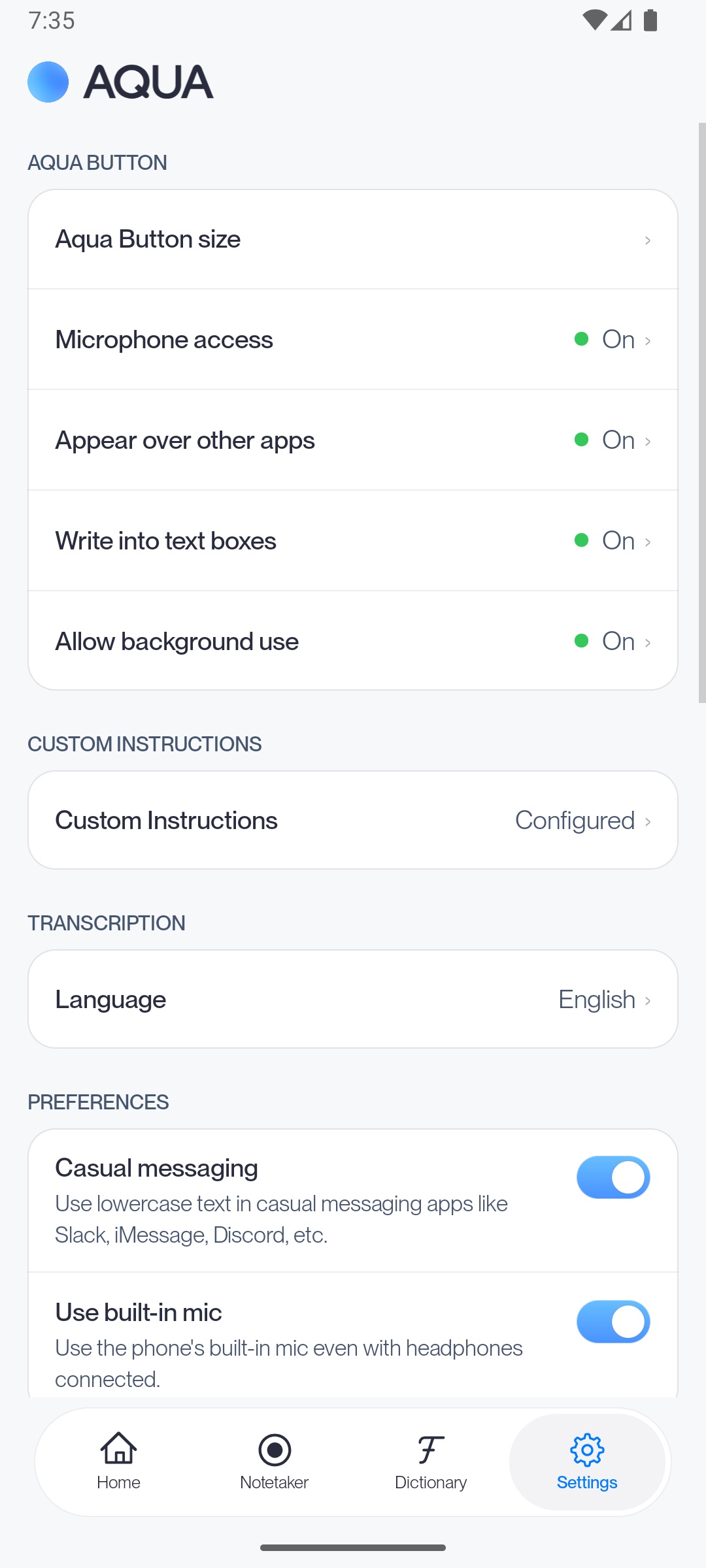
- On Android, open Aqua Voice's Settings → Microphone access and follow the permission steps.
If a Bluetooth microphone takes time to wake up, see Microphone delay.
Recording works but text does not appear
Click into the destination field before starting and keep that field selected. Try a plain note to compare the result.
On Mac, check Aqua Voice's Accessibility permission. On newer macOS versions, the permission can be named Device Control and Data Access. On Android, check that the Aqua Voice accessibility service is enabled. On iPhone, check that you selected the Aqua Voice keyboard and allowed Full Access.
If the issue happens only in one app, tell support the app name and version, the type of field, and whether a plain note works.
The shortcut does not start dictation
Open Settings → Keybindings on desktop and check the activation key. Change it if another app or your keyboard layout uses the same key. Quit or reconfigure the conflicting app, then test again. See Activation keys.
A connection error appears
Check your internet connection and the service status. If the error only happens on a managed network or VPN, ask your IT team to review access with Aqua Voice support. Include the exact error and the time it happened.
Words or formatting are wrong
Check the selected language in Settings → Dictation. Use the Dictionary for names and specialist terms, Replacements for consistent substitutions, and Custom Instructions for formatting. Review any existing customization that could change the output.
Get help
Email support with your Aqua Voice version, operating system, destination app, exact error, and steps to reproduce it. Say whether the issue also happens in a plain text field. Include a short example of the words you said and the result when relevant. For missing call audio or meeting notes, see Notetaker. Contact support.
Test the connection
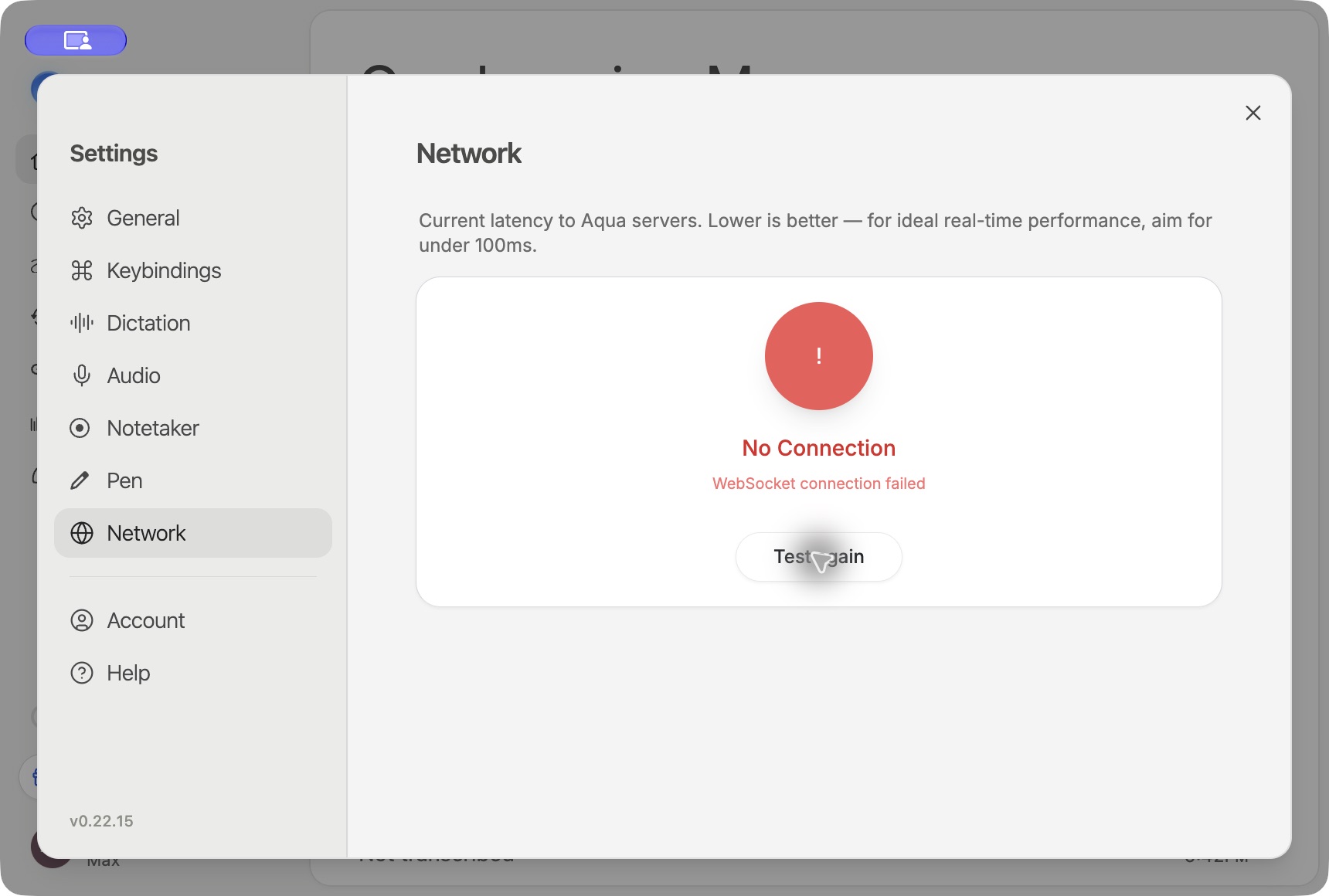
On desktop, open Settings → Network. The connection test shows latency and stability, including timed-out checks. Choose Test again to repeat it. Record the result and time if you need support.
If failures happen only on a VPN or managed network, give your IT team and Aqua Voice support the result, exact error, and affected device. A successful network test checks connectivity to the service. Use a short dictation to check the full recording and text-insertion workflow as well.
Upload diagnostic logs
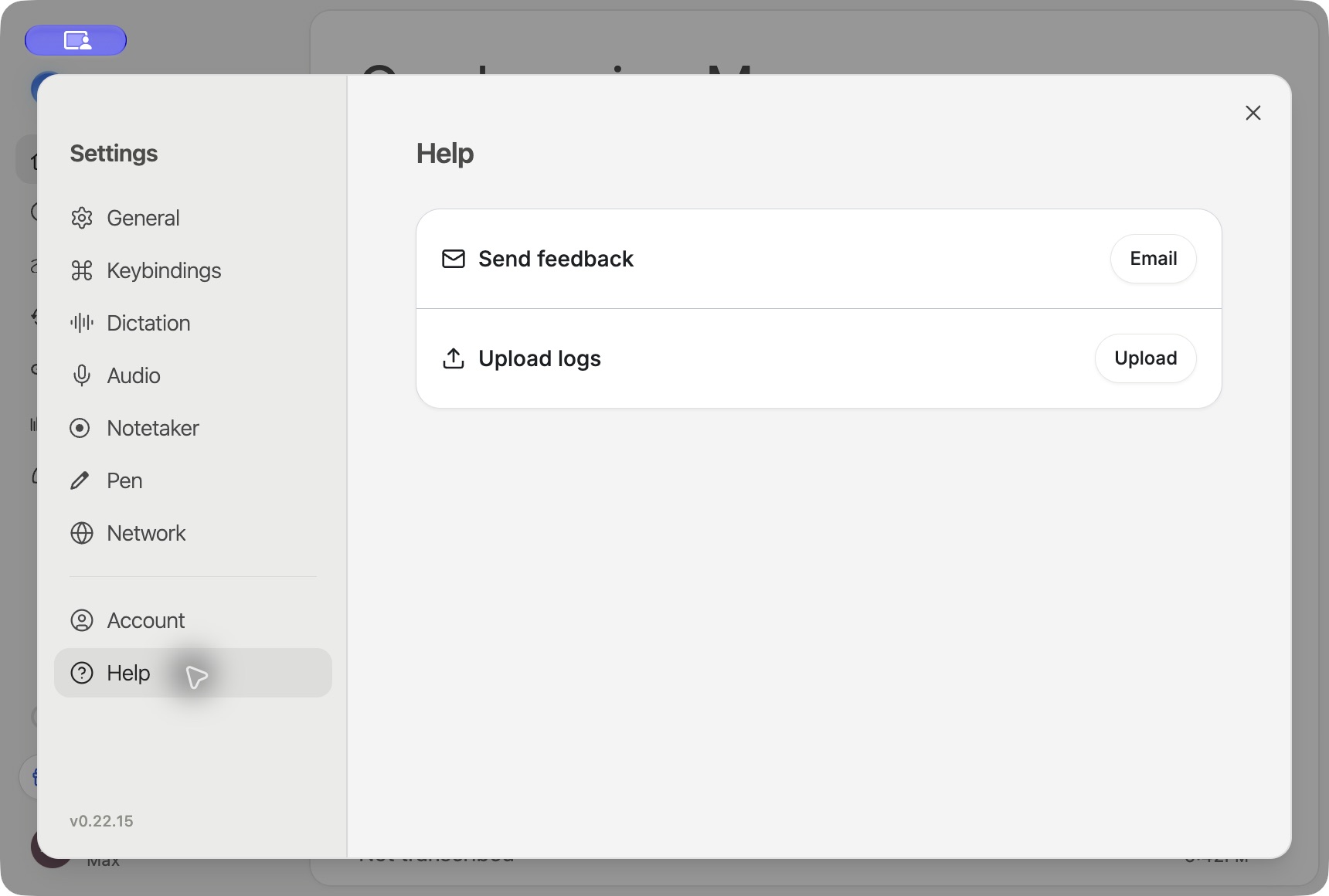
When support asks for diagnostics, open Settings → Help → Upload logs and choose Upload. Wait for Logs uploaded before telling support the upload is ready. Include your account email, the upload time, and the steps that reproduce the issue.
If the app asks you to wait, wait a minute before trying again. If upload fails, check your connection and share the error with support. You can use Send feedback → Email on the same page to open a support message.