

Get Started on iPad
Use Aqua Voice’s iPhone app and keyboard on a compatible iPad. The current App Store release requires iOS 26 or later, so start with an iPad running iPadOS 26 or later and check availability in the App Store on that device.
Apple lets eligible iPhone apps run on iPad in compatibility mode. Aqua’s app may appear in an iPhone-sized window. See Apple’s compatibility guidance.
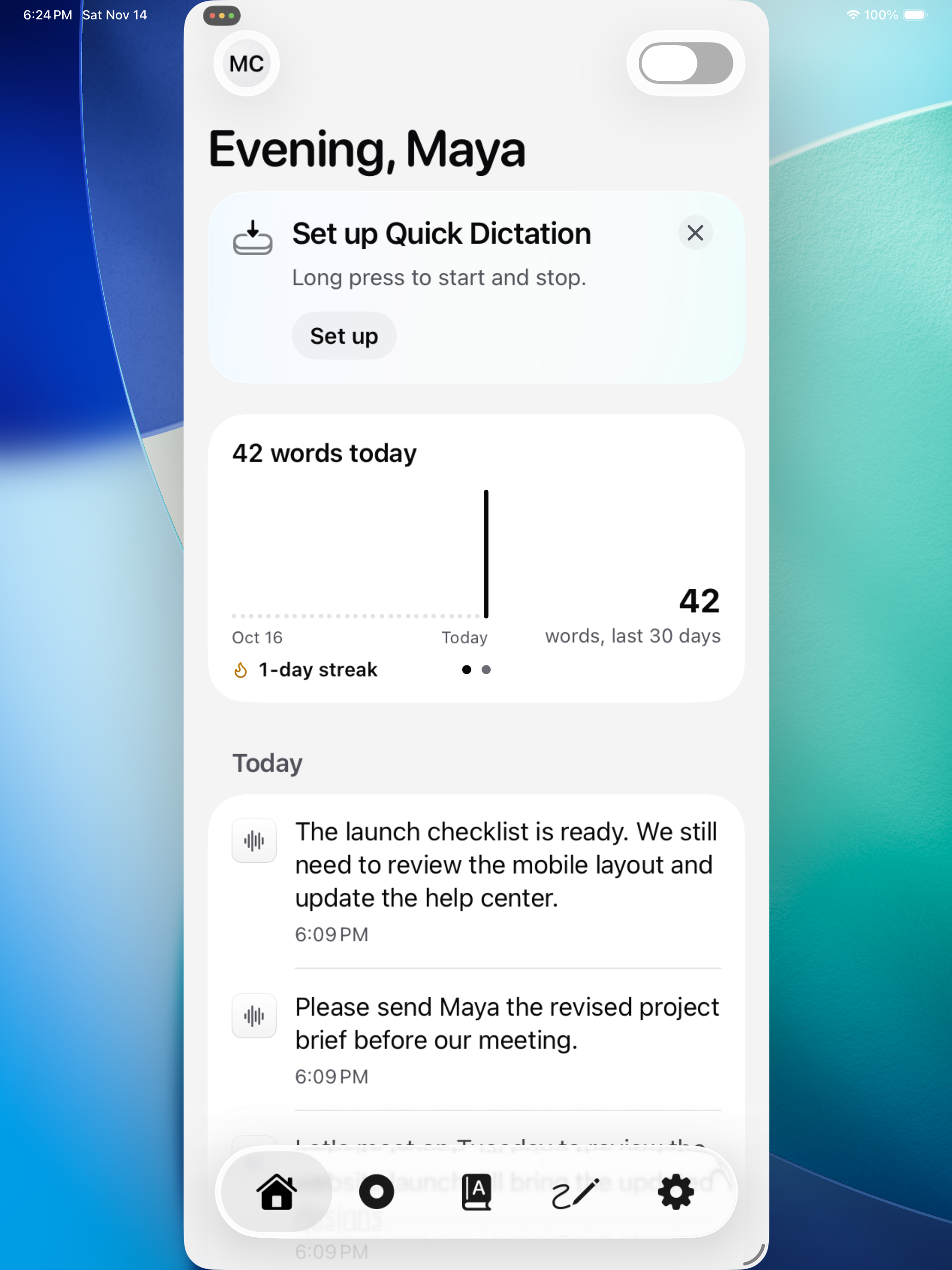
Install and enable the keyboard
- Open the App Store link on Downloads from your iPad. If the store offers Aqua Voice for your device, install it.
- Open Aqua Voice and sign in with your account.
- Follow setup to allow microphone access.
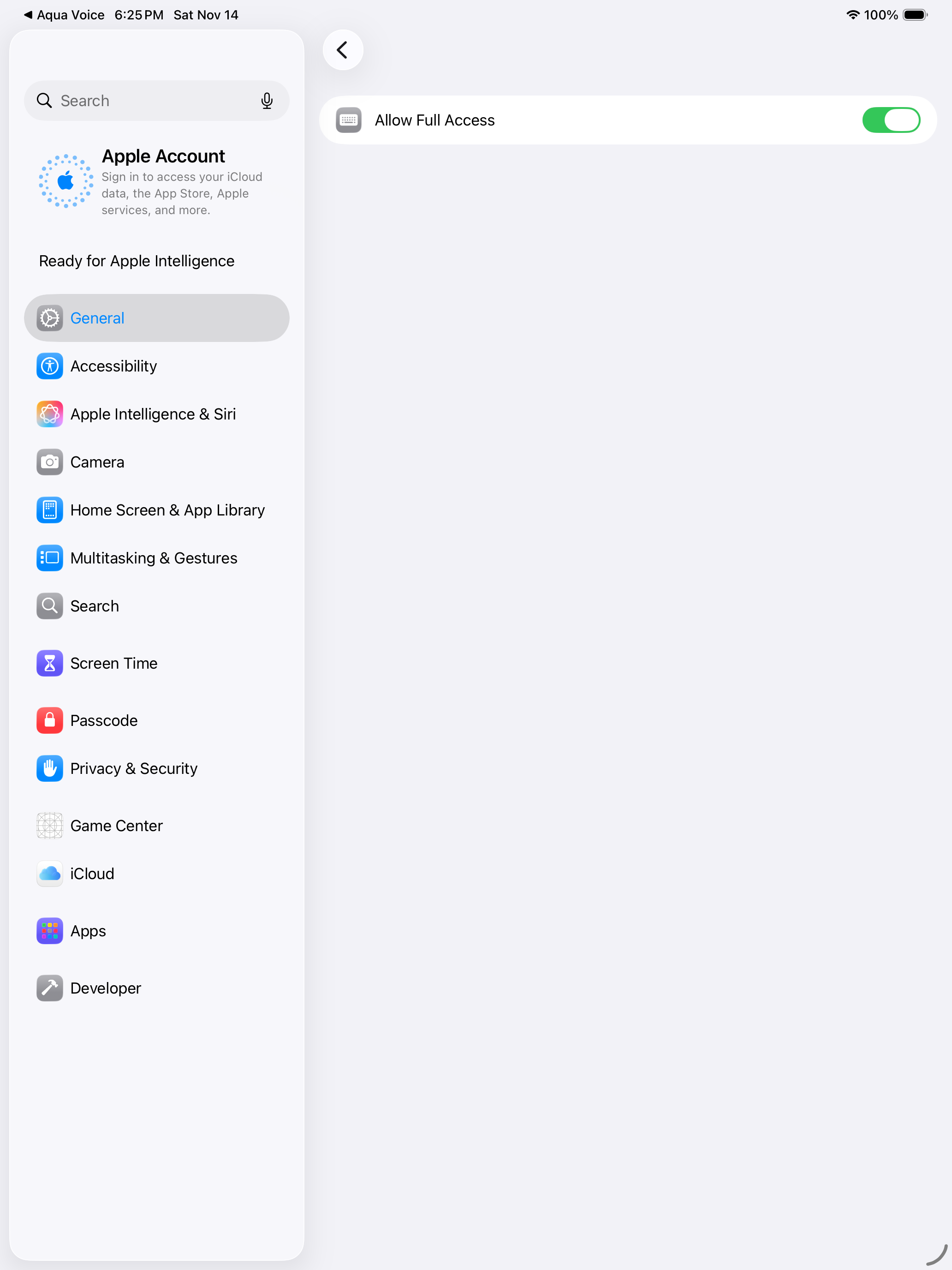
- When setup opens Settings, open Keyboards, enable Aqua Voice, and turn on Allow Full Access. This lets the keyboard communicate with the app to start a microphone session.
- Return to Aqua Voice and complete the practice dictation.
If you need to find the keyboard settings yourself, open Settings → General → Keyboard → Keyboards. Use Add New Keyboard to add Aqua Voice, then open its entry to allow Full Access.
Dictate into an app
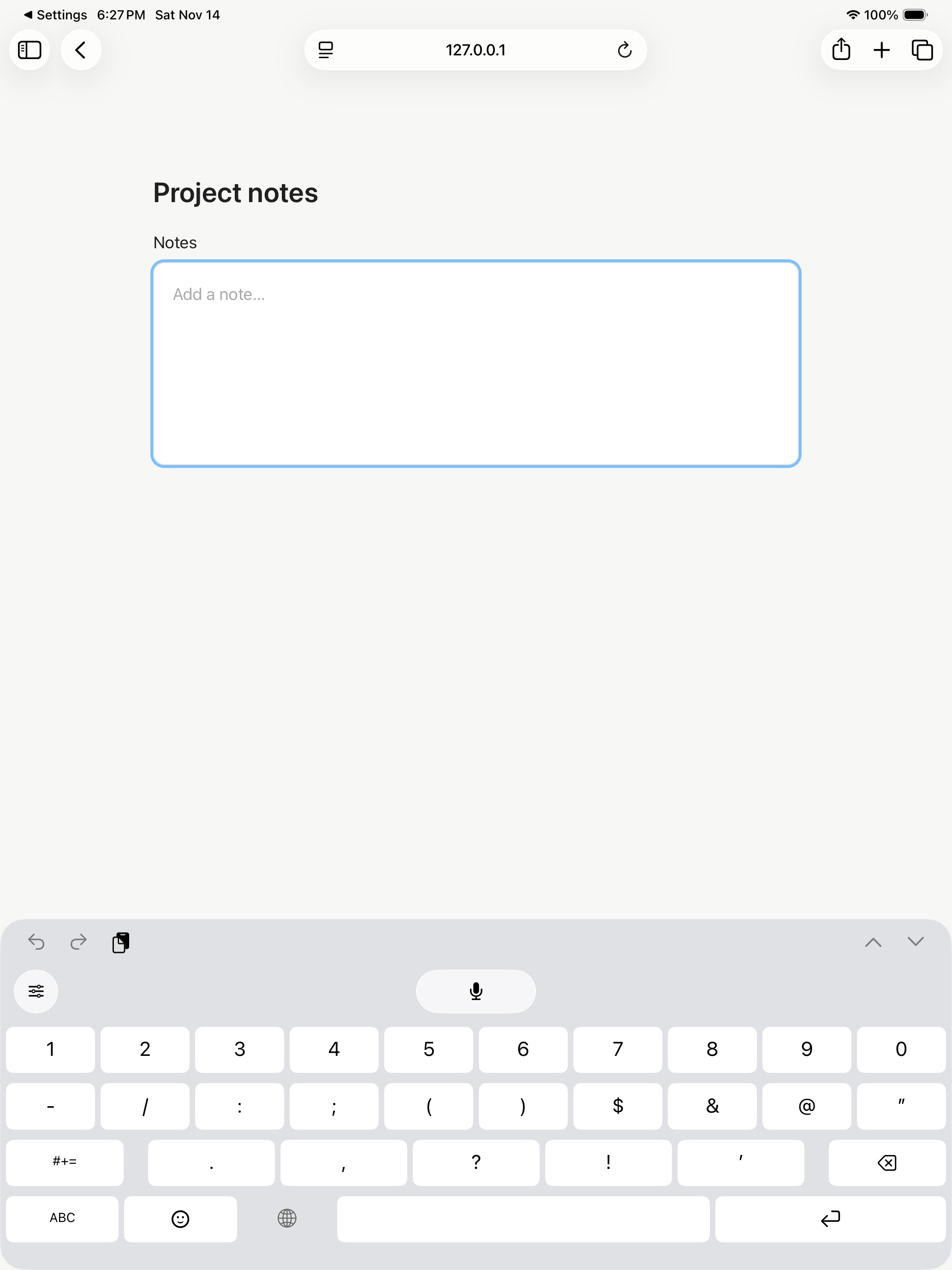
- Tap an editable text field to show the onscreen keyboard.
- Touch and hold the globe key, then choose Aqua Voice.
- Tap Aqua’s microphone. If prompted, open Aqua Voice to start the microphone session, then return to the field.
- Speak, then tap the finish control to insert your words.
When a microphone session ends, the keyboard asks you to open Aqua Voice again. iPadOS uses the system keyboard in password fields, and individual apps can restrict third-party keyboards.
Use a Magic Keyboard or other external keyboard
Show the onscreen keyboard to reach Aqua’s microphone controls. Tap the keyboard control in the Shortcuts bar at the bottom of the screen, then choose Show Keyboard. Switch the onscreen keyboard to Aqua Voice and follow the dictation steps above. See Apple’s keyboard-switching instructions.
Start with a short dictation in the app you use most. Keep its text field selected while Aqua inserts the result.
Use your existing account
Sign in with the same account you use on your other devices to access your subscription. See Account and Billing.
If the keyboard or microphone is missing
Check that Aqua Voice is enabled under Settings → General → Keyboard → Keyboards and that Full Access is on. Open Aqua Voice to check microphone access, then return to an ordinary text field and try again.
If the App Store blocks installation, or dictation fails in a particular layout, contact support with your iPad model, iPadOS version, and the app you are using. Mention any external keyboard or windowed layout involved.