Business Usage and Reporting
Use the Business Console to review team adoption and dictation activity. Sign in to your web account and open Business → Overview or User analytics. The available data and controls depend on your workspace access.
Choose a reporting period
Use the time-period control to select a preset range. For a custom range, set Start date and End date, then choose Apply. The end date must be on or after the start date.
Use the same period when comparing the overview, member report, and an exported report.
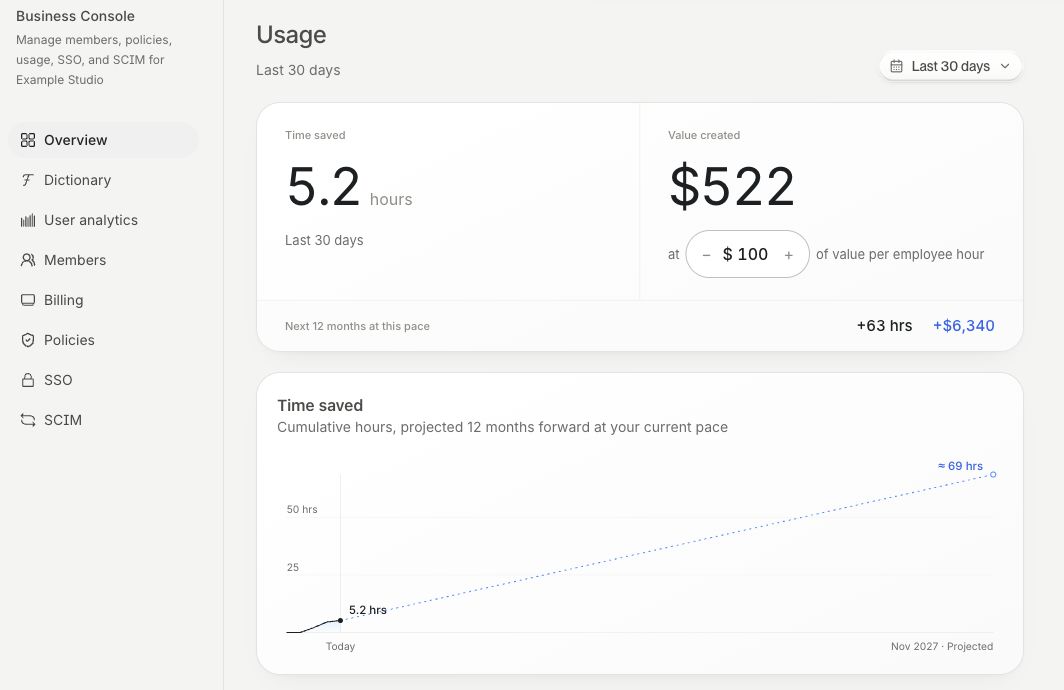
Read the overview
The overview includes team usage and adoption. Adoption shows the progression from purchased seats and invitations to accepted invitations and completed onboarding. Application categories show where the team uses dictation.
Time-saved and value figures are estimates. The value calculation uses the employee-hour rate shown in the console. The 12-month projection extends the current pace. Review the selected period and rate before using these figures in a report.
Review members
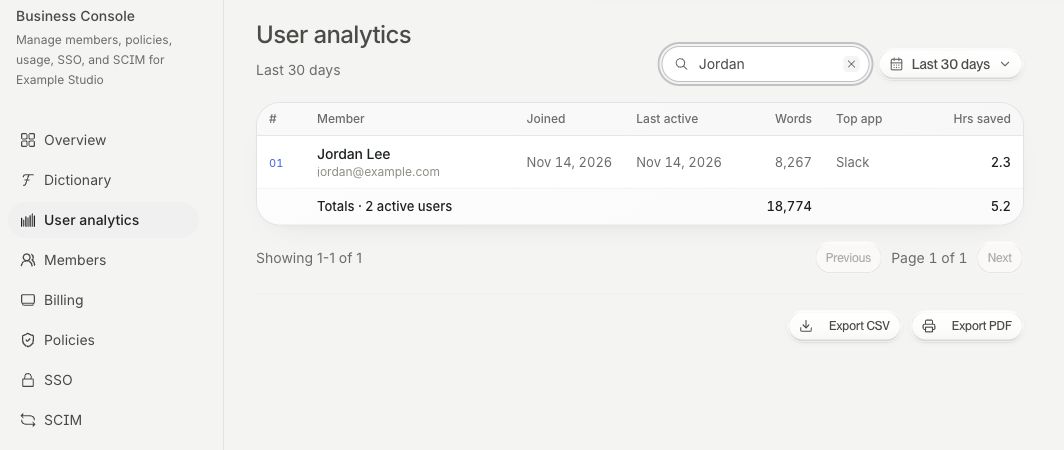
Open User analytics. Search for a member with Search members and review the rows for the selected period. Clear the search to return to the full report.
Use Business Administration to manage invitations and roles when adoption data shows people still need access.
The Totals row shows workspace totals for the selected period, including members hidden by the search. The CSV includes only the matching member rows.
Export the report
Choose Export CSV in User analytics to download the member rows. The export follows the current search and reporting range. Choose Export PDF to open the browser's print dialog, then select its PDF destination.
If figures look unexpected, check the period, active search, onboarding state, and your workspace. For a report error, send support the workspace, range, affected metric, and error message. Contact support