

Get started on Android
The floating Aqua Button lets you dictate with the keyboard you already use. Aqua Voice supports Android 10 and later.
Install and allow access
- Install Aqua Voice from Google Play using the link on Downloads.
- Open the app and sign in with your Aqua Voice account.
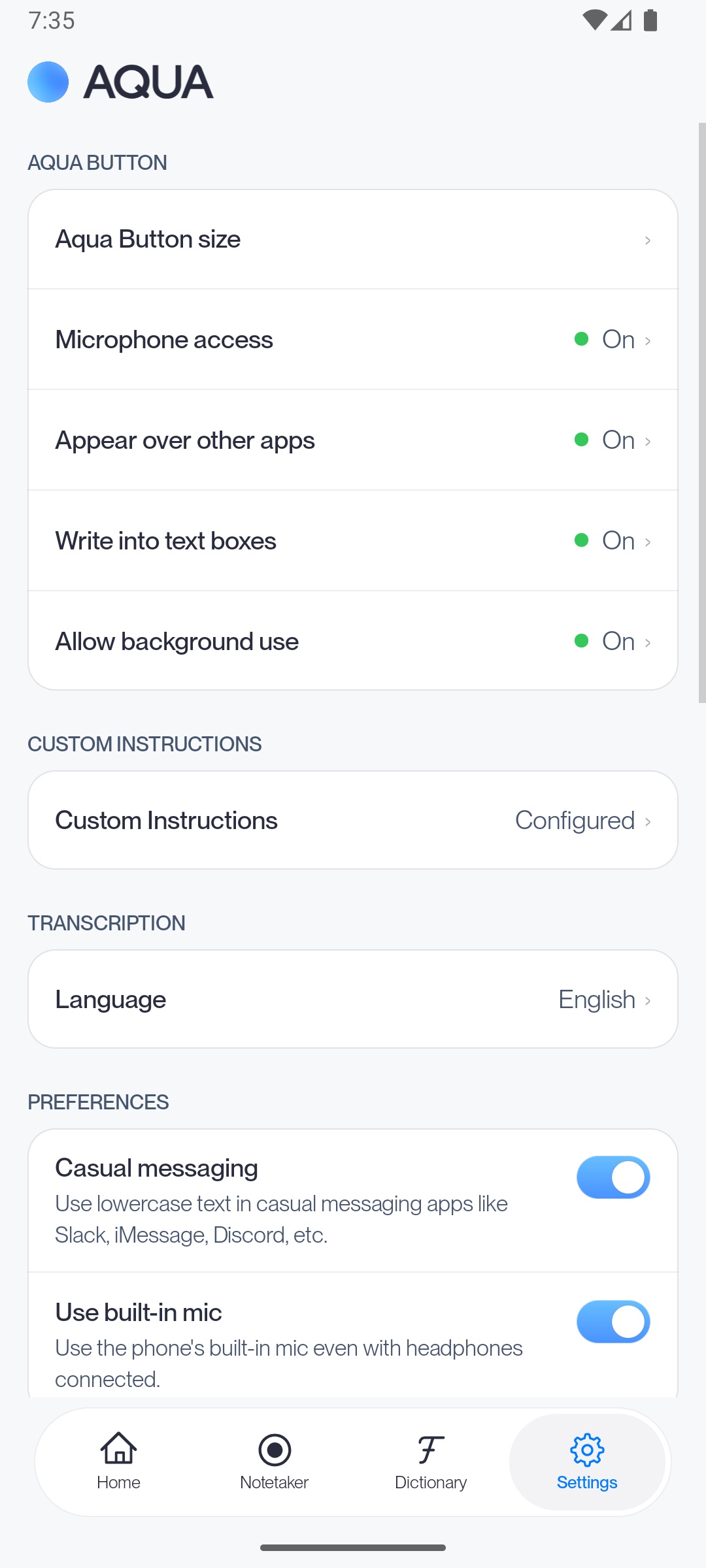
- Follow setup to allow Display over other apps. On Samsung devices, this is called Appear on top.
- Read the accessibility explanation and enable the Aqua Voice accessibility service. It uses the active text field and app context to place and format your words. Password fields are excluded.
- Allow microphone access when prompted and finish the practice dictation.
Android settings differ by device. Follow the steps shown in Aqua Voice for your device, including any extra background permission it requests.
Dictate with the Aqua Button
- Open an app and tap a text field.
- Tap the floating Aqua Button.
- Speak, then tap the checkmark to finish.
- Aqua Voice inserts the result into the active field.
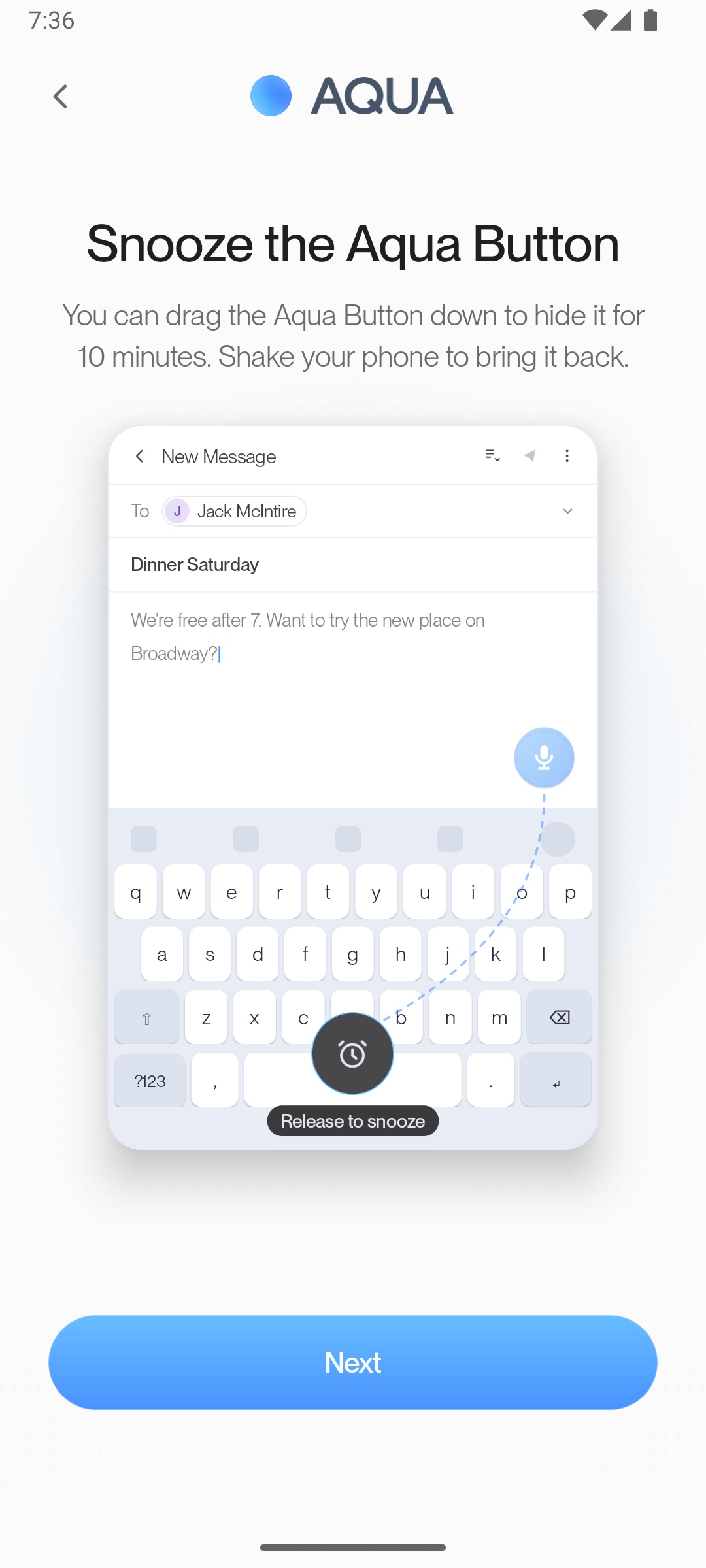
You can move the button by dragging it. Keep the text field selected until the result appears.
Android tablets
Install the Android app from Google Play and use the same microphone, overlay, and accessibility setup described above. Google Play shows whether the current release is available for your tablet. Aqua requires a microphone and touchscreen support.
Tap an editable field and use the floating Aqua Button. With an external keyboard attached, select the field before starting dictation. Try a short sentence in your usual app to check that its text field is accessible to Aqua.
Aqua’s app screens are designed around a portrait layout. When you rotate the device or use multiple app windows, check the button’s position and reselect the destination field before dictating.
Android foldables
Use the same Android setup on a foldable phone. When switching between the cover and inner displays, finish the current dictation first, open the destination app on the screen you want to use, and select its text field again.
If the Aqua Button disappears after folding, unfolding, or changing the window layout, reopen Aqua Voice and check accessibility and overlay access. Include the display and folded state when reporting an issue.
Samsung DeX
Samsung DeX runs Android apps in a desktop-style workspace on supported Galaxy devices. Set up Aqua Voice in the normal phone or tablet view first, then open your destination app in DeX. See Samsung’s DeX setup guide.
Select a text field and check whether the Aqua Button appears on the display you are using. If it does, try a short dictation and confirm that the text reaches that field.
Aqua’s external-display behavior in DeX has not been verified. The button may remain on the phone or tablet, or the destination field may be unavailable to Aqua. If this happens, return to the device’s normal view to dictate. For help, send support your Galaxy model, Android and One UI versions, the destination app, and whether you were using DeX on the device or an external display.
Use your account on other devices
Sign in to the same account on desktop or iPhone to use your subscription there. See Account and billing. For an in-person meeting, open Notetaker in the Android app.
If the button disappears
Open Aqua Voice and check its overlay and accessibility permissions. If microphone access is off, open Settings in Aqua Voice and tap Microphone access. Follow the device-specific setup steps if Android has stopped background operation.
Finish an active Notetaker recording before you start dictation. For other issues, see Troubleshooting.