

Realtime Mode
On Mac and Windows, Realtime Mode shows text while you speak. Choose when to use it and dictate hands-free with your activation key.
Choose when text appears
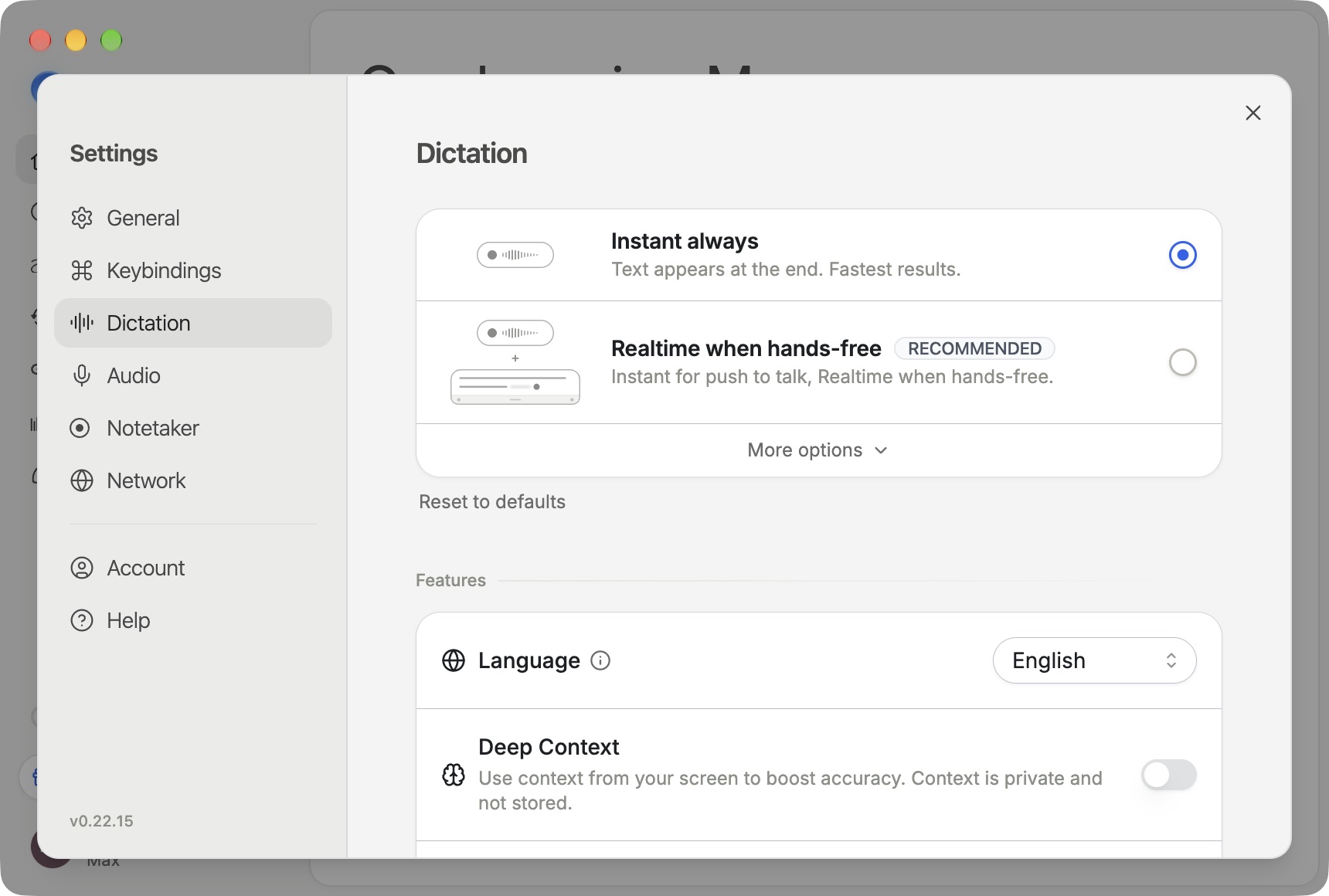
Open Settings → Dictation and choose a mode.
Mode | Behavior |
|---|---|
Instant always | Inserts the finished text when you stop. |
Realtime when hands-free | Uses Realtime for hands-free dictation and Instant for push-to-talk. |
Realtime always | Shows words live in both modes. Open More options to find it. |
Realtime requires access on your account and a supported language. The settings show an upgrade prompt or a language availability message when needed.
Go hands-free
Click in a text field. Double-press your activation key, or hold the activation key and press Space, then speak. Press the activation key again to finish. Check Settings → Keybindings for the shortcuts configured on your device.
Finish and send by voice
Send It lets you finish a Realtime dictation and send the message with a spoken command. See the guide to choose your send key or keep the text for review before sending.
If text does not appear while you speak, check your mode, language, and account availability in Settings → Dictation. See Troubleshooting for microphone and text insertion issues.
Adjust message formatting
Settings → Dictation → Casual messaging controls lowercase text in supported casual messaging apps. See Custom Instructions for this setting and saved formatting preferences.