

Connections and Calendars
Use Connections in the desktop app to connect calendar accounts and AI apps. These connections use the Aqua Voice account you sign in with.
Connect a calendar
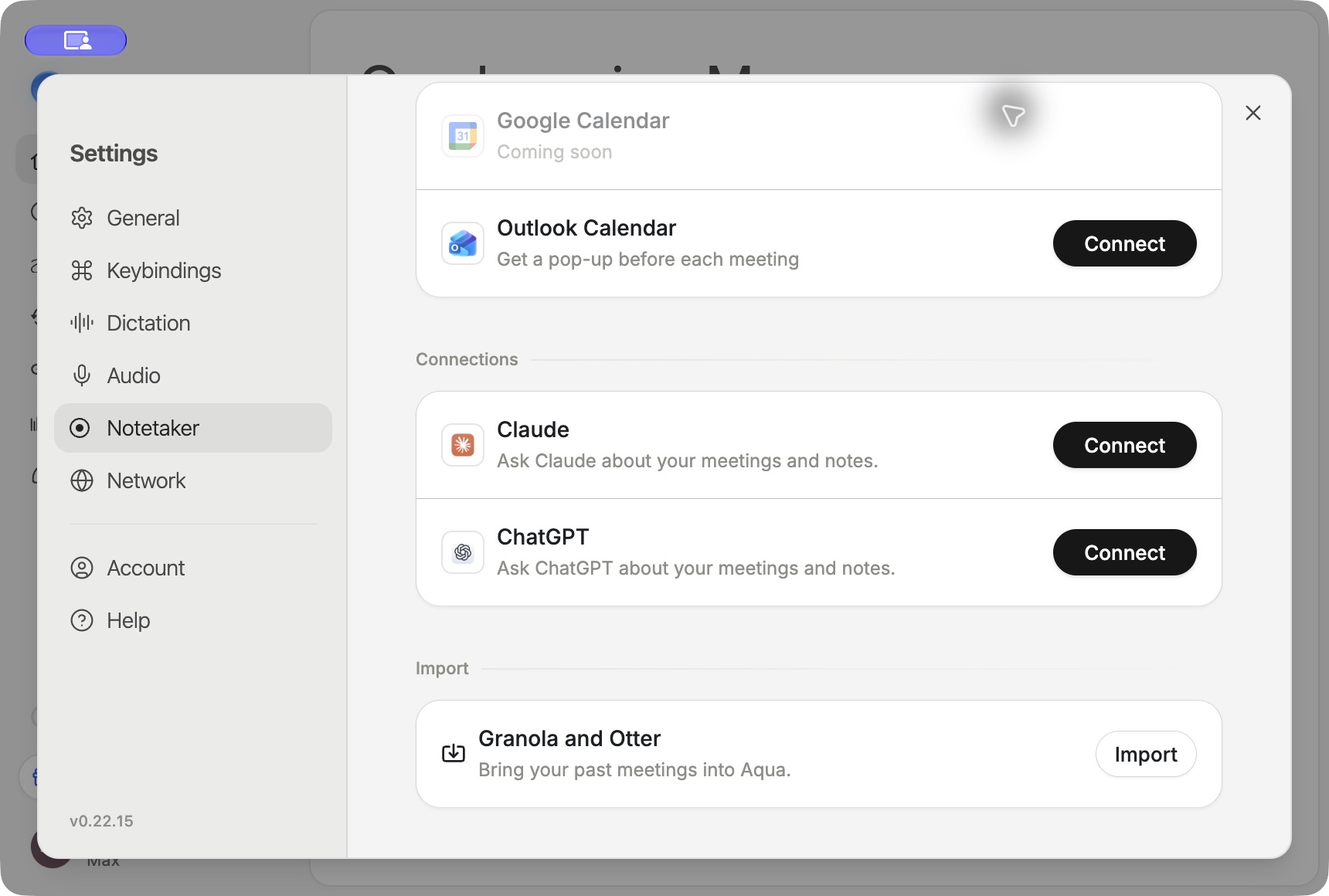
Open the calendar section of Connections, or Settings → Notetaker → Calendar. Choose Connect for an available provider and finish sign-in in your browser. Check that the expected account email appears afterward.
Aqua Voice has calendar controls for Outlook and Google Calendar. A provider marked Coming soon is unavailable in that account or build. Use the availability shown in your app.
Connected events can appear in Notetaker's upcoming meetings. Join and take notes opens the call and starts the notes. The recording controls in Settings → Notetaker also let you choose automatic start, stop, and notepad behavior.
Reconnect or disconnect
Choose Reconnect if the app asks you to sign in again. Check that you use the calendar account containing the expected event.
Choose Disconnect and confirm to stop Aqua Voice from reading that calendar. Existing meetings and notes stay in your account. Use Managing Meetings to remove saved content.
Connect Claude, ChatGPT, or another AI app
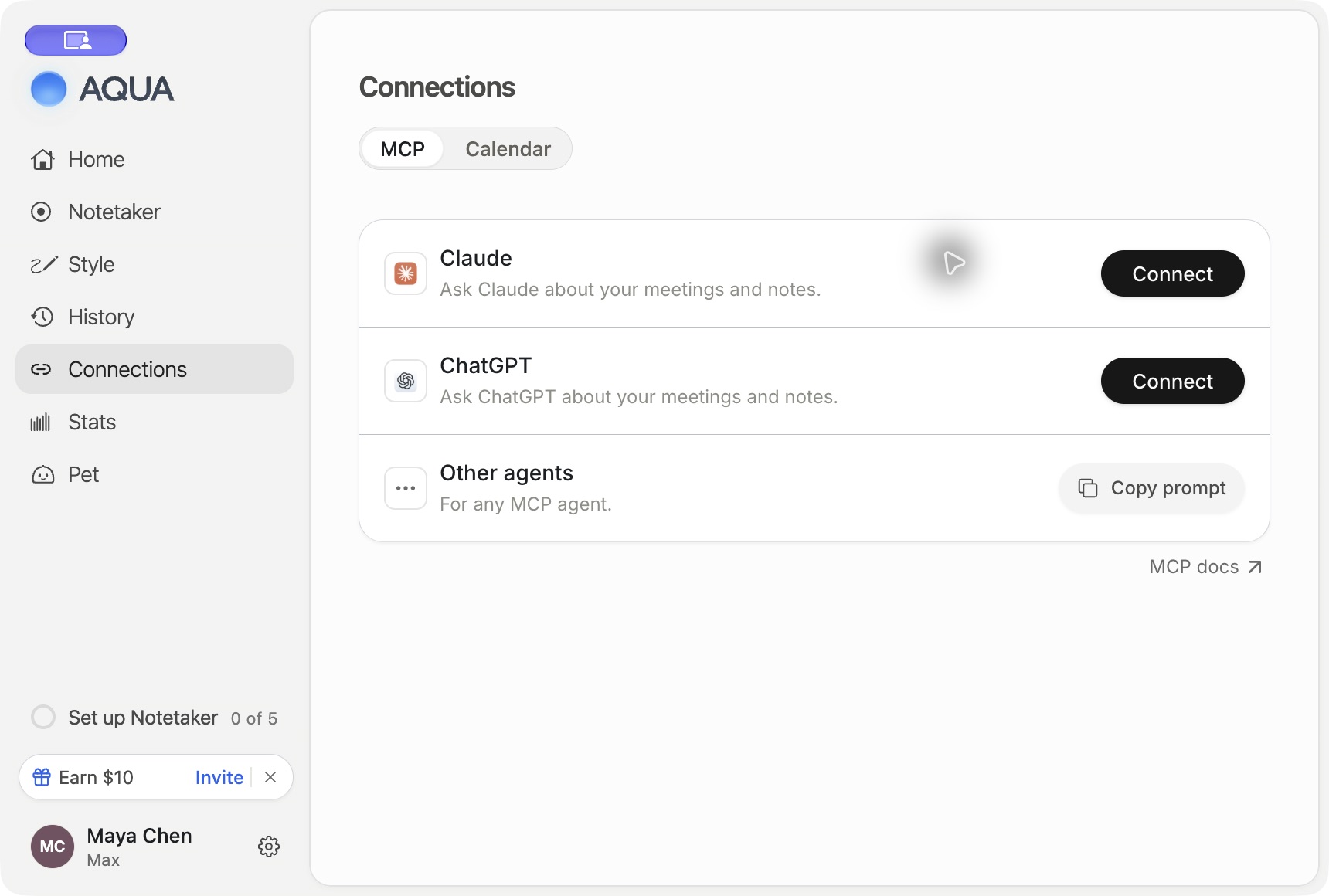
Open Connections → MCP and select Claude or ChatGPT. Finish the connection in that app with the Aqua Voice account that holds your content. For another MCP client, use Other agents and the setup instructions in MCP Documentation.
Try asking for a specific meeting by its number or link. Check the requested read and write permissions. To remove an AI connection, use the connected app's connector settings.
Troubleshoot missing content
Check the connected account and calendar, the event time, and the app's connection status. A meeting shared by someone else also needs permission from its owner. Dictation history is available only when it was stored under your account's retention settings.
For connection errors, see MCP troubleshooting and Troubleshooting. Read the Privacy Policy for calendar-data handling.