Privacy Mode
Privacy Mode controls how Aqua Voice retains and uses your dictation data. Meeting transcripts and notes remain available so you can read and search them.
Change the setting
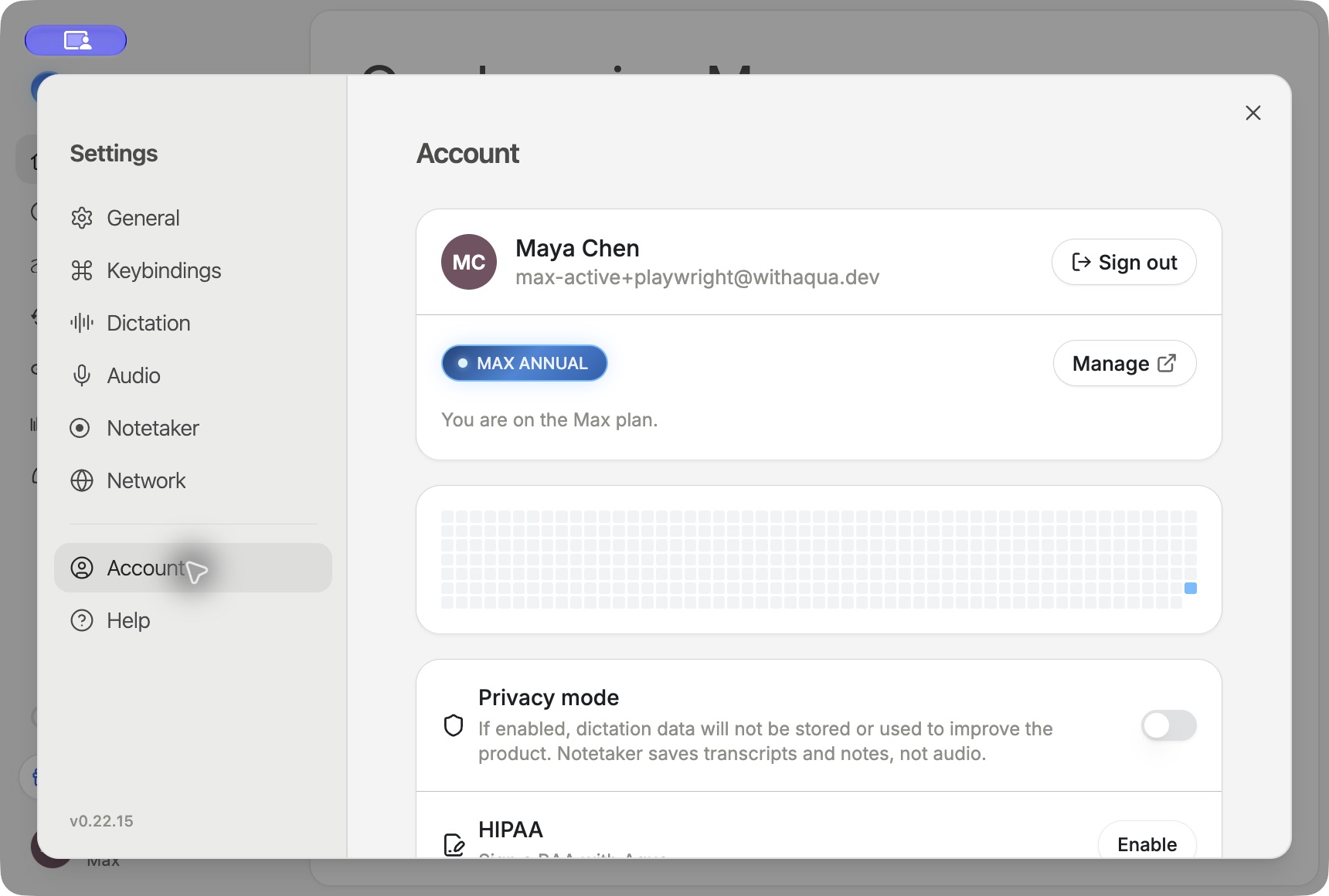
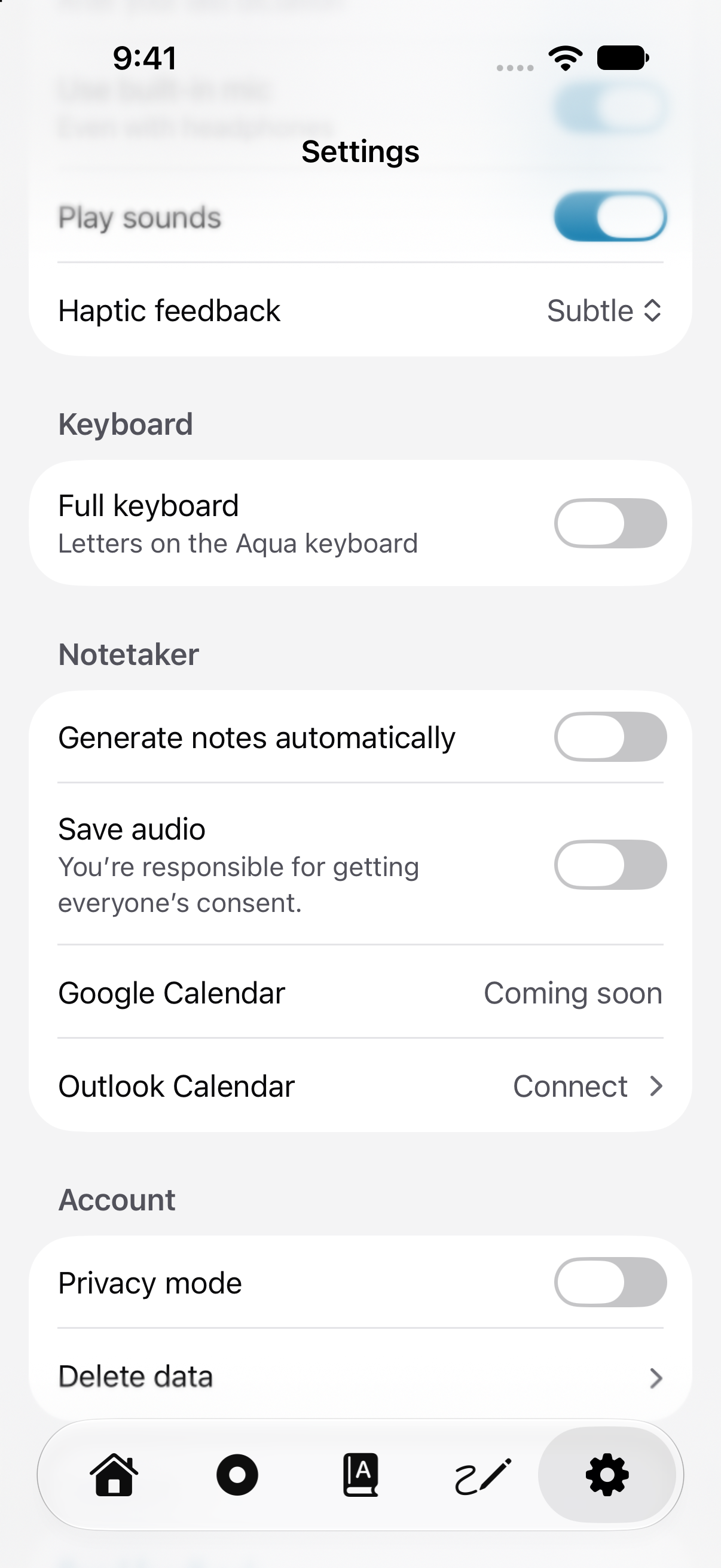
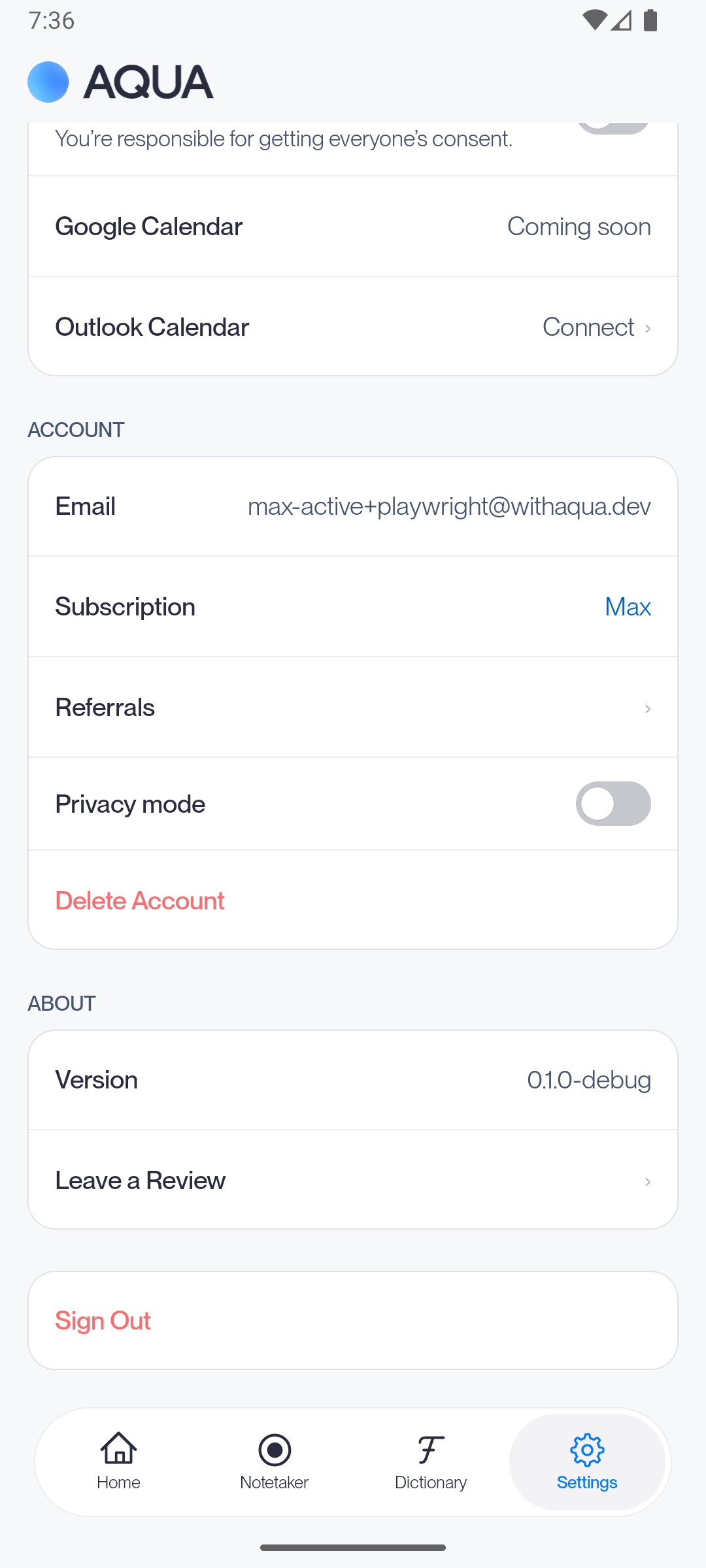
On desktop, open Settings → Account and turn on Privacy mode. On mobile, open the app's settings and find Privacy Mode. A managed workspace or an active Business Associate Agreement can require it to stay on. The app shows when the setting is managed.
What is retained
Data | With Privacy Mode on |
|---|---|
Dictation audio and transcript | Not stored on Aqua Voice servers, except when you attach a dictation to feedback. |
Session metadata | Timestamps, device details, and performance metrics may still be collected. |
Meeting title, transcript, notes, speaker names, and captured screenshots | Stored so you can read and search your meetings. |
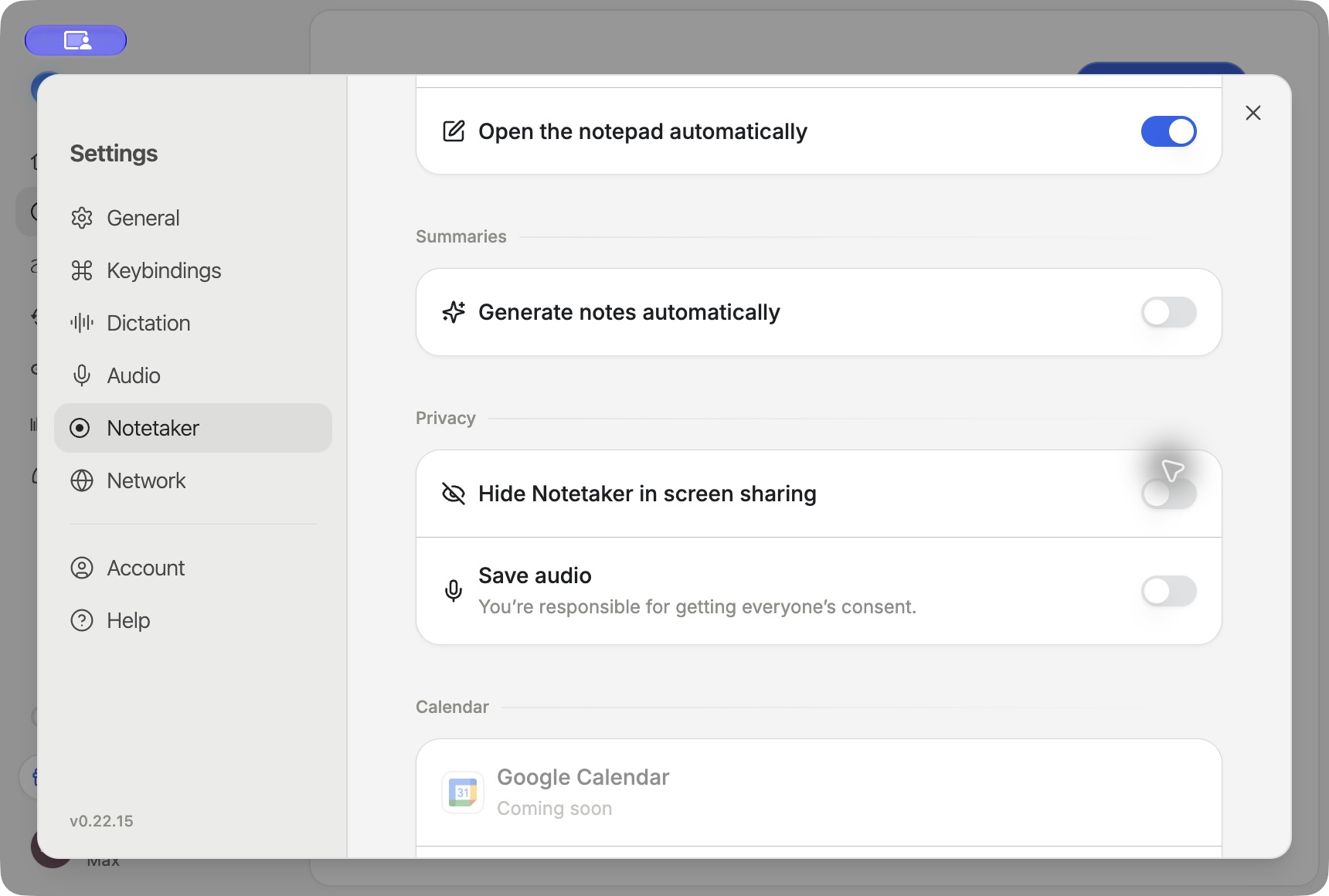
Meeting audio and voice data on Aqua Voice servers | Not retained. Save audio is off in Privacy Mode. |
Meeting content used to improve models | Not used for this purpose. |
Desktop recordings can temporarily remain on your computer while notes are processed and the meeting can still be resumed. For recordings made with Save audio off, the app removes that local audio after processing is complete and the resume period ends. If processing fails, the audio remains for a retry. Check the local audio row in Settings → Notetaker. Deleting a note also removes its local audio.
These controls are described in the Privacy Policy.
History, feedback, and sharing
Server-backed dictation history and connected tools can only return content that was stored. If you attach a dictation to feedback, that submission includes the data you choose to send.
Meetings are private until you share them. Review a meeting's sharing options before you invite people or enable access through a link. A connected AI app receives the content it requests through the permissions you approve. See MCP documentation.
Business policies
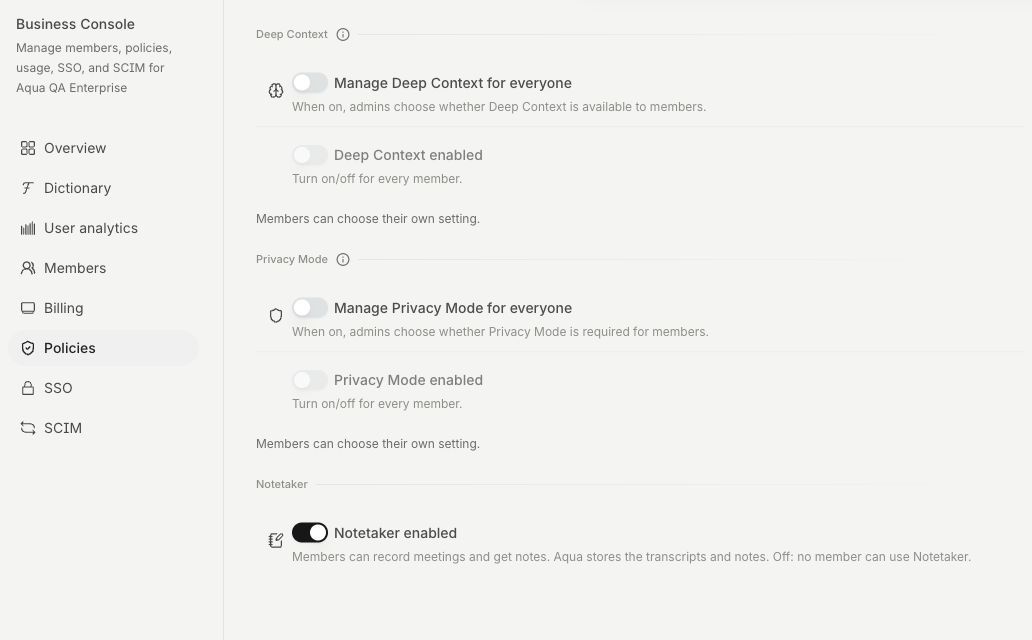
Workspace administrators can manage Privacy Mode, Deep Context, and Notetaker. The Require Zero Data Retention policy uses providers that do not retain data and locks Privacy Mode on. Notetaker still saves meeting content as described above. See Business administration.
See Zero Data Retention for Business for setup, workspace enforcement, and retained meeting content.
Clipboard history and local copies
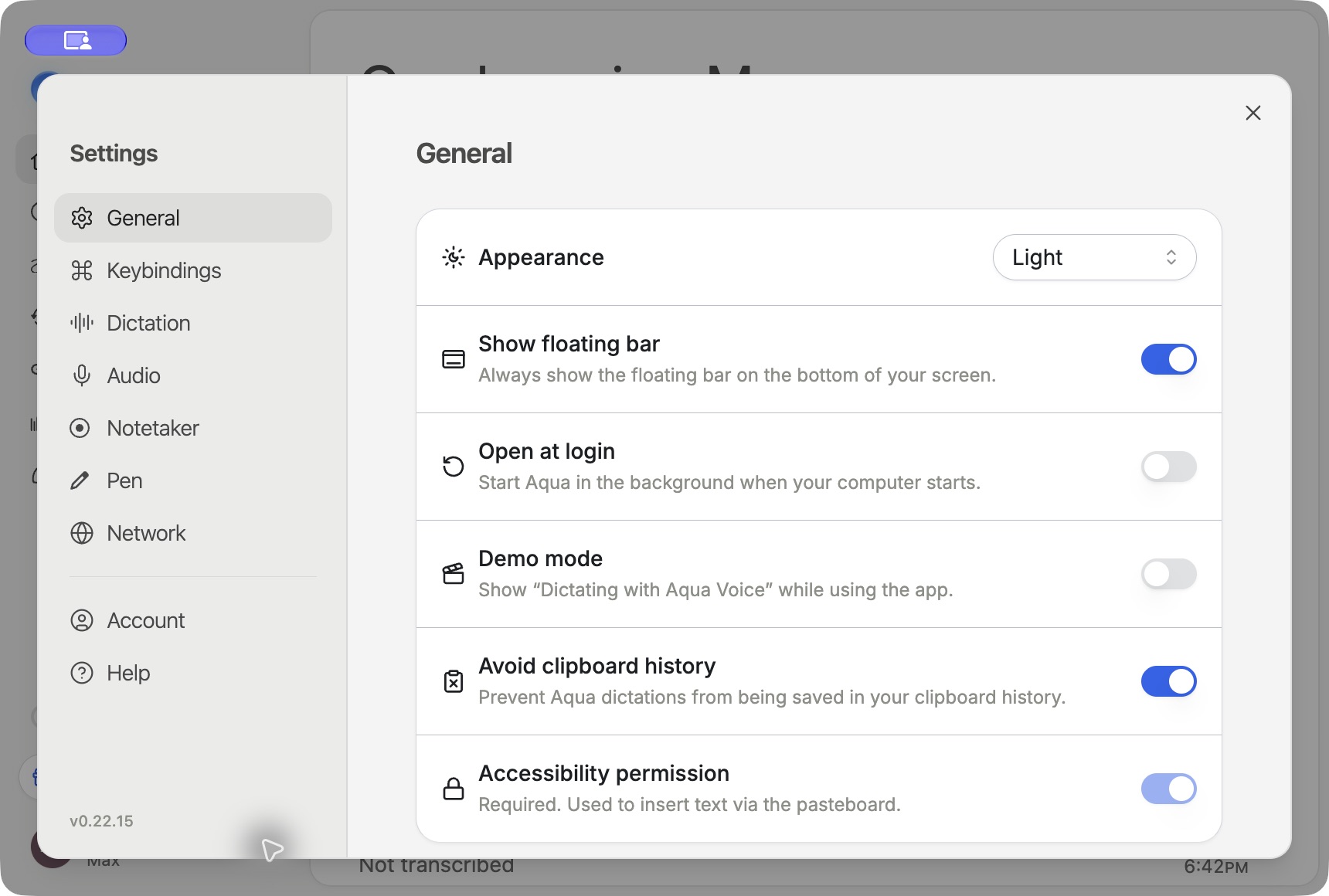
On desktop, open Settings → General and turn on Avoid clipboard history. Aqua Voice marks clipboard content so supported clipboard-history features can exclude it. The result depends on whether the operating system or clipboard manager respects those markers.
Text already inserted into another app and previous clipboard entries remain under those apps' data controls. Use your clipboard manager's history controls to remove old entries. Local dictation audio, saved screenshots, and exported files have their own retention behavior, described in History, Aqua Pen, and Managing Meetings.
For a signed healthcare agreement, see HIPAA and BAA. For personal-data requests, see GDPR and Data Requests.