
Recommended Microphones
Start by testing the microphone you already have. Audio quality depends on the microphone, its position, background noise, and any processing applied before the audio reaches Aqua Voice.
Check your microphone in Aqua Voice
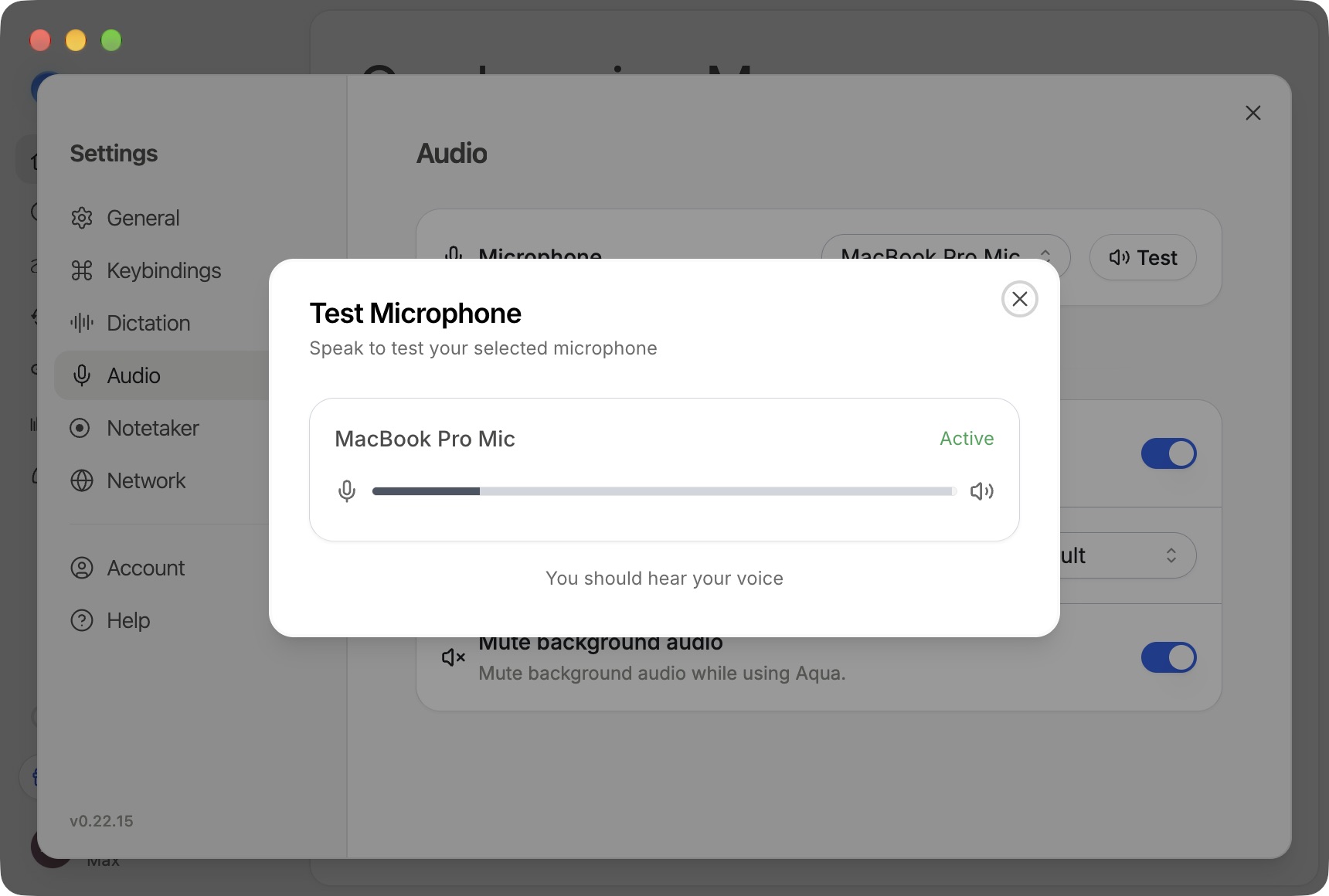
- Open Settings → Audio on desktop.
- Select the microphone you want to use.
- Choose Test beside the input control.
- Speak at your normal volume. Check the input meter and listen to the playback.
- Close the test, then try a short dictation in a plain text field.
Choose an input for your setup
A built-in microphone can be convenient at a quiet desk. A headset keeps the microphone’s position consistent as you move. If you already have a USB or wired microphone, compare it with your current input using the same sentence.
For Bluetooth, test the first dictation after the microphone has been idle as well as subsequent dictations. Connection startup can affect the experience. See Microphone delay.
Follow the microphone manufacturer’s placement instructions. Keep the microphone clear of clothing, fans, and direct breath, and check for clipping or very low input levels in the test.
Use a Mac laptop with the lid closed
Apple silicon Mac laptops and Intel Mac laptops with the T2 chip disconnect the built-in microphone when the lid is closed. Use an external input for that setup. See Apple’s hardware microphone documentation.
Use a virtual microphone
If audio processing software exposes a microphone input to the operating system, select that input in Aqua Voice and test it. Compare the processed and original inputs for missing words, distortion, and delay.
For permission problems or missing audio, see Troubleshooting.