
How to fix microphone delay
If listening starts late, check the microphone separately from the time it takes to finish transcribing.
Check when the delay happens
Open Settings → Audio in the desktop app, select your microphone, and choose Test. Speak and check when the input meter starts responding.
If the meter responds promptly but the completed text arrives late, also check your internet connection and the service status. See Troubleshooting.
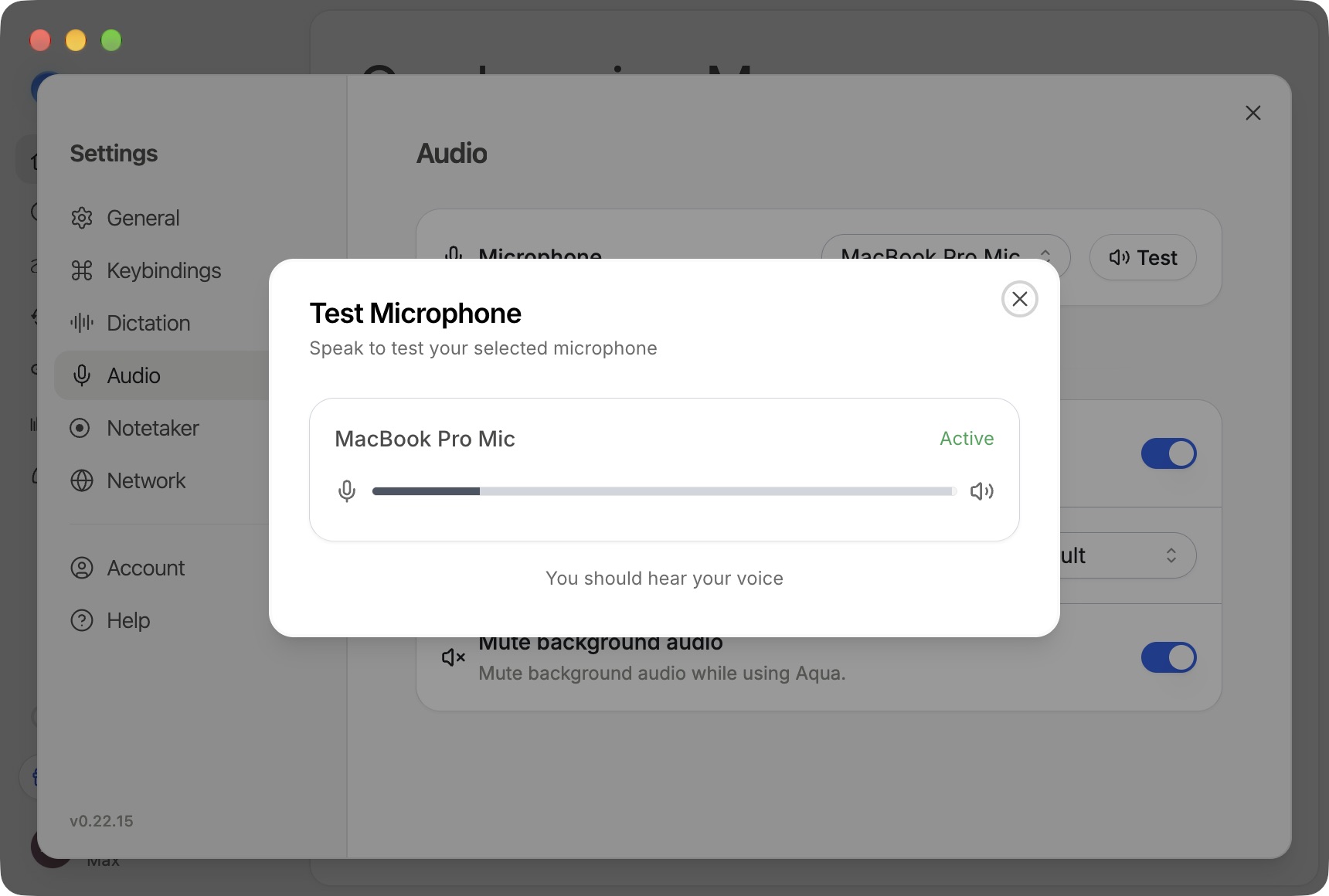
Compare audio inputs
Bluetooth devices can take time to establish an audio connection. Compare your Bluetooth input with the computer’s built-in microphone or an available wired input. Use the same short sentence and repeat after the microphone has been idle.
Select the intended input explicitly in Aqua Voice. Check its mute control, operating-system microphone permission, and any audio processing software between the microphone and Aqua Voice.
On Windows, check microphone access for desktop apps and the device manufacturer’s driver updates. Record the device model and whether the delay happens after sleep or while running on battery if you contact support.
Report a persistent delay
Include your operating system, Aqua Voice version, microphone model, connection type, and whether the delay occurs in the microphone test, at the start of recording, or after you finish speaking. See Recommended Microphones for setup checks.