
How to add multiple activation keys
Aqua Voice supports multiple activation keys for dictation, so that you can adapt it to your setup. Follow this step-by-step guide.
This is especially helpful if you have multiple keyboard setups or often switch between using your laptop in clamshell mode with monitors versus just the built-in keyboard.
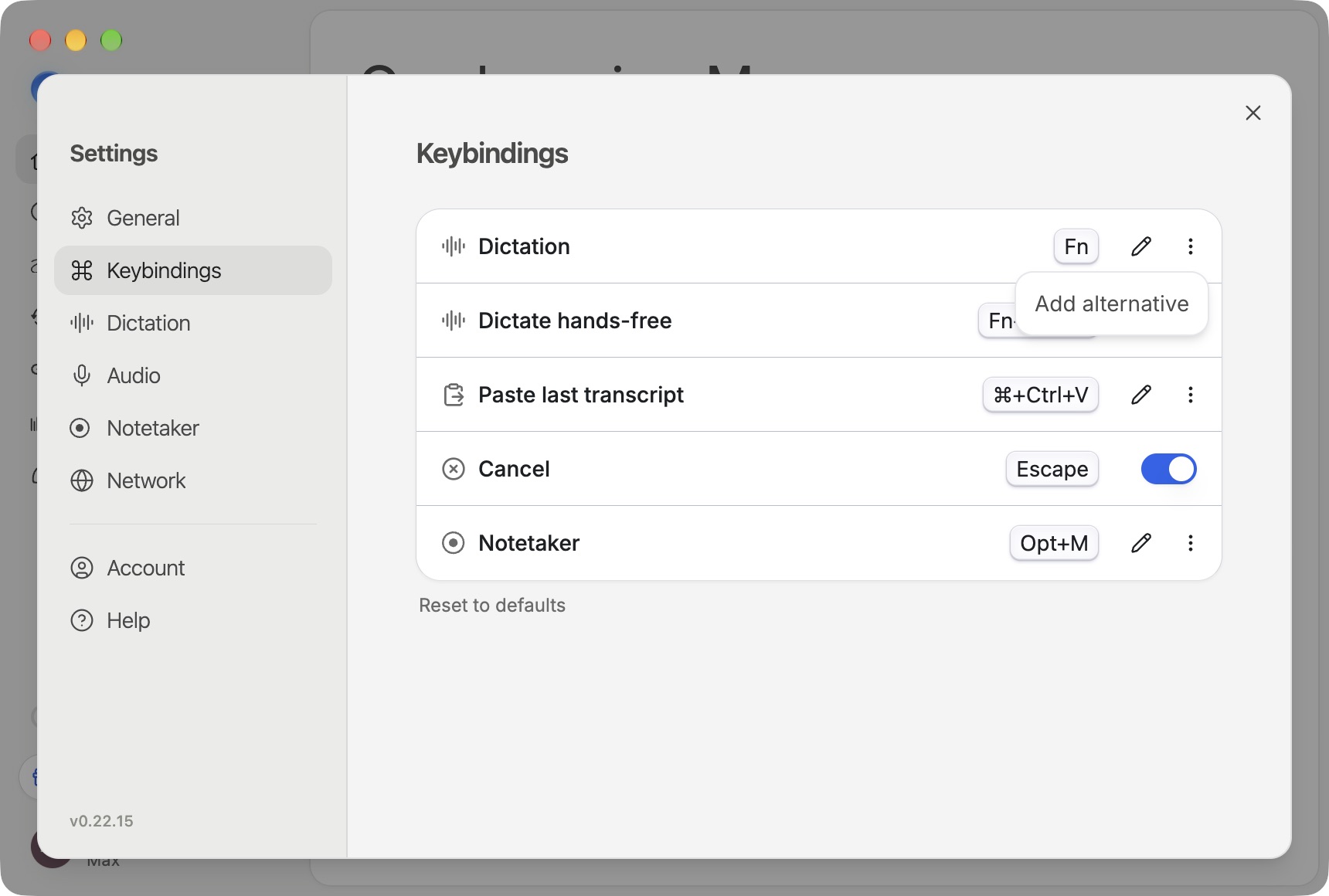
1. Click “Add Alternative”
Open Settings → Keybindings. Open the three-dot menu beside the activation shortcut and choose Add alternative.
2. Choose your new keybinding
Press your desired key combination. Combinations of up to five keys are supported.
Common alt bindings include the function keys (F1-F12) and Numpad keys (+).
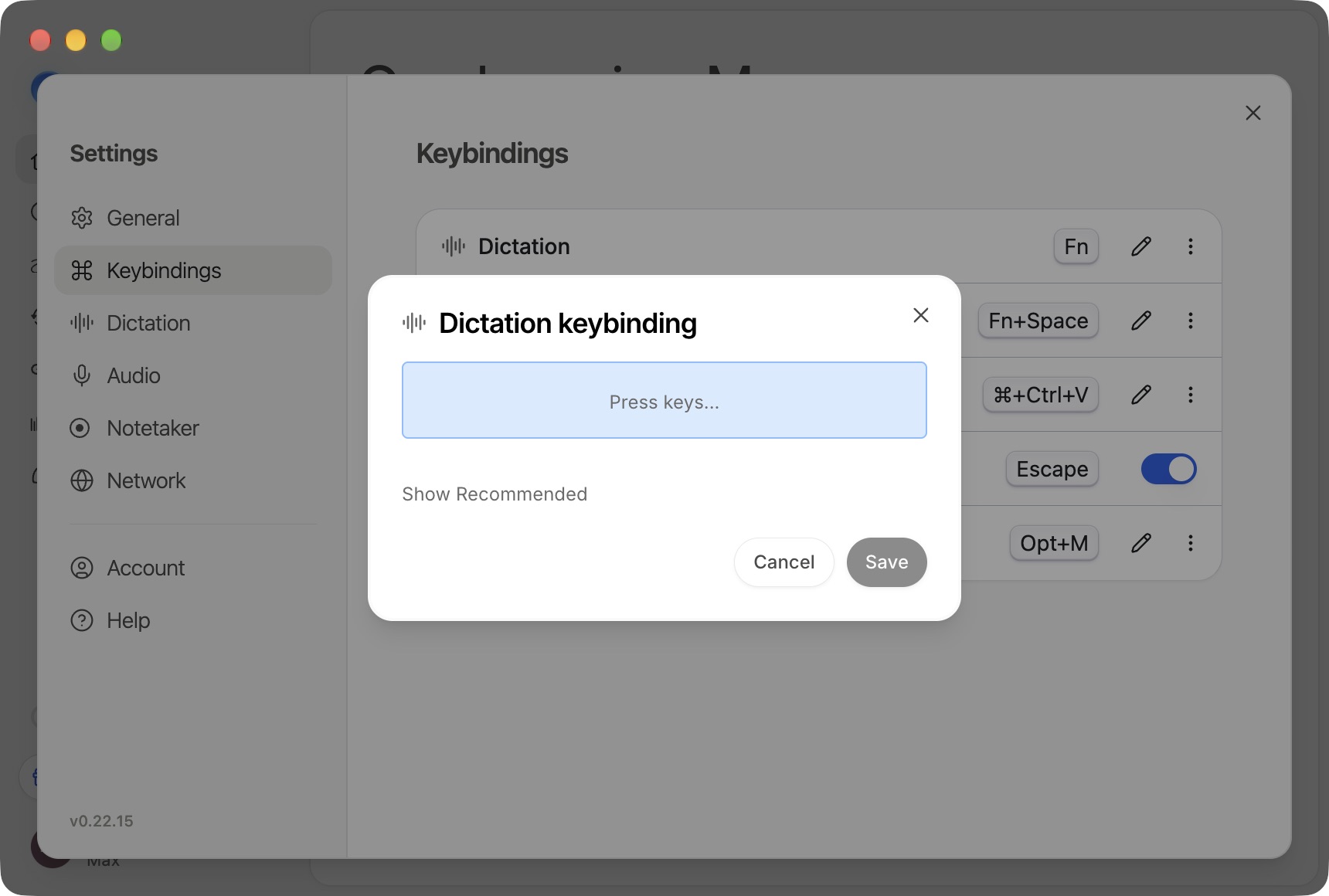
3. Click “Save”
Click Save and you're all set. The new key combination is live.
To change the hotkey click the pencil icon.
To remove the alternate, click the dots icon and choose Delete.
Common Questions
How many activation keybindings can I have?
Aqua Voice supports up to 3 keybindings per action.
Do activation keys sync across all my devices?
No, key bindings are device specific and are not synced.
Can I use the fn key in combination with another key (macOS)?
Yes, to use the Fn key in a chord with other keys, click the pencil, click Show Recommended, and click the Fn option from the list of suggestions. Then press the rest of your combination and click Save.
How do I reset my key bindings?
If you need to reset your key bindings, open Settings → Keybindings and click Reset to defaults.
Troubleshooting
What should I do if an activation key stops working?
First, check if the key combination is being used by another application or system shortcut. You can test this by trying the key combination in different apps.
If it still doesn't work, try removing and re-adding the activation key in Aqua Voice Settings.
What happens if I choose a key combination that conflicts with system shortcuts?
A shortcut can conflict with an operating-system or app shortcut. Choose an unused combination and test it. If the system still responds, reassign the conflicting shortcut in the system or app settings.
How do I use the ⌘ + Space shortcut?
Click the pencil to open the shortcut dialog, and press the keys individually, then press Save. This helps avoid opening Spotlight while recording the combination. Test the result and reassign the Spotlight shortcut if it conflicts.