Custom Instructions let you describe formatting and wording preferences for your dictations. Include a short example of the result you want.
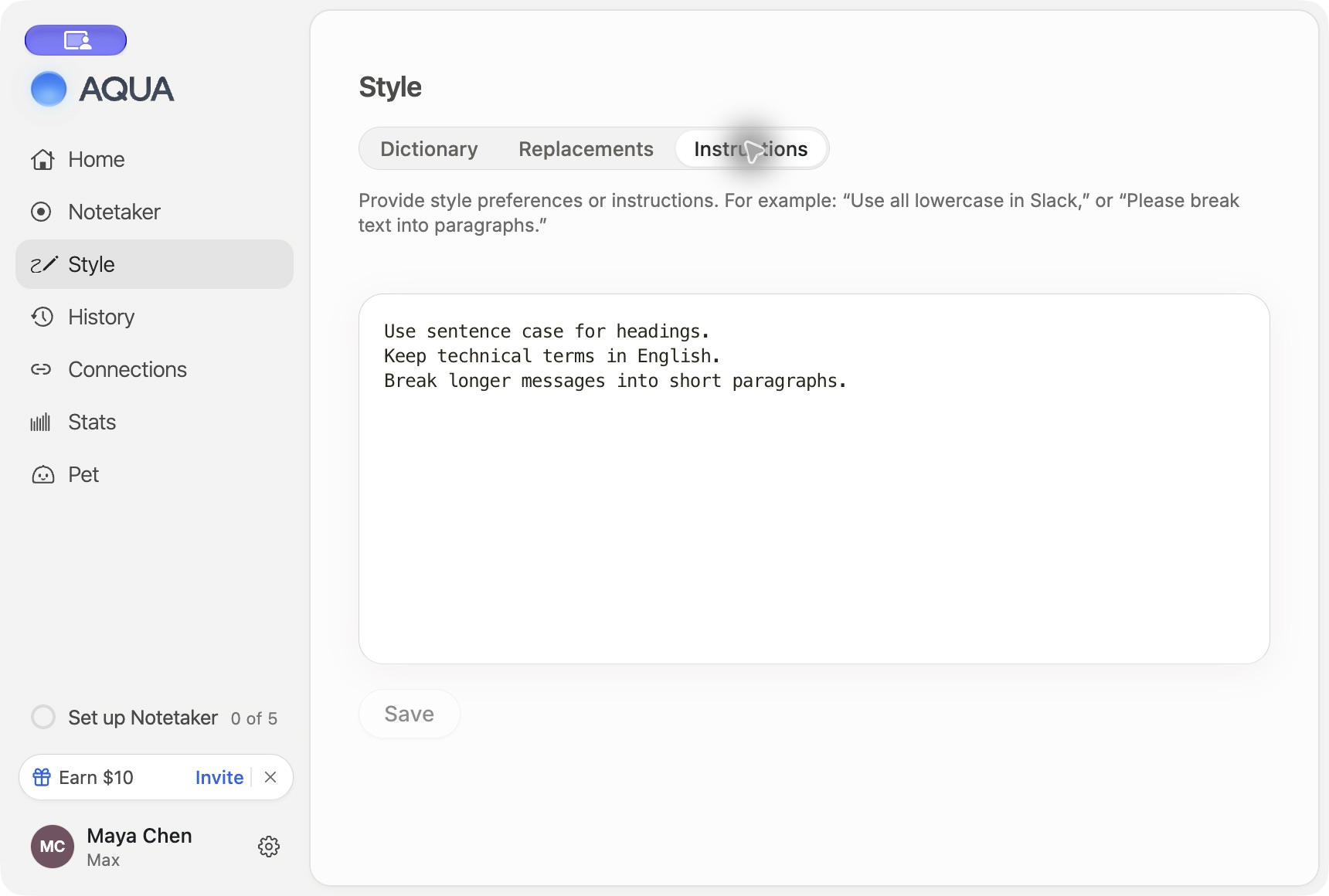
Open Style → Instructions in the desktop app, edit your instructions, and choose Save. The page confirms when they are saved. Test a short dictation after changing them.
Example instructions in Style → Instructions.
TLDR on Custom instructions:
Instructions are understood best by Aqua when listed and with an example of what you want.
Instructions for emails:
You can include details on your format, frequency of periods and paragraph breaks. Include your preferred email sign-off explicitly in the instructions.
Example you can copy and paste:
Write like a human:
Avoid computer-speak and make sure Aqua writes like a human
Example you can copy and paste:
Speak like a local:
Some words are spelled differently in different places. You can tell Aqua you want your text in the local vernacular.
Example you can copy and paste:
Remove filler words:
On top of removing obvious filler words, you can tell Aqua how much you want to be concise.
Example you can copy and paste:
To change your custom instructions from a terminal or a coding agent, use the Aqua CLI.
Casual messaging
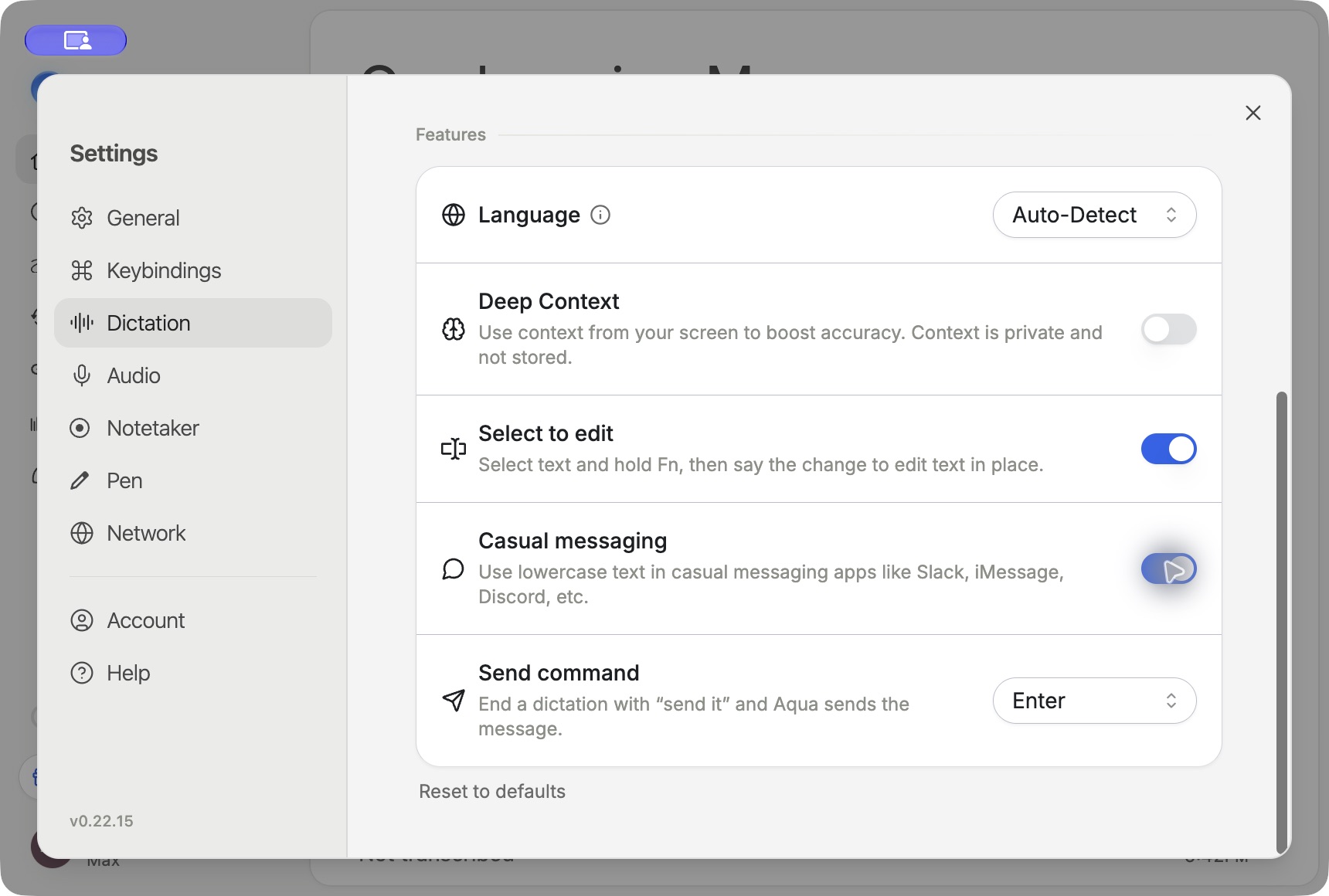
Open Settings → Dictation and use Casual messaging to enable lowercase text in casual messaging apps such as Slack, iMessage, and Discord. If you prefer standard capitalization, turn it off and test a short message in the same app.
When reviewing unexpected formatting, check this setting together with your saved instructions and replacements.