













From a thought to a draft you can use
Voice writing means dictating your own words into a text field. Start with a short passage, read it back, and shape it into the version you want to share.
Say one complete thought
Put your cursor in the document. Hold your Aqua key, say the passage, and release. For a longer thought, double-tap to start and press the key again to finish.Keep the meaning yours
Read the text in its destination. Check names, dates, and the point you wanted to make before you move on to the next paragraph.Ask for a specific change
With Select to Edit enabled, select a passage, hold your Aqua key, and say the change. Read the replacement before keeping it. See Edit Mode.
Give a sentence a second pass
A useful edit has a clear purpose. Try this short example in a draft with Select to Edit enabled.
Start with your draft
Thank you very much for taking the time to review this in such detail.
Select it and speak
Make it shorter.
Read the revision
Thanks for reviewing this so carefully.
Make room for your vocabulary and style
Set up the details you use repeatedly, then spend your attention on what you want to say.
Keep your names close at hand
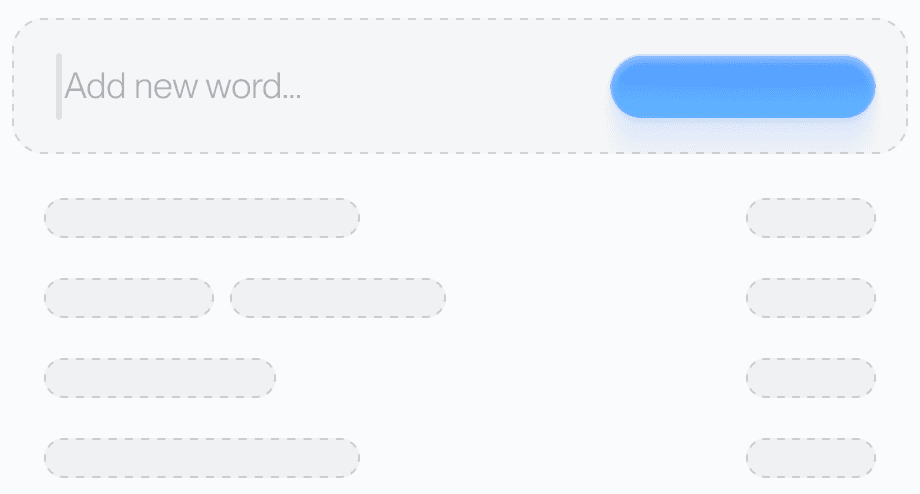
Add character names, project names, and specialist terms to your Dictionary. It helps Aqua recognize the words that matter to your work. Set Up Your Dictionary
Give your formatting a starting point
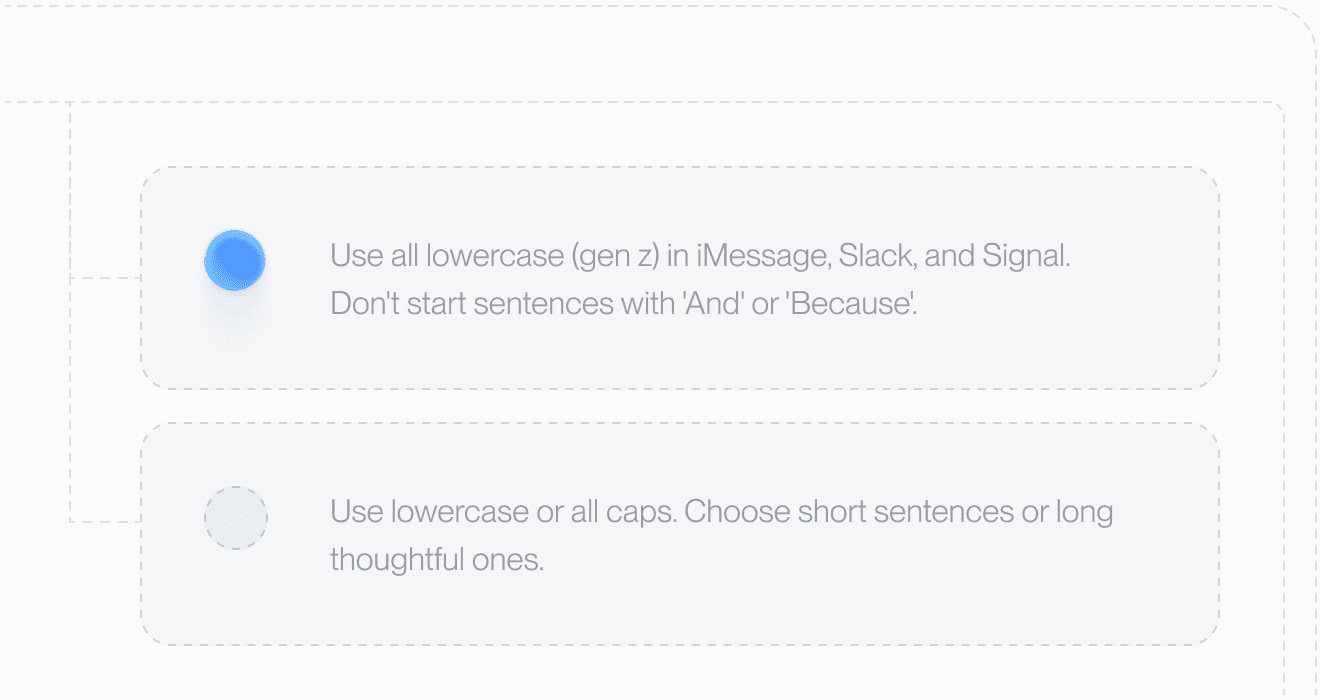
Use Custom Instructions for preferences such as spelling, paragraph breaks, or how you sign off an email. Add an example of the output you want. Write Custom Instructions
Build longer work one passage at a time
For an essay or article, jot down the point of each section before you dictate. Explain one point aloud, add its example, then pause to read what landed on the page. Keep quotations and source notes beside the claims they support.
For fiction, start with a scene you can picture: who is there, what they want, and what changes. Dictate the action or dialogue first. Add recurring character and place names to your Dictionary, then return to rhythm and word choice in a separate editing pass.
For study notes, distinguish your own explanation from the source’s words. Follow your institution’s rules for dictation and AI-assisted rewriting.
Revise the part that needs attention
In desktop Settings, check that Select to Edit is enabled. Select a short passage, hold your usual Aqua key, say the change, and release. Try “Keep the dates, but make this more concise” or “Fix the grammar without changing the tone.”
Review the replacement in context. Edit Mode uses normal dictation in search fields, browser address bars, and selections over 6,000 characters, so work on a smaller passage when revising a long document.
Finish with a clear next step
For a team update, say what changed, what remains open, and what you need from the reader. The example above names the work, the review deadline, and the next conversation.
Before sharing, check the recipient, names, dates, and links. Finish dictation before sending. You can also draft in a document and copy the reviewed version into a message.
For private material, follow your organization’s rules and read the Privacy Policy. For activation and correction options, see dictation and accessibility.
Start in an app you already use
Open a text field, place your cursor, and dictate. These guides cover the details for each app.