




More context in. A clearer next step.
Voice coding uses dictation to put spoken instructions into an agent, editor, or terminal. Aqua enters the text; your developer tool generates or changes the code.
[01] Explain
Name the task and its boundaries
Focus the agent’s prompt field. Hold your Aqua key and describe the change, relevant files, constraints, and what a successful result looks like. Release to finish.[02] Review
Read the prompt before sending
Check file names, paths, technical terms, and negations. Correct the transcript before you submit it. Avoid Send It when you want this review step.[03] Iterate
Inspect the result, then follow up
Review the diff and run the relevant checks. Speak a focused follow-up with what needs to change. Your normal review and deployment decisions stay in your developer tool.
A useful prompt says more than “build this”
Try the dashboard prompt above. Each part gives the agent information it needs to make a better change.
Describe the behavior
Make a React component called TaskDashboard. Show each task’s title and status, and let me filter by owner.
Add the constraints
Keep the project’s existing design system. Support keyboard navigation. Include an empty state when no tasks match.
Define the check
Test the filter behavior before you finish. After the agent responds, review the diff and confirm that the filter, empty state, and keyboard controls work.
Bring your project’s language with you
Names, libraries, and formatting matter in a prompt. Give Aqua useful context and check the exact text before sending.
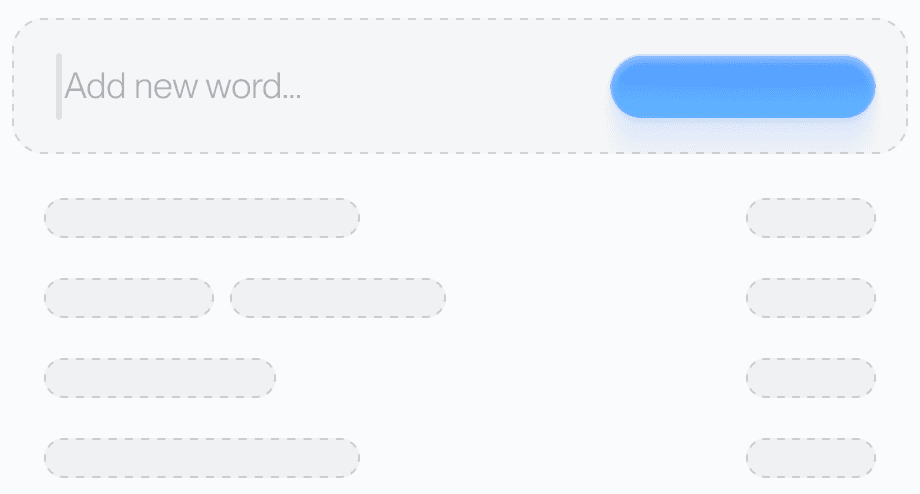
Add names that are specific to your codebase
Put internal project names, packages, and teammate names in your Dictionary. Keep checking exact paths, identifiers, and flags in the transcript. Configure your Dictionary
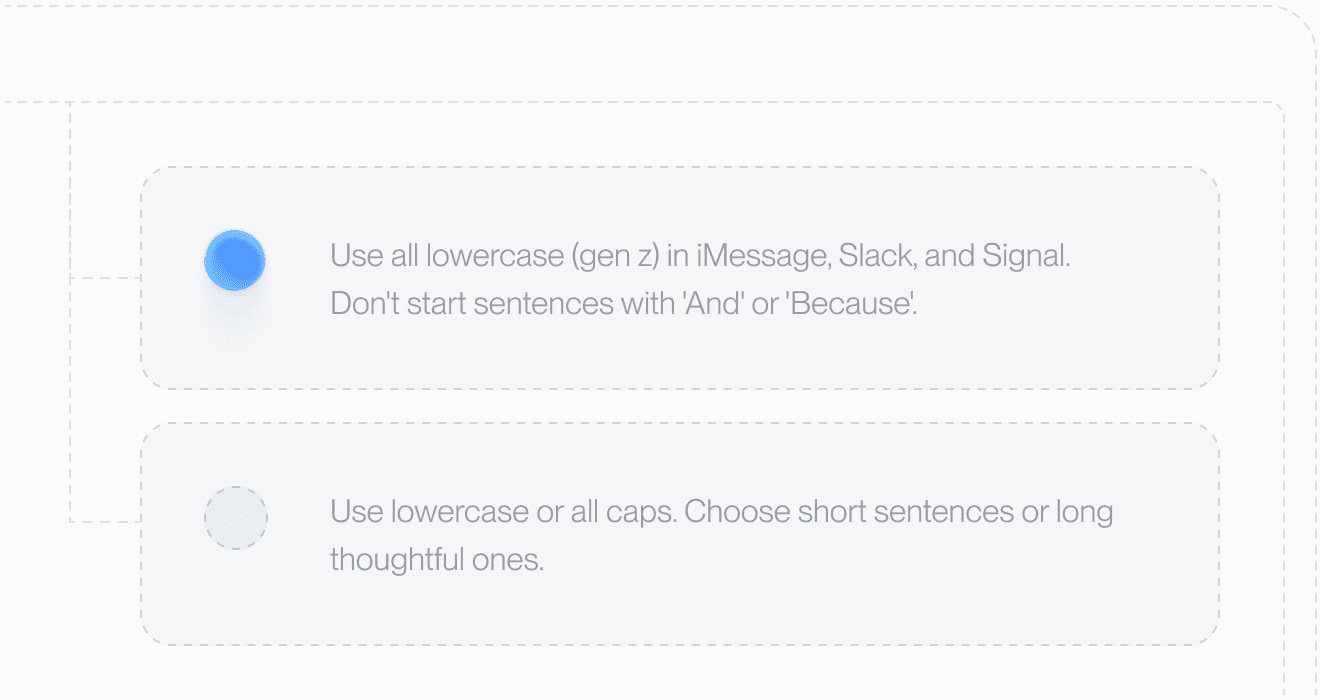
Set the formatting you prefer
Use Custom Instructions to explain how you want dictated text formatted. Include a short example. The Aqua CLI can also manage these settings from your terminal. See Aqua CLI instructions
Keep the agent handoff explicit
Open your editor or coding agent, place the cursor in its prompt field, and dictate. A natural-language prompt can carry the reasoning behind a change: what the user should experience, what already exists, and what must stay consistent.
When the text arrives, check it before you send. A missing “don’t,” a changed file name, or the wrong number can alter the task. Then inspect the code your agent produces and run the checks that fit the change.
When Deep Context is enabled in desktop Settings, Aqua can use nearby on-screen text to help resolve names and technical vocabulary. Read the Privacy Policy and your organization’s rules before using private material.
Use the keyboard when exact characters matter
Dictate the explanation; type or paste an exact hash, path, flag, or command when one character changes its meaning. Enter credentials through your approved secret-management workflow rather than speaking them aloud.
In a terminal, distinguish an agent’s prompt from a shell prompt. Review the text and arguments before pressing Enter, especially when a command changes files, permissions, packages, or remote systems.
The evidence behind technical vocabulary
Aqua’s August 2025 AISpeak-10 evaluation measured recognition of English technical terms. The shared chart below shows that published result.
- AvalonAqua Voice
- 97.4%
- Whisper Large v3Open-source reference model
- 65.1%
AISpeak-10 is Aqua’s English technical-speech dataset. Avalon transcribed the key term correctly in 97.4% of clips, versus 65.1% for Whisper Large v3. This measures key-term recognition, not overall transcript accuracy or a head-to-head test of these apps. See the evaluation and results.
A separate October 2025 OpenASR report lists 6.24% average word error rate for Avalon v1 English across its benchmark suite. Read the report and methodology. These are historical evaluations, not a promise about every prompt or the current model’s ranking.
Start in an app you already use
Open a text field, place your cursor, and dictate. These guides cover the details for each app.