













Try the whole task, from start to finish
Dictation replaces typing the words. A useful setup also lets you reach the right field, make a correction, and save or send your work.
Reach the text field
Use your usual keyboard, pointing device, or assistive tool to place the cursor in a practice document. Confirm which field will receive the text.Start, speak, and stop
Hold your Aqua key and release to finish. To speak without holding the key, double-tap it, say a short passage, and press it again to stop.Correct and complete
Read the result, change a word, and check whether the app's own Undo control restores it. Save the document or send the message with your usual input method. Repeat the check after switching apps.
Start with a small, complete example
Use a practice document for this check. Keep the same input tools you normally rely on within reach.
Dictate a sentence
The meeting is at 5pm on Thursday. Finish dictation and check that the words appeared in the right place.
Make one correction
Select the sentence. With Select to Edit enabled, hold your Aqua key and say: “Change 5pm to 6pm.” Then release.
Review and save
Check that the time changed and Thursday stayed the same. Check whether the app's own Undo control restores the earlier text, then save the version you want to keep.
Choose the controls that fit your setup
Aqua’s desktop settings let you adjust activation and selected-text editing. Check each choice in the apps you actually use.
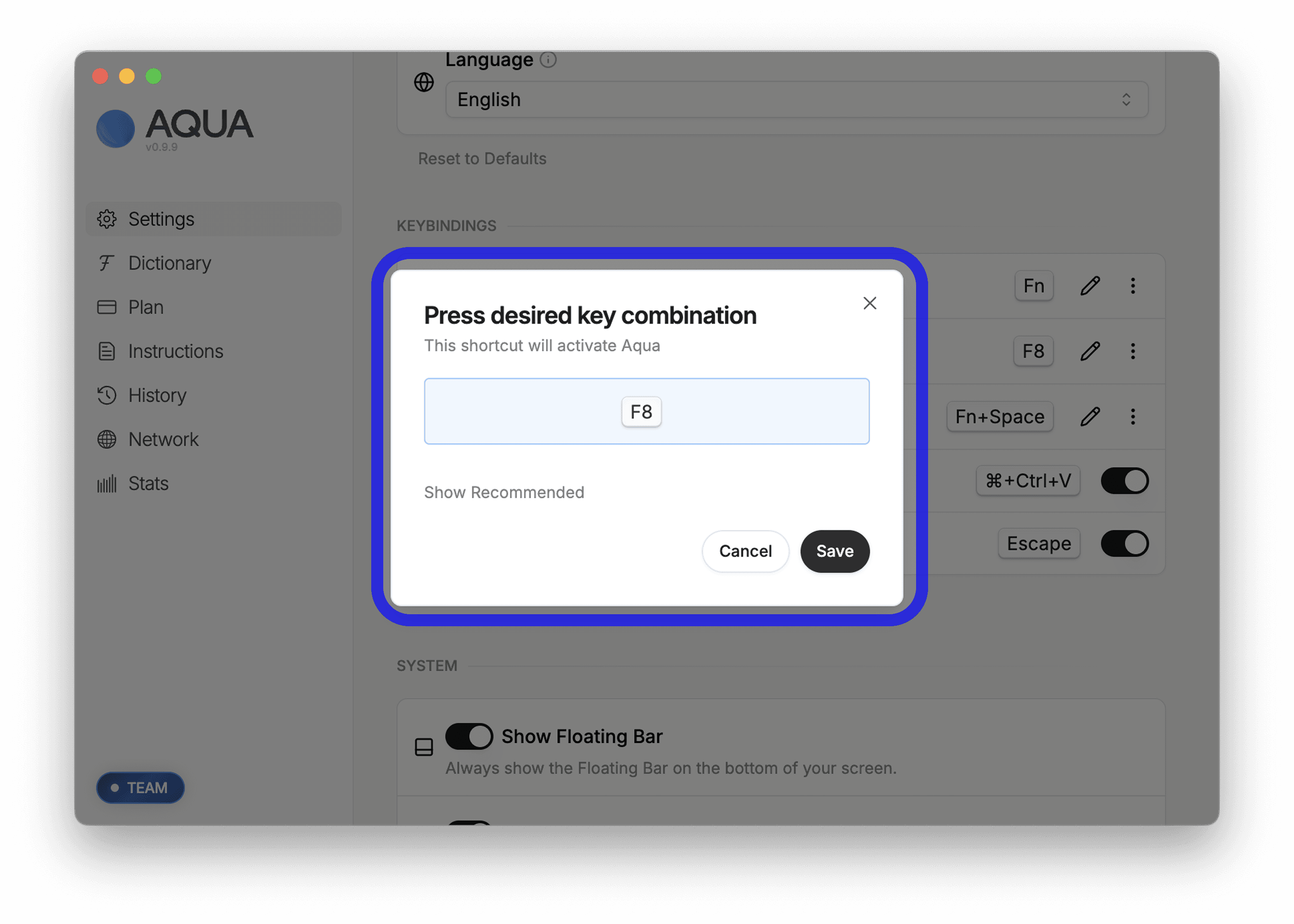
Add an alternative activation key
In Settings, find Keybindings. Open the shortcut’s three-dot menu, choose Add Alternative, enter your key combination, and save. Bindings are specific to each device. See Activation Options
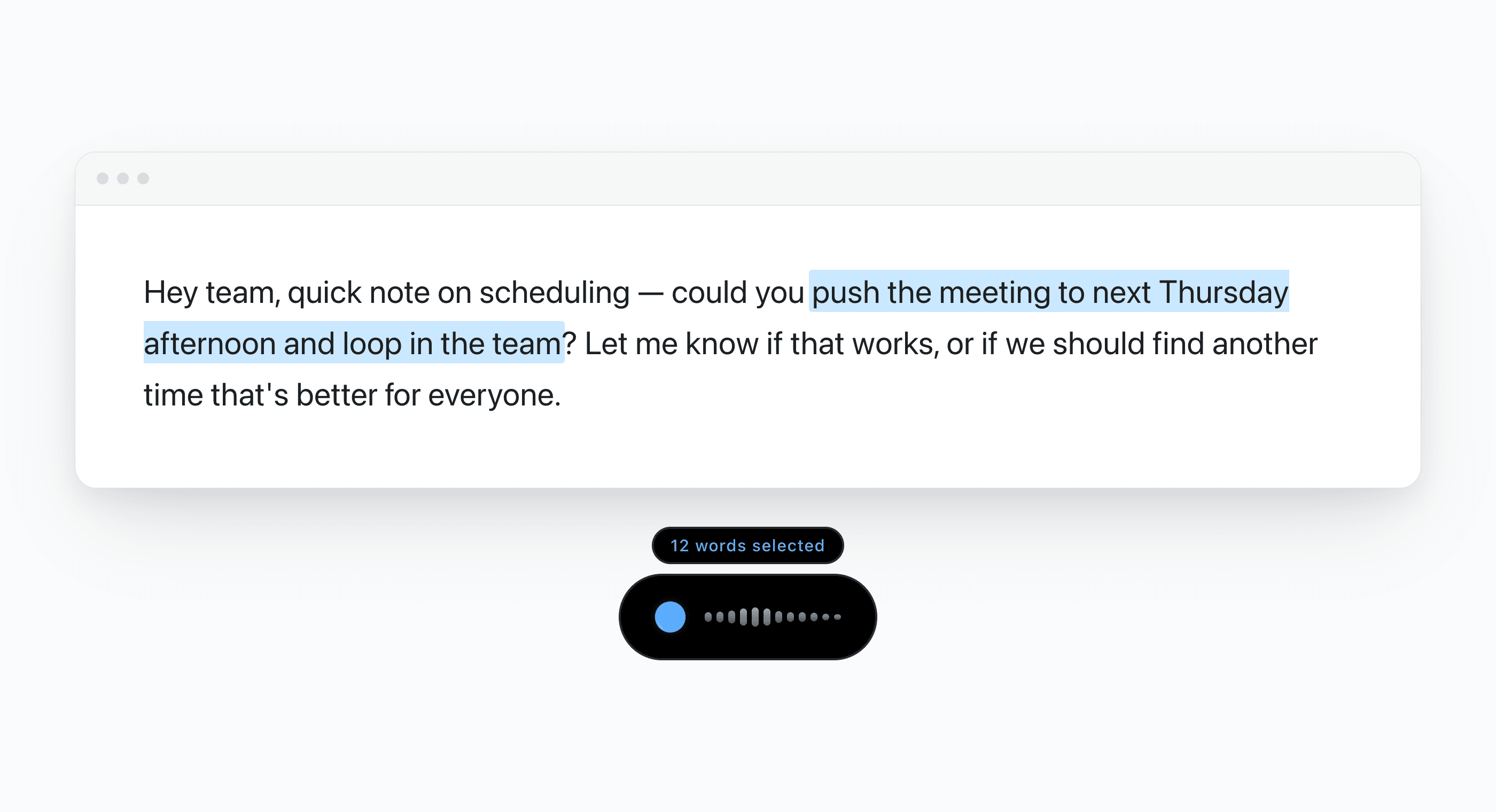
Speak a change to selected text
Select to Edit uses your usual Aqua key. Select a passage with your input method, say what to change, and review the replacement. Read the editing guide
Hold a key, double-tap, or use a mouse button
Hold-to-talk works well for a short phrase: hold your Aqua key, speak, then release. For dictation without a sustained keypress, double-tap the key and press it again when you finish.
Desktop Aqua also supports mouse buttons 3, 4, and 5 as activation shortcuts. Choose an input you can reliably start and stop. Aqua’s shortcuts are global, so check for conflicts with shortcuts in your other software.
Follow the activation-key setup guide. The desktop changelog records the mouse-button update.
Check what happens around the words
In each app, confirm that you can reach the field, start and stop dictation, select and correct text, and finish the task. Check whether the app's own Undo control can reverse an edit. Switch away and return to check that focus and insertion still behave as expected.
Check your Send Command setting before sending a message. Auto chooses the shortcut for the app and field. If you need to review first, choose Paste Only or finish dictation without saying “send it”, then submit the text yourself. You can also draft in a separate document and copy the reviewed text into its destination.
Secure or restricted fields may block dictation. Search fields and browser address bars use normal dictation rather than Edit Mode, as do selections over 6,000 characters.
Dictation is one part of your input setup
Aqua enters text and can edit a selection. Moving between apps, opening menus, positioning the cursor, and selecting text still need an input method you can use.
Apple Voice Control and Microsoft voice access are separate tools for controlling a computer by voice. Read their device, language, and setup requirements.
Pairing those tools with Aqua has not been verified for this guide. The workflow above helps you evaluate your own setup; it is not a compatibility certification.
Build on the setup that works for you
Once you can start, stop, and correct, try a longer note or email. Use the voice writing workflow to build a draft in short passages.
Read the Privacy Policy before using private material. This page covers software setup; it does not assess health needs or promise relief from pain.
Start in an app you already use
Open a text field, place your cursor, and dictate. These guides cover the details for each app.