Chromebook Dictation: How to Use Speech to Text on a Chromebook (2026)
Finnian Brown
10 min read
Every Chromebook has speech to text built in. Google calls it Dictation, and it sits in the accessibility settings, which is why so many people never find it. Once it is on, it types into almost any text field: a Google Doc, a Gmail reply, a search box, a form in Chrome. This guide covers how to turn it on, the keyboard shortcut, the voice commands that punctuate and edit, voice typing on the on-screen keyboard and in Google Docs, what to check when it stops working, and what to use when you need more.
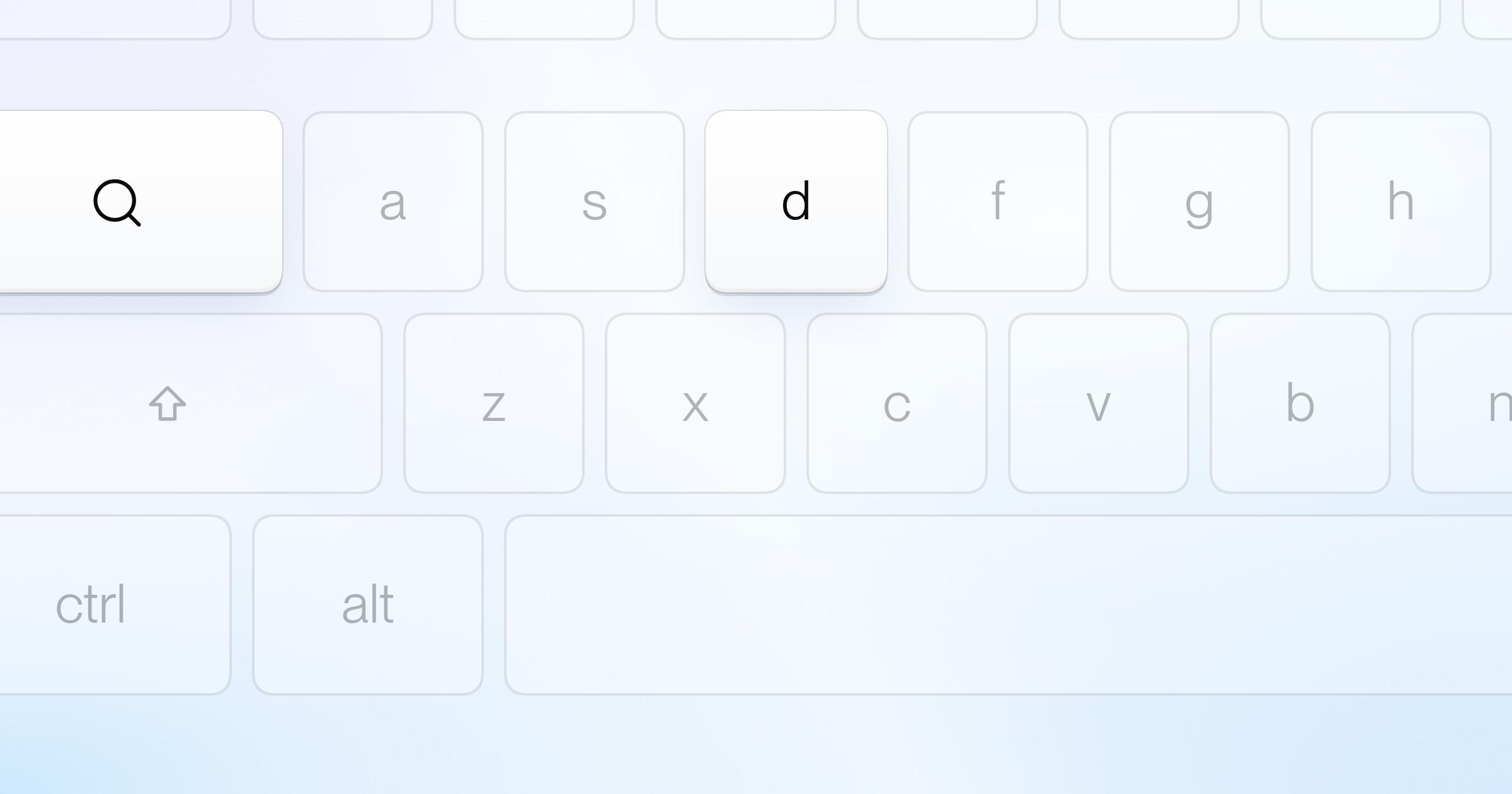
The short answer: to use dictation on a Chromebook, select the time at the bottom right, open Settings, then Accessibility, and under "Keyboard and text input" turn on Dictation. Click where you want to type, then select Speak (the microphone) or press Search + D (or Launcher + D, depending on your keyboard) and talk.
The steps below follow Google's Chromebook Help and Google Docs Editors Help as they read at the time of writing. Menu names can shift a little between ChromeOS versions.
How to turn on dictation on a Chromebook
Dictation is off until you switch it on, and you only need to do this once.
- At the bottom right, select the time, or press Alt + Shift + S.
- Select Settings, then Accessibility.
- Under "Keyboard and text input," turn on Dictation.
On the same page, you can also turn on Always show accessibility options in the system menu. Google suggests it for quick access to accessibility features, Dictation included, from the system menu (Google).
How to dictate on a Chromebook
- Click or tap where you want the text to go.
- Select Speak, the microphone icon, or press Search + D. Some keyboards have a Launcher key where others have Search; Google says both keys work the same, so Launcher + D does the same thing.
- Talk normally. Say "comma," "period," "question mark," "exclamation mark," or "exclamation point" where you want punctuation.
- Say "cancel" when you want dictation to stop listening.
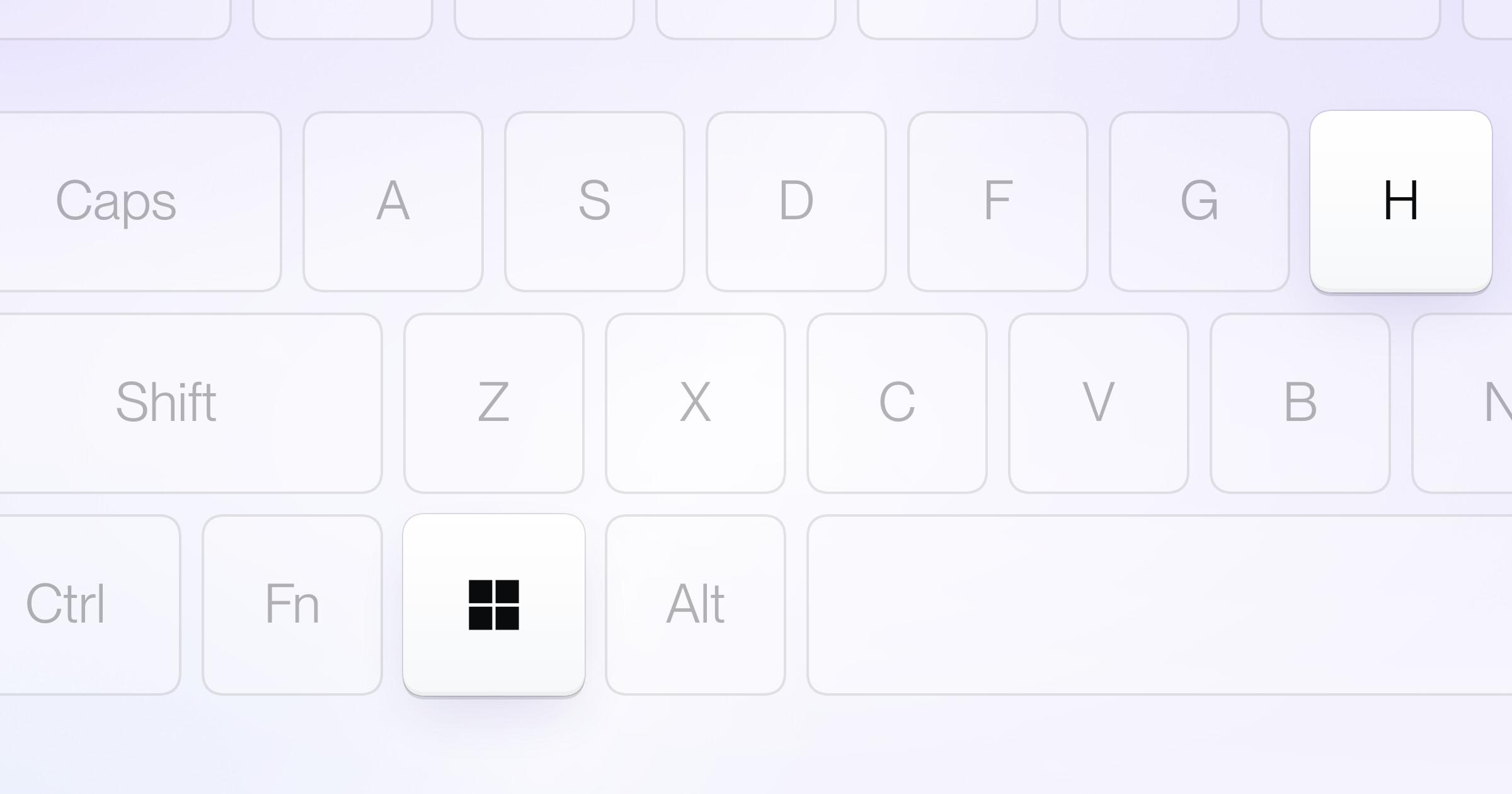
Using a Windows or Mac keyboard with your Chromebook? Google's shortcut guide says to press the Windows key or the Command key in place of Search, so the shortcut becomes Windows + D or Command + D.
One shortcut to keep apart: Ctrl + Search + D magnifies part of your screen. If part of the screen zooms when you meant to dictate, you pressed Ctrl as well.
One rule matters more than any other. Google says speech won't work if the language you speak doesn't match your Chromebook's device language.
Chromebook dictation commands
Dictation also edits by voice. Google's one instruction: wait for your spoken text to clear from the box, then say the command. Pause, let your words land, and speak the command on its own.
Say | What it does |
|---|---|
"New line" | Moves the cursor to a new line |
"Delete the previous word" | Deletes the last word |
"Delete the previous sentence" | Deletes the last sentence |
"Delete [phrase]" | Deletes that word or phrase |
"Replace [phrase] with [phrase]" | Swaps the first phrase for the second |
"Insert [phrase] before [phrase]" | Adds words in front of a phrase |
"Select from [phrase] to [phrase]" | Selects everything between two phrases |
"Select all" and "Unselect" | Selects all text, or clears the selection |
"Cut," "Copy," "Paste" | Work on the selected text |
"Undo" and "Redo" | Undo or redo the last edit |
"Move to the next word" | Moves the cursor right one word (also: character, line, sentence, and "previous") |
"Type [phrase]" | Types the words that follow |
"Cancel" | Stops dictation |
"Help" | Opens Google's help article |
Two limits from Google's list. The commands that name a word or phrase (delete, replace, insert, and select from) only work when that phrase is before the cursor. And some voice commands aren't yet supported in right-to-left languages.
Newer, more natural commands work in English, French, German, Italian, and Spanish. They let you say the same thing several ways ("move to the next letter" or "right one letter") and add "delete all," "move to the start," "move to the end," "select the next word," "select the previous character," and "repeat."
Voice typing with the on-screen keyboard
On a touchscreen Chromebook, or one folded into tablet mode, the on-screen keyboard has its own microphone.
- Select where you want to type.
- Open the on-screen keyboard. It opens by itself when you flip the screen over its hinge into tablet mode; otherwise, turn on On-screen keyboard under "Keyboard and text input" in Settings, then Accessibility.
- At the top right of the keyboard, select Speak. The first time, a message explains how the feature works; select Got it to turn on the microphone.
- When the microphone icon turns blue, start talking. To remove what you said last, select Delete.
The same voice commands work here (Google).
Voice typing in Google Docs on a Chromebook
Google Docs has its own voice typing, separate from ChromeOS Dictation. It works in the latest versions of Chrome, Edge, and Safari, so it works on any Chromebook.
- Open a document in Google Docs.
- Select Tools, then Voice typing. A microphone box appears.
- Click the microphone and speak. Click it again when you're done.
Docs voice typing adds formatting commands such as "italics," "select paragraph," and "go to the end of the line," and it takes "new paragraph" as well as "new line." Its voice commands work only in English, and both your account language and the document language must be English. It types only inside Docs and Slides speaker notes. Our Google Docs voice typing guide covers the full command list and its own fixes.
Which one should you use?
ChromeOS Dictation | On-screen keyboard mic | Google Docs voice typing | |
|---|---|---|---|
Where it types | Most text fields | Most text fields, while the keyboard is open | Docs and Slides speaker notes |
How to start | Search + D, or Speak | Speak, on the keyboard | Tools, then Voice typing |
Voice commands | Editing commands | The same editing commands | Editing and formatting, English only |
For most people, ChromeOS Dictation is the one to learn, because it follows you from Docs to Gmail to a chat window. Our Gmail dictation guide walks through it for email.
Chromebook dictation not working? What to check
- The Dictation switch is missing or won't stay on. On a school or work Chromebook, the administrator can set Dictation to always on or always off with Google's
DictationEnabledpolicy, and once that policy is set, you can't change it yourself (Chrome Enterprise policy list). Ask your IT team. - Nothing happens when you speak. Select the time, then Settings, then Privacy and security, then Privacy controls, and turn on Microphone access. Turning it off there blocks the microphone everywhere. If your Chromebook has a physical microphone switch, make sure it is on (Google).
- The wrong microphone is listening. If you have more than one input, select the time, select the icon next to the volume slider, and check the right microphone. Make sure an external microphone is plugged in all the way and not muted, and that no other app is using the microphone (Google).
- The words come out wrong, or not at all. Speak in your Chromebook's device language. Google says speech won't work if the two don't match.
- Commands get typed as words. Wait until your last words have landed before you say a command, and remember that commands naming a phrase only reach text before the cursor.
- Google Docs can't hear you. Chrome keeps its own microphone permission for each site; to check it, enter
chrome://settings/contentin the address bar. If Docs says "We're having trouble hearing you," move somewhere quieter, plug in an external microphone, or turn up the input volume (Google).
Where Chromebook dictation falls short
Chromebook dictation is free, built in, and plenty for a quick reply, a search, or a short paragraph. Google's own help pages also show where it stops:
- One language, and it must be the device's. If you write in two languages, you can dictate only in the one your Chromebook is set to.
- Edits reach backward only. Commands that name a phrase work on text before the cursor, not after it.
- The best commands depend on your language. The newer natural commands cover five languages, and Docs' voice commands are English only.
- Your vocabulary is on you. Google's help pages describe no way to teach Dictation names, product terms, or jargon, so unusual words get fixed by hand.
- Managed devices may lock it. A school or work administrator can switch it off for you.
If you dictate mostly inside the browser, a speech to text Chrome extension can add longer sessions and more commands, and our free speech to text roundup compares the free options on every platform.
Can you use Aqua Voice on a Chromebook?
The honest answer first: there is no Aqua Voice app for ChromeOS. Aqua runs on Mac, Windows, iPhone, and Android.
Some Chromebooks run Android apps from Google Play, and that is the one route in. Aqua for Android needs Android 10 or later, a microphone, and a touchscreen, and Google Play decides whether it is offered for your model. ChromeOS Flex can't run Android apps at all, and a school or work Chromebook may block Google Play. We have not verified Aqua on Chromebook hardware, so treat it as something to test: open the Google Play listing on your Chromebook and see whether it offers an Install button. Whether Aqua can type into ChromeOS apps and Chrome tabs, not only Android apps, depends on how ChromeOS exposes each text field, so try each app you use. Our Chromebook and Googlebook guide walks through setup and what to try first.
If it installs, here is what you get. Aqua is a small floating button beside your keyboard, not a replacement keyboard. Tap it, talk, and tap the checkmark, and clean, punctuated text lands at the cursor. To fix a sentence, select it, tap Edit, and say the change; Aqua rewrites it in place. Your dictionary, replacements, and custom instructions sync from the desktop app, both ways. It dictates in dozens of languages, picked in the app or detected automatically. Transcription runs on Aqua's servers with its own model, Avalon, so it needs an internet connection.
Your first 2,000 words are free, with no card required. Pro is $10/mo billed annually or $12/mo month to month for unlimited words; Google Play billing may differ. One subscription covers Mac, Windows, iPhone, and Android, so if you also have a Mac or a Windows PC, the same plan works there in every app. Aqua has a SOC 2 Type II audit report and is ISO 27001 certified, which matters if your IT team has to approve it.
Using a Googlebook rather than a Chromebook? Google describes Googlebook as a new category of laptop that brings together ChromeOS and Android technology, and it installs Android apps from Google Play directly (Google). The same guide covers it, and our downloads page has the Google Play link. For setup on every other device, start with the Aqua guide.
Frequently asked questions
How do I turn on speech to text on a Chromebook?
Select the time at the bottom right (or press Alt + Shift + S), open Settings, then Accessibility, and under "Keyboard and text input" turn on Dictation. Then click into any text field and press Search + D, or select the microphone, and start talking.
What is the dictation shortcut on a Chromebook?
Search + D, or Launcher + D if your keyboard has a Launcher key; Google says the two keys work the same. On a Windows or Mac keyboard, press the Windows key or the Command key in place of Search. Dictation must be turned on in Accessibility settings first.
Why is dictation not working on my Chromebook?
Usually it is one of four things: you are speaking a language other than the device language, microphone access is off in Privacy controls (or a physical microphone switch is off), the wrong microphone input is selected, or a school or work administrator has turned Dictation off with a policy you cannot override.
Can I use Aqua Voice on a Chromebook?
There is no ChromeOS app. Some Chromebooks can install Aqua for Android from Google Play when Google Play lists the model as compatible; it needs Android 10 or later, a microphone, and a touchscreen, and ChromeOS Flex can't run it. We have not verified it on Chromebook hardware, so test it first. Aqua runs natively on Mac, Windows, iPhone, and Android.